

← Sessions
Working with AI, without the hypeלעבוד עם AI, בלי ההייפ
01 / 27

Session 1 · Get the most out of Claudeמפגש 1 · להפיק את המרב מ‑Claude

Working with AI, without the hypeלעבוד עם AI, בלי ההייפ

~2 hours guided + hands-on~שעתיים הדרכה + תרגול No codeבלי קוד No prior knowledge requiredבלי ידע מוקדם
→ / space→ / רווח
Guy Segev
Calanit Ozeri

Welcome toברוכים הבאים

Working with AI
without the Hype
לעבוד עם AI,
בלי ההייפ

For anyone who wants to get real value out of AI — no coding, no technical background, and no prior experience needed.לכל מי שרוצה להפיק ערך אמיתי מ‑AI — בלי לכתוב קוד, בלי רקע טכני, ובלי ניסיון קודם.

Calanit Ozeri & Guy Segev  ·  Tachles·AIכלנית עוזרי וגיא שגב  ·  תכלס‑AI

Course agendaתוכנית הקורס

Four sessionsארבעה מפגשים

  • Making Sense of AI and Maximizing Claude Todayלהבין את ה‑AI ולמצות את Claude היום
  • Content, Research, and Your First Agentתוכן, מחקר, והסוכן הראשון שלכם
  • Agent Management and Introduction to Automationניהול סוכנים ומבוא לאוטומציה
  • Workflow Automationאוטומציה של תהליכי עבודה

Today's agendaסדר היום

What we do todayמה נעשה היום

The AI landscapeמפת ה‑AI

what AI actually is, and the main kinds of AI tools out there, so you know where Claude fits.מה זה AI באמת, ואילו סוגים עיקריים של כלי AI קיימים, כדי שתבינו איפה Claude משתלב.

What Claude is, and how it worksמה זה Claude, ואיך הוא עובד

what Claude actually is and how it writes an answerwhen to trust it and when to check it.מה זה Claude באמת, ואיך הוא כותב תשובהמתי לסמוך עליו ומתי לבדוק אותו.

Finding your way around the Claude desktop appלהתמצא באפליקציית Claude למחשב

the interface — Chat, Cowork, and how to choose a model.הממשק — Chat ו‑Cowork, ואיך לבחור מודל.

Writing a requestלכתוב בקשה

the main skill of the day — how to write a request that gets a good answer the first time.המיומנות המרכזית של היום — איך לכתוב בקשה שמקבלת תשובה טובה כבר בפעם הראשונה.

Telling Claude about youלספר ל‑Claude עליכם

you give Claude your facts and your business context, so its answers sound like you.אתם נותנים ל‑Claude את העובדות וההקשר העסקי שלכם, כך שהתשובות שלו נשמעות כמוכם.

Building your toolsלבנות את הכלים שלכם

you connect your email and WhatsApp and build two working tools from your own data.אתם מחברים את האימייל וה‑WhatsApp שלכם ובונים שני כלים עובדים מהנתונים שלכם.

Outcomeהתוצאה

By the end of the dayעד סוף היום

You will build two functional tools using your own data:תבנו שני כלים פעילים מהנתונים שלכם:

  • Gmail Mission Control: A live dashboard connected to your Gmail and Google Drive, highlighting items that require your immediate attention.Gmail Mission Control: לוח בקרה חי המחובר ל‑Gmail ול‑Google Drive שלכם, שמבליט את הדברים שדורשים את תשומת לבכם המיידית.
  • WhatsApp Weekly Report: A weekly summary of your chats that highlights exactly who needs a reply.WhatsApp Weekly Report: סיכום שבועי של השיחות שלכם שמבליט בדיוק למי צריך להשיב.

Privacyפרטיות

First, your privacyקודם כול, הפרטיות שלכם

Today you will connect your own email and WhatsApp, and upload personal files. Here are the plain facts:היום תחברו את האימייל וה‑WhatsApp שלכם, ותעלו קבצים אישיים. הנה העובדות בפשטות:

Training by defaultאימון כברירת מחדל

Your conversations are used to train the AI by default, but you can opt out.השיחות שלכם משמשות לאימון ה‑AI כברירת מחדל, אבל אפשר לבטל את זה.

Connector accessגישת מחברים

A connector only accesses the data you allow, only when requested, and you can disconnect it at any time.מחבר ניגש רק לנתונים שאתם מאשרים, רק כשמבקשים זאת, ואפשר לנתק אותו בכל רגע.

Uploaded filesקבצים שמעלים

Any file you upload is sent to the platform's cloud. Do not upload sensitive client files without checking its privacy policy.כל קובץ שאתם מעלים נשלח לענן של הפלטפורמה. אל תעלו קבצי לקוחות רגישים בלי לבדוק את מדיניות הפרטיות שלה.

Universal applicabilityתקף לכל הכלים

These rules apply to all AI tools (ChatGPT, Gemini, etc.), which often train on the data you provide.הכללים האלה חלים על כל כלי ה‑AI (ChatGPT, Gemini ועוד), שלעיתים קרובות מתאמנים על הנתונים שאתם מספקים.

Securityאבטחה

Do not share passwords or credit card numbers. Always verify factual outputs — numbers, dates, and links.אל תשתפו סיסמאות או מספרי כרטיס אשראי. תמיד אמתו פלטים עובדתיים — מספרים, תאריכים וקישורים.

Rule of thumbכלל אצבע

If you would hesitate to email a document to a stranger, do not upload it.אם הייתם מהססים לשלוח מסמך באימייל לאדם זר, אל תעלו אותו.

Try Open Settings → Privacy and configure "Help improve Claude" to your preference.נסו פתחו Settings → Privacy והגדירו את "Help improve Claude" לפי העדפתכם.

Making sense of the noiseלעשות סדר ברעש

The AI landscapeמפת ה‑AI

1 · Timeline of the noise1 · ציר הזמן של הרעש 2 · A few categories2 · כמה קטגוריות 3 · What matters3 · מה שחשוב

Every year, more tools and terms than the last.כל שנה, יותר כלים ומונחים מהשנה הקודמת.

Making sense of the noiseלעשות סדר ברעש

Four kinds of AI toolsארבעה סוגים של כלי AI

A new tool or term appears almost every day. You don't have to track them — almost all of it is one of just four kinds, often the same few things renamed.כלי או מונח חדש מופיע כמעט כל יום. אתם לא חייבים לעקוב אחריהם — כמעט כל אחד מהם הוא אחד מארבעה סוגים בלבד, לעיתים קרובות אותם דברים בשם חדש.

General assistantsעוזרים כלליים

Claude, ChatGPT, Gemini. You talk to them, they help with most things.Claude, ChatGPT, Gemini. אתם מדברים איתם, והם עוזרים כמעט בכל דבר.

Single-job toolsכלים לתפקיד יחיד

Built for one job: sales, legal, design, support.בנויים למשימה אחת: מכירות, משפט, עיצוב, תמיכה.

Automation toolsכלי אוטומציה

Zapier, Make, n8n. Connect steps so they run on their own.Zapier, Make, n8n. מחברים שלבים כך שירוצו לבד.

Agentsסוכנים

An assistant that carries out a multi-step task for you. Session 3.עוזר שמבצע עבורכם משימה רב‑שלבית. מפגש 3.

Note They produce more than text too — images, diagrams, slides, charts, audio, apps, interactive simulations, and videos.שימו לב הם מפיקים יותר מטקסט — תמונות, תרשימים, מצגות, גרפים, אודיו, אפליקציות, סימולציות אינטראקטיביות וסרטונים.

Takeawayהשורה התחתונה

When a tool is hyped, ask which of these four it is — and underneath, nearly all of them run on the same engine: a Large Language Model (LLM).כשיש הייפ סביב כלי, שאלו לאיזה מהארבעה הוא שייך — ומתחת לזה, כמעט כולם רצים על אותו מנוע: מודל שפה גדול (LLM).

How it works underneathאיך זה עובד מתחת לפני השטח

What an LLM actually isמה זה LLM באמת

In the context of this course, AI refers to Large Language Models (LLMs) — systems trained on massive datasets to process your instructions, answer your questions, analyze data, and generate text, code, or media.בהקשר של הקורס הזה, AI מתייחס למודלי שפה גדולים (LLMs) — מערכות שאומנו על כמויות עצומות של נתונים כדי לעבד את ההנחיות שלכם, לענות על שאלותיכם, לנתח נתונים, וליצור טקסט, קוד או מדיה.

  • The assistant is the app you talk to — like Claude by Anthropic or ChatGPT. The Large Language Model is the engine inside it.העוזר הוא האפליקציה שאתם מדברים איתה — כמו Claude של Anthropic או ChatGPT. מודל השפה הגדול הוא המנוע שבתוכה.
  • It answers by predicting the next words, one after another — it isn't looking anything up or searching a database.הוא עונה על ידי חיזוי המילים הבאות, אחת אחרי השנייה — הוא לא מחפש שום דבר ולא מריץ חיפוש במסד נתונים.
  • It knows two things only: what it was trained on up to a cutoff date, and what you put in front of it.הוא יודע שני דברים בלבד: על מה הוא אומן עד לתאריך מסוים, ומה שאתם שמים מולו.
Takeawayהשורה התחתונה

It writes the most likely next words — it isn't retrieving facts from a database.הוא כותב את המילים הבאות הסבירות ביותר — הוא לא שולף עובדות ממסד נתונים.

What that means in practiceמה זה אומר בפועל

Because it predicts, not looks upכי הוא מנבא, לא מחפש

  • It doesn't remember. Between messages it keeps nothing — the app resends the whole conversation each time, and long chats get less accurate.הוא לא זוכר. בין הודעות הוא לא שומר כלום — האפליקציה שולחת מחדש את כל השיחה בכל פעם, ושיחות ארוכות נעשות פחות מדויקות.
  • Ask twice, get two answers. It's probabilistic. When regenerated versions agree, that's a weak sign it's on solid ground.שאלו פעמיים, תקבלו שתי תשובות. הוא הסתברותי. כשגרסאות שנוצרות מחדש מסכימות ביניהן, זה סימן חלש שהוא על קרקע יציבה.
  • It sounds the same right or wrong. A confident tone is not a sign it knows — confidently false output is called a hallucination.הוא נשמע אותו דבר בין אם צדק או טעה. טון בטוח הוא לא סימן שהוא יודע — פלט שגוי שנאמר בביטחון נקרא הזיה.
  • Its skill is uneven. It does some hard tasks well and some easy ones badly — test each type rather than assume.הכישורים שלו לא אחידים. הוא מבצע חלק מהמשימות הקשות היטב וחלק מהקלות גרוע — בדקו כל סוג במקום להניח.

Try Ask it: "How many r's are in the word strawberry?" — it struggles with counting letters because of how it reads text.נסו שאלו אותו: "כמה פעמים מופיעה האות r במילה strawberry?" — הוא מתקשה לספור אותיות בגלל הדרך שבה הוא קורא טקסט.

Takeawayהשורה התחתונה

Treat every answer as a draft to check, not a fact to trust.התייחסו לכל תשובה כטיוטה לבדיקה, לא כעובדה לסמוך עליה.

So, in practiceאז, בפועל

Working with itלעבוד איתו

  • Use it where you can check the result quickly — decide how you'll check before you ask.השתמשו בו במקומות שבהם תוכלו לבדוק את התוצאה במהירות — החליטו איך תבדקו לפני שאתם שואלים.
  • For anything factual, give it the source instead of asking from memory.לכל דבר עובדתי, תנו לו את המקור במקום לשאול מהזיכרון.
  • Re-test what it "can't" do every few months — models change.בדקו מחדש את מה שהוא "לא מסוגל" לעשות כל כמה חודשים — המודלים משתנים.
Takeawayהשורה התחתונה

Use AI where you can verify the result faster than doing it yourself.השתמשו ב‑AI במקומות שבהם תוכלו לאמת את התוצאה מהר יותר מאשר לעשות אותה בעצמכם.

The bridgeהגשר

What Claude does not know — your world, and youמה Claude לא יודע: העולם שלכם, ואתם

We just saw that Claude has read almost everything ever written. But what two things does it still not know the moment you start a new chat?ראינו ש‑Claude קרא כמעט כל מה שנכתב אי פעם. אבל אילו שני דברים הוא עדיין לא יודע ברגע שאתם פותחים צ'אט חדש?

It has no idea who you are, and it has no access to your world — your private data.אין לו מושג מי אתם, ואין לו גישה לעולם שלכם — לנתונים הפרטיים שלכם.

  • Provide clear context: your requests must supply the "who, what, and why" it is missing.ספקו הקשר ברור: הבקשות שלכם צריכות לספק את "מי, מה, ולמה" שחסר לו.
  • Connect your data: give Claude a window into your world — your actual emails, messages, and files.חברו את הנתונים שלכם: תנו ל‑Claude חלון לעולם שלכם — האימיילים, ההודעות והקבצים האמיתיים שלכם.
  • Make it remember you: save your preferences so Claude starts every conversation already knowing how you work.גרמו לו לזכור אתכם: שמרו את ההעדפות שלכם כך ש‑Claude יתחיל כל שיחה כשהוא כבר יודע איך אתם עובדים.
The mapהמפה

This is our map for the rest of the session — each step solves a blind spot the previous one could not.זאת המפה שלנו לשארית המפגש — כל שלב פותר נקודה עיוורת שהקודם לא יכול היה.

Meet Claudeלהכיר את Claude

Where you use Claudeאיפה משתמשים ב‑Claude

Claude is a general AI assistant by Anthropic — the same kind of tool as ChatGPT, and the one we use for the rest of the course.Claude הוא עוזר AI כללי של Anthropic — מאותו סוג ככלי כמו ChatGPT, וזה הכלי שבו נשתמש לאורך שאר הקורס.

Browserדפדפן

Nothing to install. Good for a quick task.אין מה להתקין. טוב למשימה מהירה.

Desktop appאפליקציית הדסקטופ

Our home for this course. Does what the browser can't.הבית שלנו בקורס. עושה את מה שהדפדפן לא יכול.

Phoneטלפון

For a thought or a quick ask on the move.למחשבה או בקשה מהירה בדרכים.

Note Get everyone into the desktop app here.הערה כאן מכניסים את כולם לאפליקציית הדסקטופ.

Takeawayהשורה התחתונה

Do this course in the desktop app — the browser can't do everything we'll use.עשו את הקורס באפליקציית הדסקטופ — הדפדפן לא יכול לעשות את כל מה שנשתמש בו.

Meet Claudeלהכיר את Claude

The desktop app — three tabsאפליקציית הדסקטופ — שלוש לשוניות

  • Chat — the conversation. Where most work starts.Chat — השיחה. כאן רוב העבודה מתחילה.
  • Cowork — a workspace where your files live and Claude works on them. Session 2.Cowork — סביבת עבודה שבה הקבצים שלכם נמצאים ו‑Claude עובד עליהם. מפגש 2.
  • Claude Code — where Claude builds things for you. Session 4.Claude Code — כאן Claude בונה דברים בשבילכם. מפגש 4.

The Chat tabלשונית ה‑Chat

Chat — quick questions and draftingChat: שאלות מהירות וניסוח

Good forמתאים ל

  • Quick questionsשאלות מהירות
  • Drafting and editing textניסוח ועריכה של טקסט
  • Brainstormingסיעור מוחות
  • Explaining complex conceptsהסבר של מושגים מורכבים

Not forלא מתאים ל

  • Opening your files directly — you must paste or upload themפתיחה ישירה של הקבצים שלכם — צריך להדביק או להעלות אותם
  • Long-term memory between chatsזיכרון לטווח ארוך בין צ'אטים
  • Complex multi-step projects that require finished document outputפרויקטים מורכבים רבי-שלבים שדורשים פלט של מסמך מוגמר

Note Works consistently across browser, phone, and desktop.הערה עובד באופן עקבי בדפדפן, בטלפון ובדסקטופ.
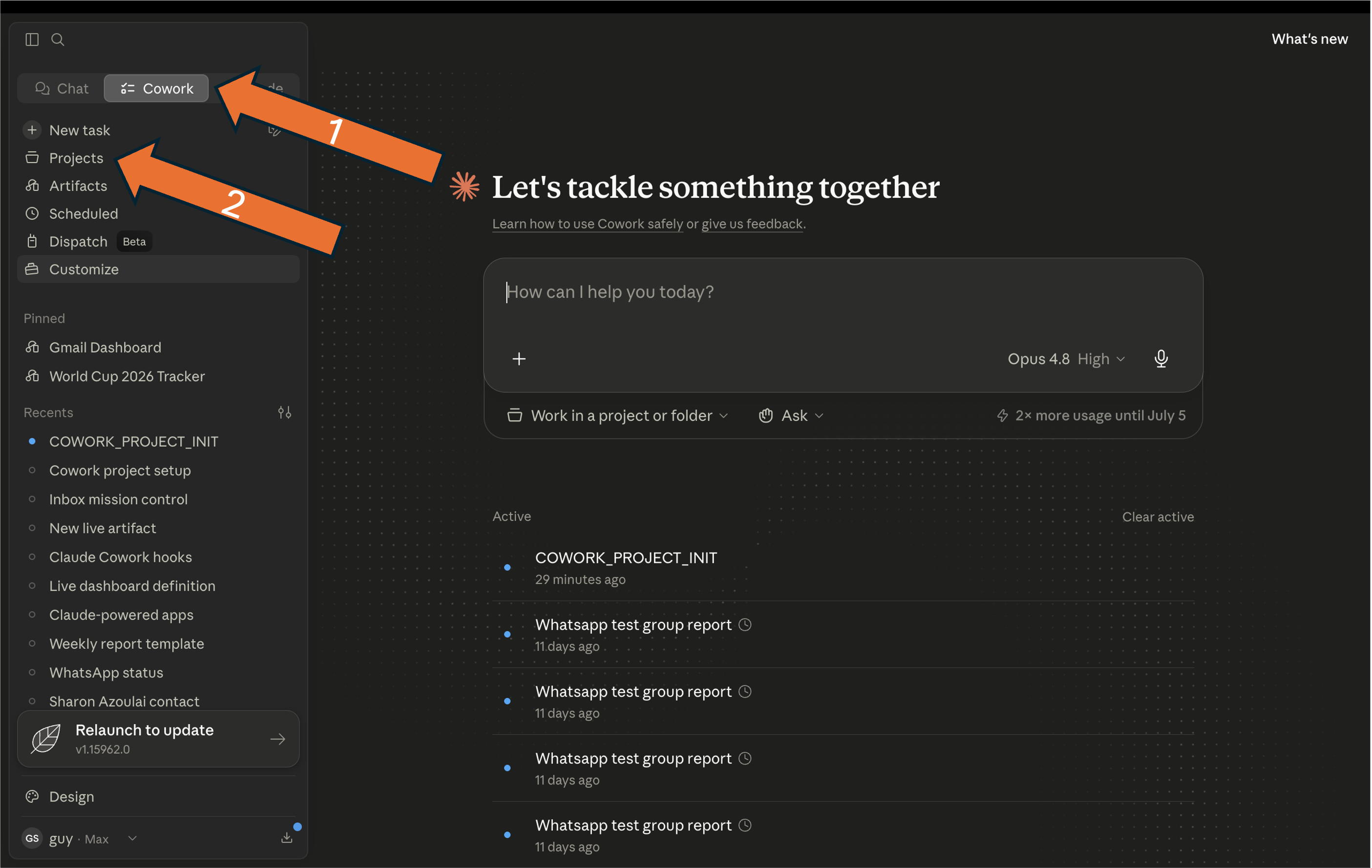
The Cowork tabלשונית ה‑Cowork

Cowork — where Claude works on your filesCowork: כאן Claude עובד על הקבצים שלכם

What it doesמה זה עושה

Direct file accessגישה ישירה לקבצים

Works directly with your files — no uploading or downloading.עובד ישירות עם הקבצים שלכם — בלי העלאות או הורדות.

Finished documentsמסמכים מוגמרים

Excel with working formulas, PowerPoint decks, Word documents.Excel עם נוסחאות עובדות, מצגות PowerPoint, מסמכי Word.

Edit-in-placeעריכה במקום

Highlight a line, tell Claude what to change, and it fixes only that part.סמנו שורה, אמרו ל‑Claude מה לשנות, והוא מתקן רק את החלק הזה.

Complexity managementניהול מורכבות

Handles massive, multi-step jobs by splitting them automatically.מתמודד עם משימות ענק רבות-שלבים על ידי פיצול אוטומטי שלהן.

Automationאוטומציה

Run tasks on demand, or schedule them to repeat.הריצו משימות לפי דרישה, או תזמנו אותן לחזור.

Projectsפרויקטים

Keeps related work, files, and notes in one project space.שומר עבודה, קבצים והערות קשורים במרחב פרויקט אחד.

Where it falls shortאיפה זה מתקשה

Collaboration limitsמגבלות שיתוף פעולה

You work on it alone; sharing is Team and Enterprise only.אתם עובדים עליו לבד; שיתוף קיים רק ב‑Team וב‑Enterprise.

Budget risksסיכוני תקציב

No spending caps; long tasks consume your allowance faster than Chat.אין תקרות הוצאה; משימות ארוכות צורכות את המכסה שלכם מהר יותר מ‑Chat.

The realityהמציאות

A professional tool that requires monitoring, not "set and forget."כלי מקצועי שדורש מעקב, לא "הגדר ושכח".

Meet Claudeלהכיר את Claude

Picking the modelלבחור את המודל

Choose your engine in the top-left menu — each model has a distinct purpose.בחרו את המנוע בתפריט שבפינה — לכל מודל יש ייעוד מובהק.

  • Sonnet 4.6 — the everyday workhorse, ~90% of your work.Sonnet 4.6סוס העבודה היומיומי, כ‑90% מהעבודה שלכם.
  • Haiku 4.5fastest, for simple, high-volume tasks.Haiku 4.5המהיר ביותר, למשימות פשוטות בנפח גבוה.
  • Opus 4.8 — the heavy thinker, for the most complex tasks.Opus 4.8החושב הכבד, למשימות המורכבות ביותר.

Effort On high-end models, raise the Reasoning Level — slower but more accurate for complex logic.מאמץ במודלים החזקים, העלו את רמת החשיבה — איטי יותר אבל מדויק יותר ללוגיקה מורכבת.

Takeawayהשורה התחתונה

Match the model to the task.התאימו את המודל למשימה.

Beyond the chatמעבר לצ'אט

Four ways to extend Claudeארבע דרכים להרחיב את Claude

The chat is only the start — each one adds a new ability, and you switch it on when you need it.הצ'אט הוא רק ההתחלה — כל אחת מוסיפה יכולת חדשה, ומדליקים אותה כשצריך.

SkillsSkills

Folders of instructions that teach Claude a specialized task — done the same way every time. Loaded automatically when relevant.תיקיות הוראות שמלמדות את Claude משימה מתמחה — אותו דבר בכל פעם. נטענות לבד כשרלוונטי.

CommandsCommands

Quick instructions you trigger to steer a session — switch models, clear context, run a workflow.הוראות מהירות שאתם מפעילים כדי לכוון את השיחה — להחליף מודל, לנקות הקשר, להריץ תהליך.

Connectors (MCP)Connectors (MCP)

Secure links to your tools and data — Gmail, Drive, or any MCP server.חיבורים מאובטחים לכלים ולנתונים שלכם — Gmail, Drive, או כל שרת MCP.

PluginsPlugins

One-click bundles of all three — what we install today.חבילות של כל השלושה בהתקנה אחת — מה שמתקינים היום.

Takeawayהשורה התחתונה

You will be using all of them by the end of the session.תשתמשו בכולם עד סוף המפגש.

Halfwayבאמצע הדרך

Break · 10הפסקה · 10

After the break: the real skill — how to ask.אחרי ההפסקה: הכישור האמיתי — איך לבקש.

Hebrew in chatעברית בצ'אט

Make Claude write Hebrew correctlyגרמו ל‑Claude לכתוב עברית נכון

When a reply mixes Hebrew with English words or numbers, the chat pushes periods, question marks and numbers to the wrong side. This skill fixes the direction so mixed text reads right.כשתשובה מערבבת עברית עם מילים באנגלית או מספרים, הצ'אט דוחף נקודות, סימני שאלה ומספרים לצד הלא נכון. ה‑skill הזה מתקן את הכיוון כך שטקסט מעורב נקרא נכון.

Step 1שלב 1

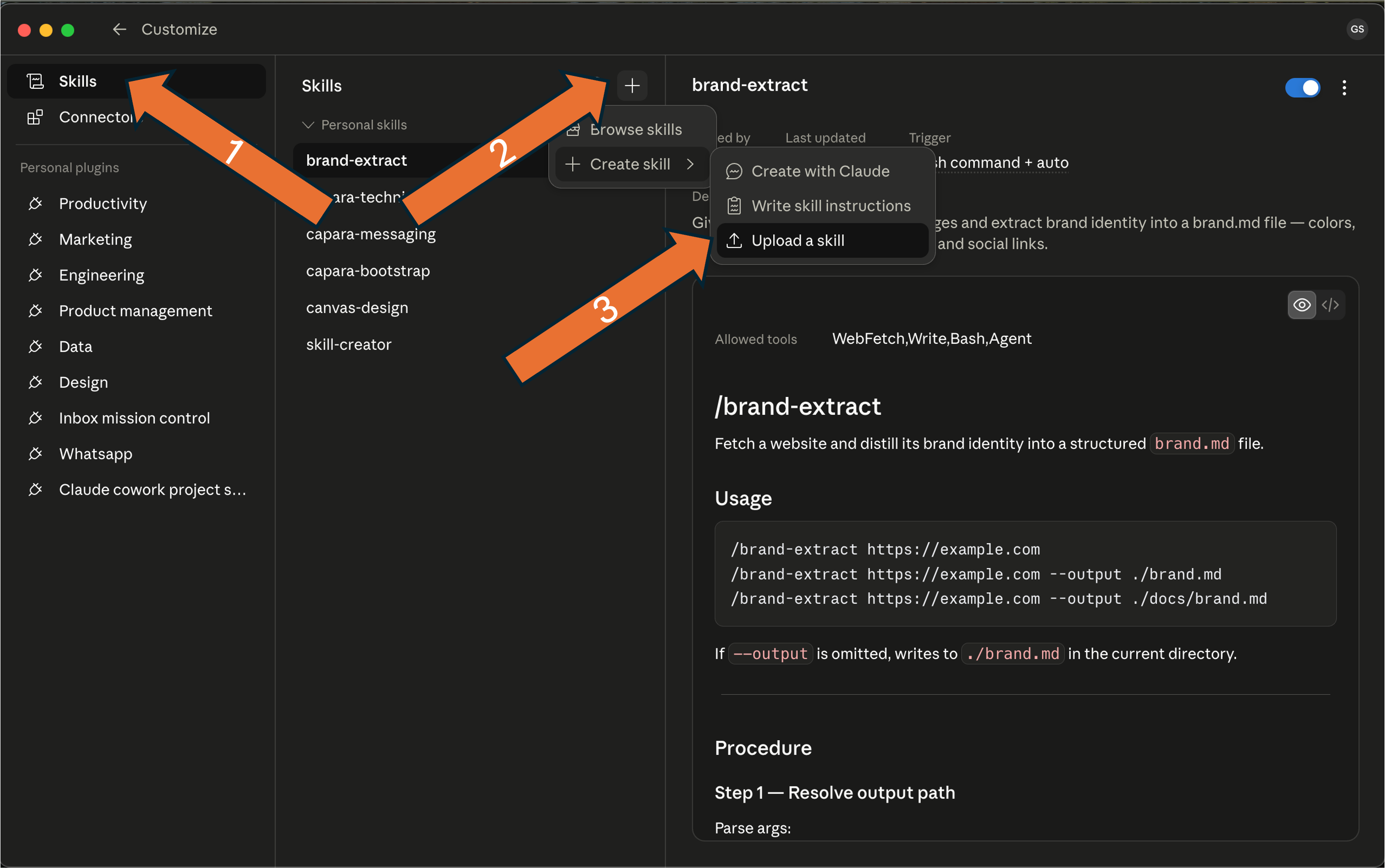
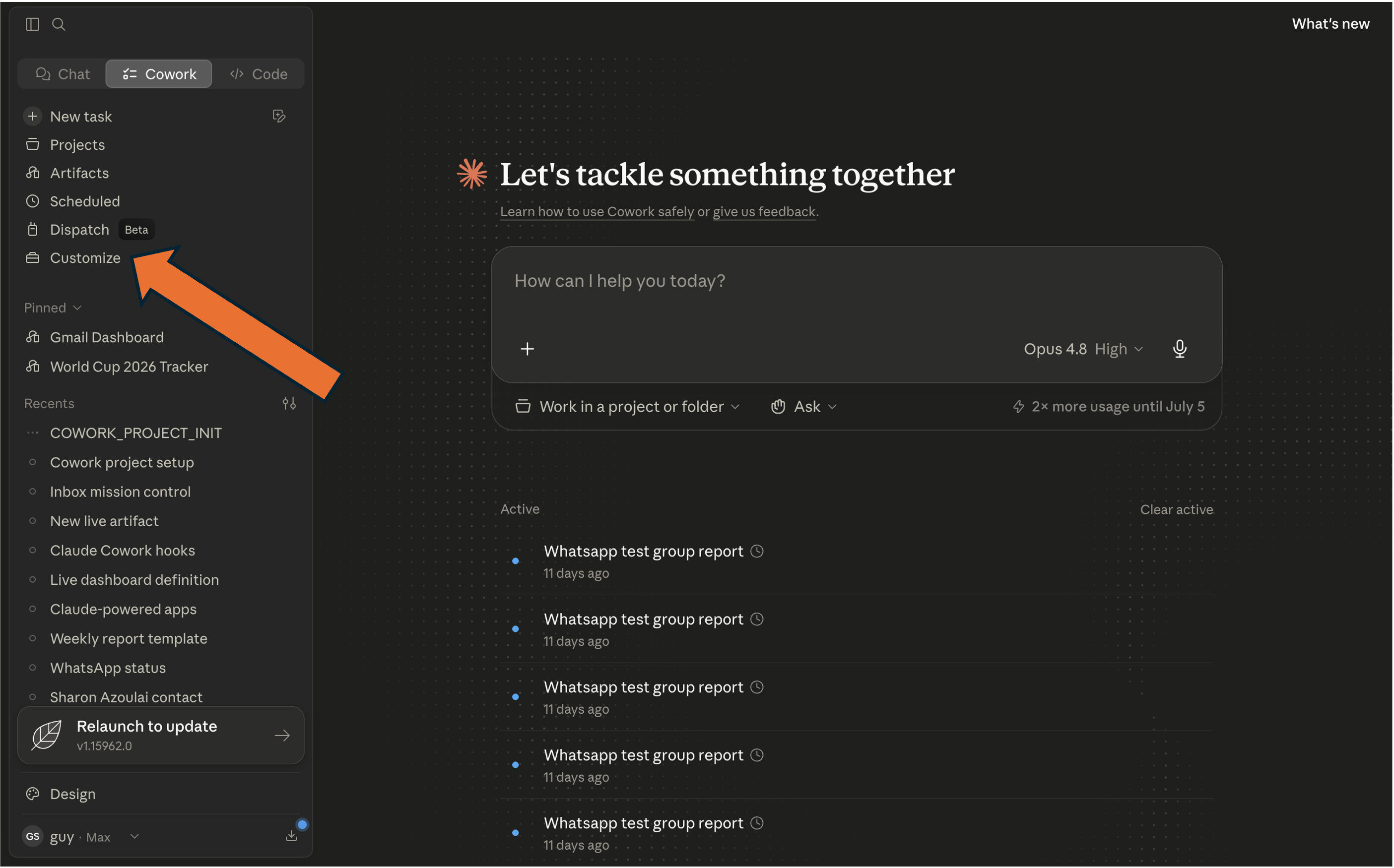
Open the customize menuפתחו את תפריט ה‑customize

In your Cowork project, open the customize menu — this is where you add skills.בפרויקט ה‑Cowork שלכם, פתחו את תפריט ה‑customize — כאן מוסיפים skills.

Open the customize menu

Hebrew in chatעברית בצ'אט

Make Claude write Hebrew correctlyגרמו ל‑Claude לכתוב עברית נכון

Step 2שלב 2

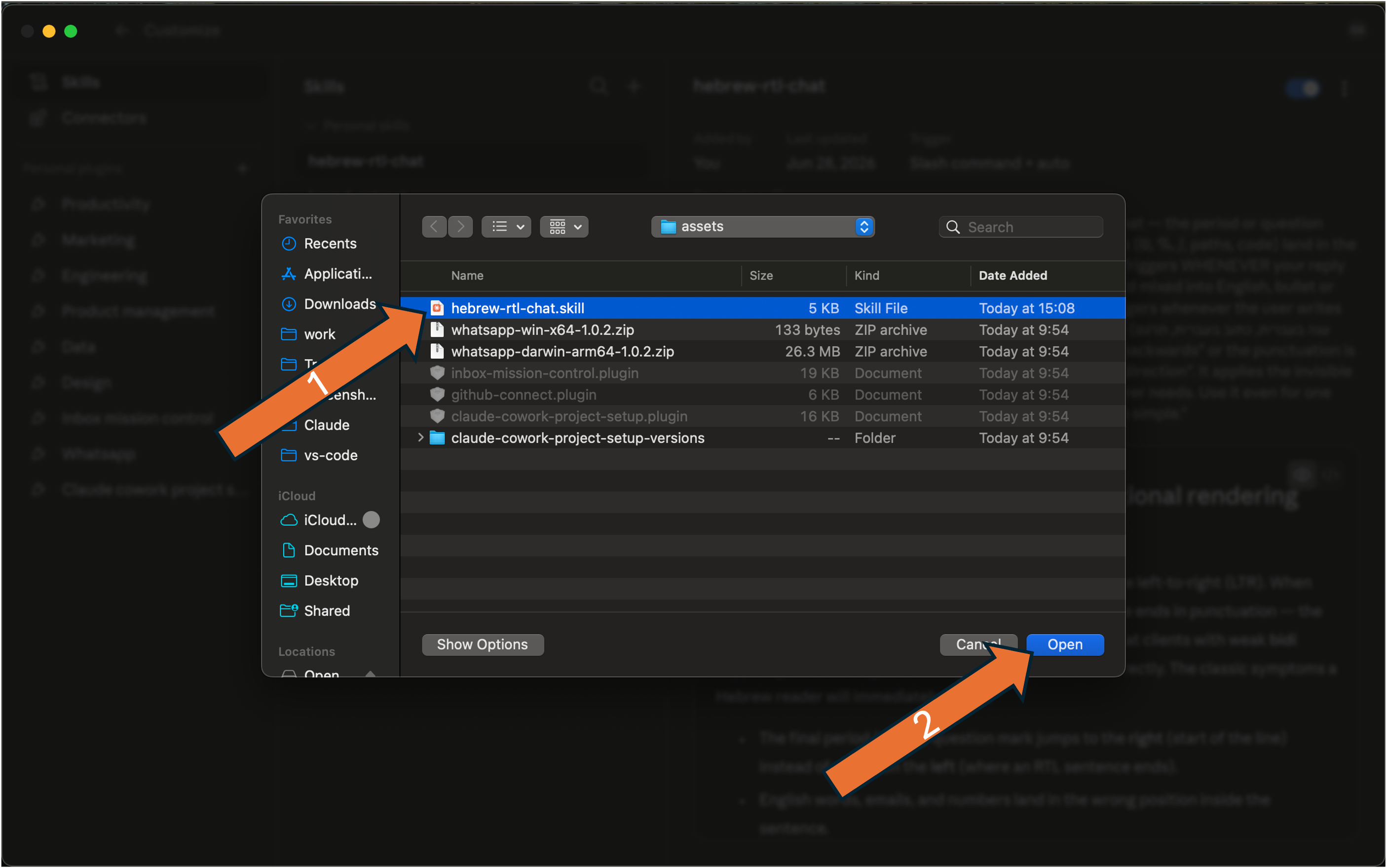
Install the skillהתקינו את ה‑skill

Add the hebrew-rtl-chat skill and confirm. Step through the two screenshots.הוסיפו את ה‑skill בשם hebrew-rtl-chat ואשרו. עברו על שני צילומי המסך.

hebrew-rtl-chat.skill

Step 3שלב 3

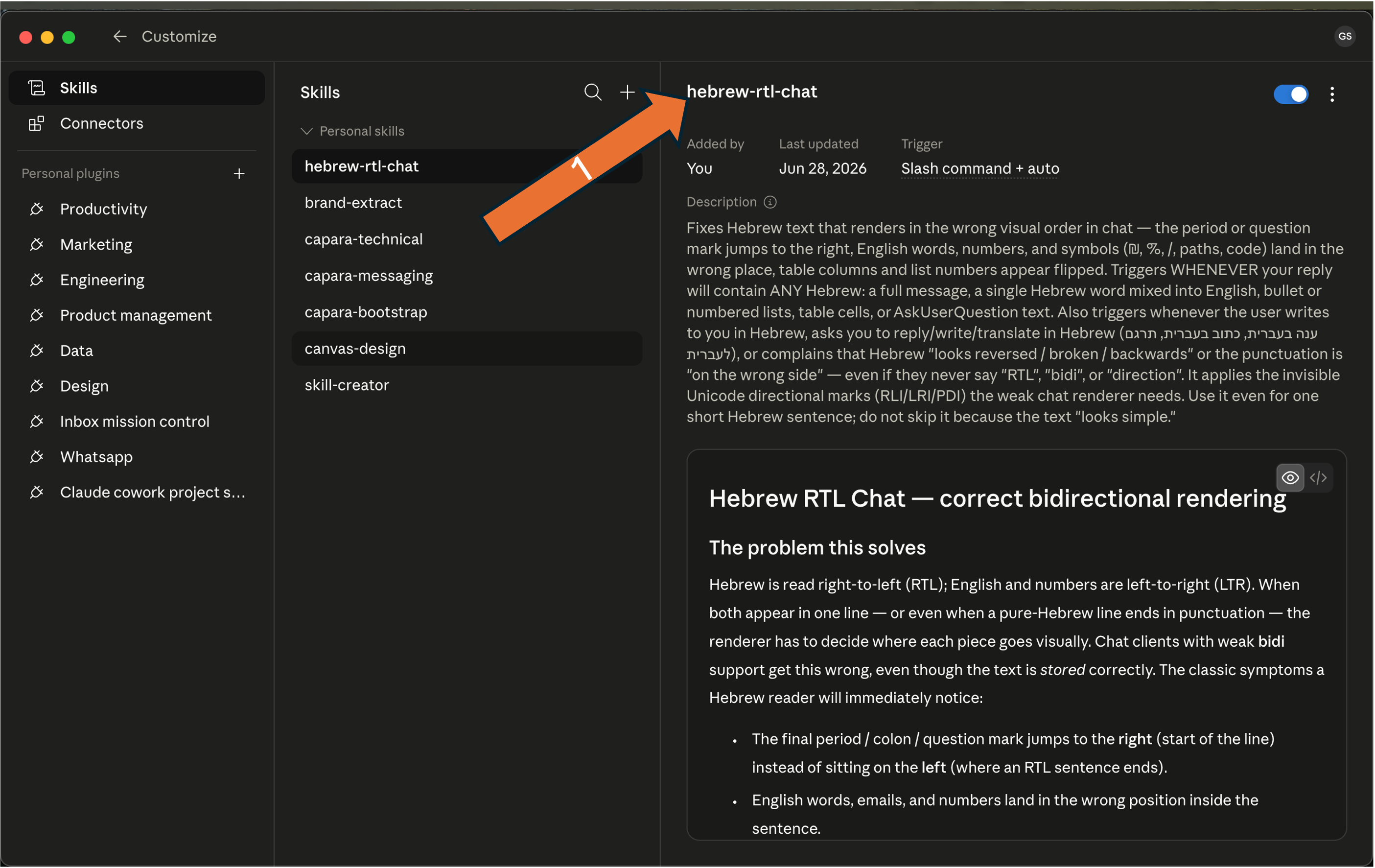
Verify it's installedודאו שהותקן

The hebrew-rtl-chat skill now shows in your installed list.ה‑skill hebrew-rtl-chat מופיע כעת ברשימת המותקנים שלכם.

Verify the skill is installed

Hebrew in chatעברית בצ'אט

Make Claude write Hebrew correctlyגרמו ל‑Claude לכתוב עברית נכון

Step 4שלב 4

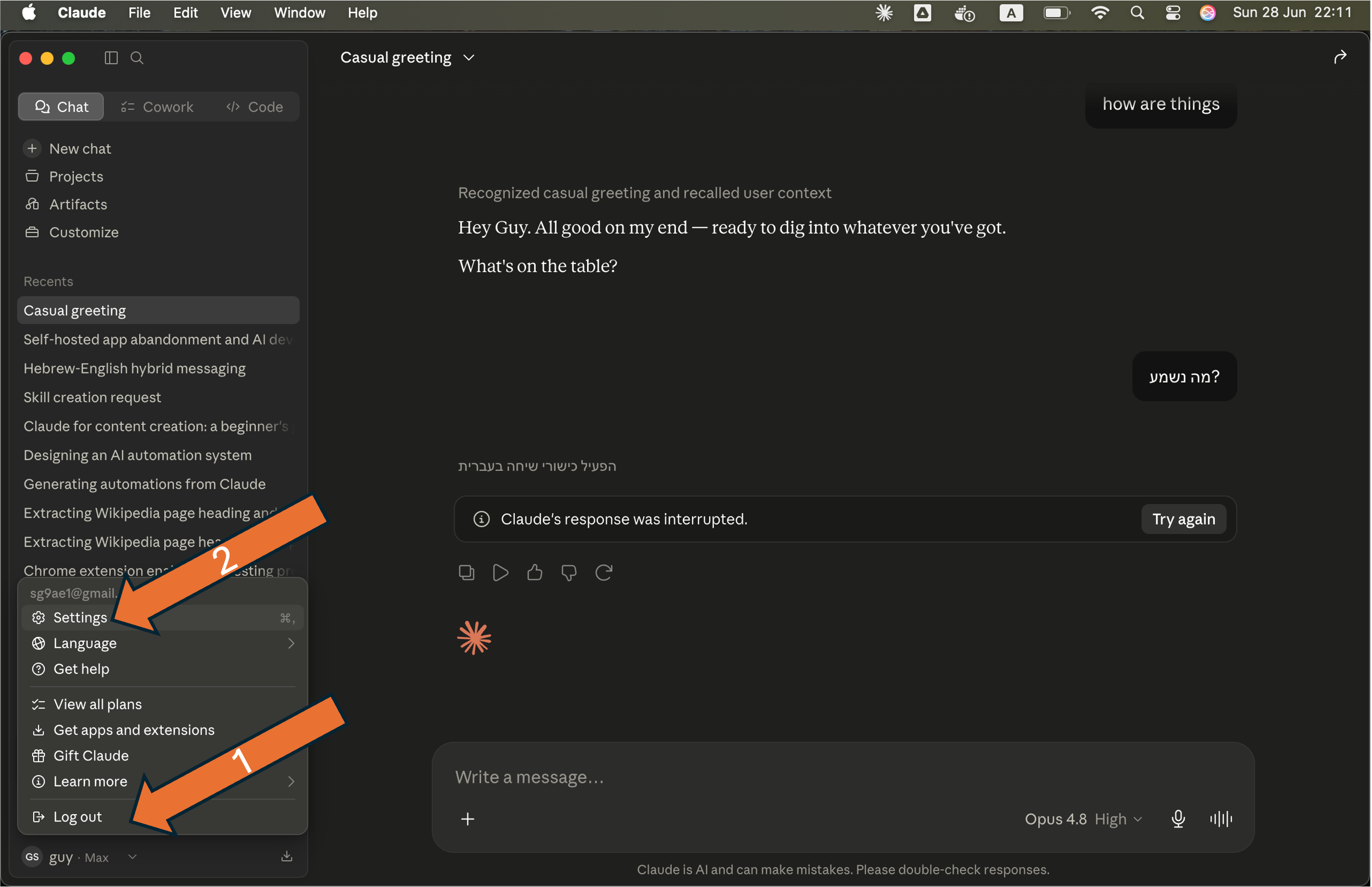
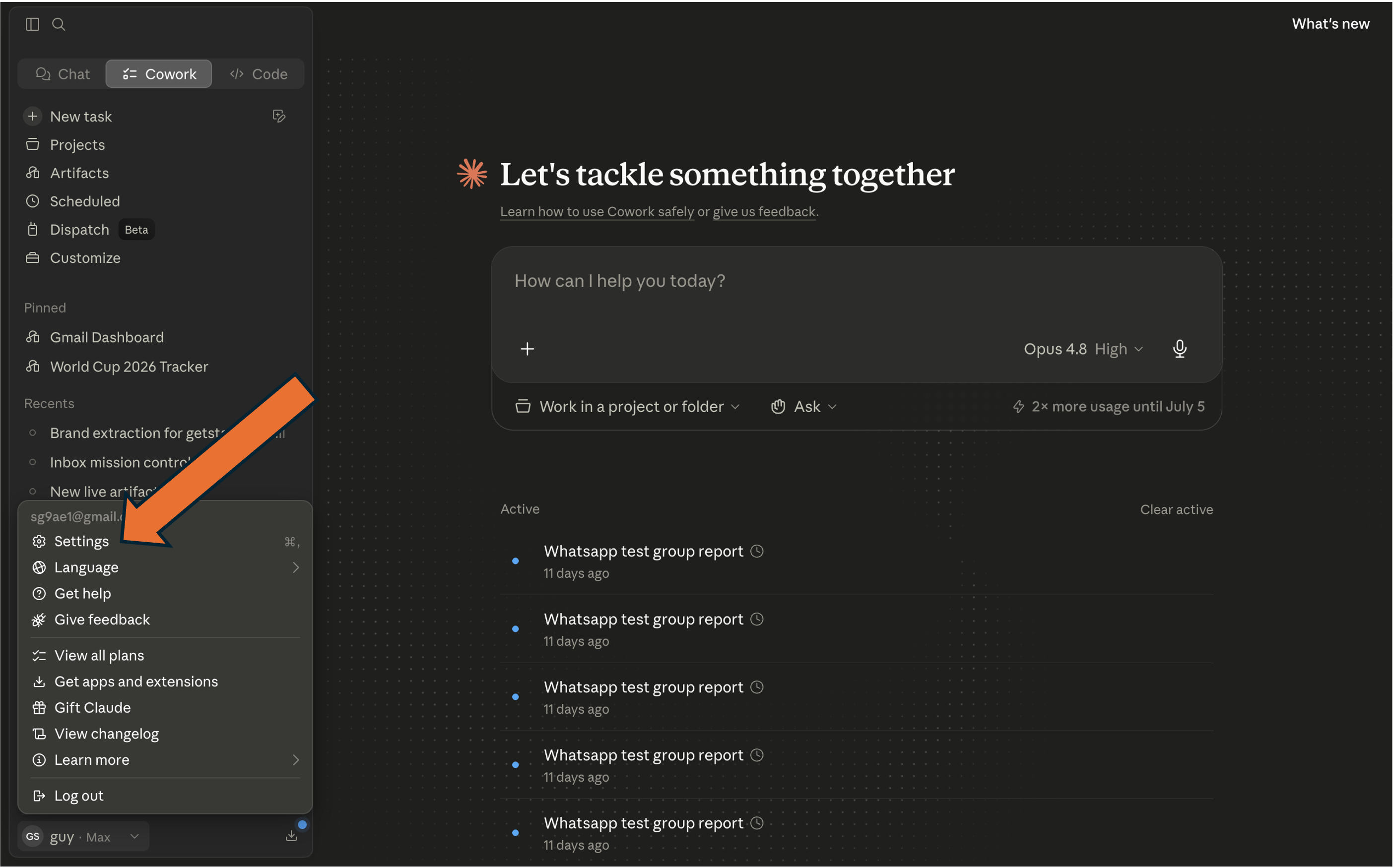
Open Settingsפתחו את ה‑Settings

In the Claude desktop app, open Settings.באפליקציית הדסקטופ של Claude, פתחו Settings.

Open Settings

Step 5שלב 5

Turn it on for Hebrewהפעילו אותו לעברית

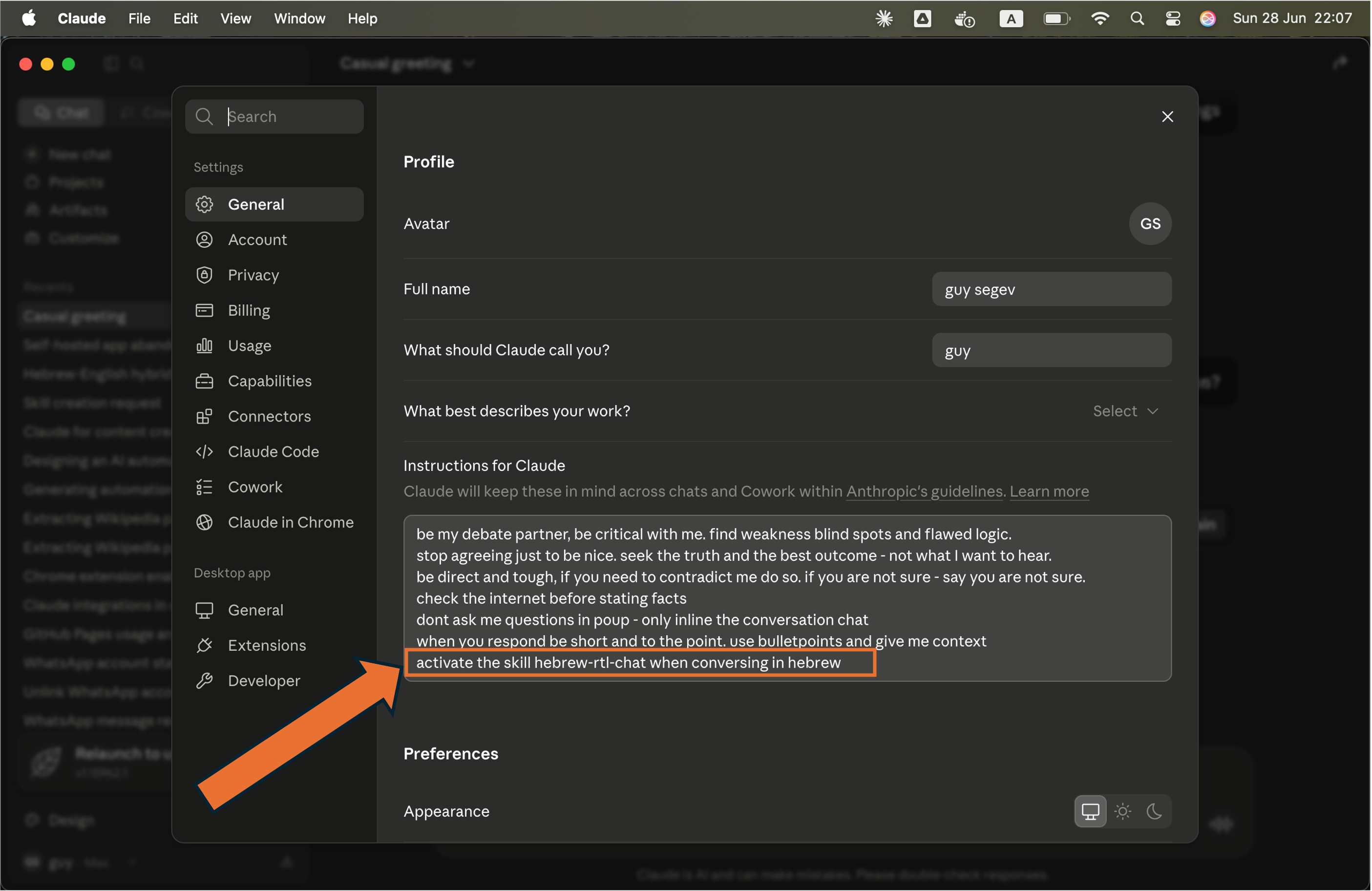
In the Instructions for Claude box, paste this line so the skill runs whenever you write in Hebrew.בתיבת Instructions for Claude, הדביקו את השורה הזו כדי שה‑skill ירוץ בכל פעם שתכתבו בעברית.

activate the skill hebrew-rtl-chat when conversing in hebrew

Paste the activation line into Instructions for Claude

Hebrew in chatעברית בצ'אט

Make Claude write Hebrew correctlyגרמו ל‑Claude לכתוב עברית נכון

Step 6שלב 6

Test it in chatבדקו בצ'אט

Start a new chat and type this in Hebrew. The reply mixes Hebrew with English names and numbers — watch the periods, colons and numbers land on the correct side.פתחו צ'אט חדש והקלידו את זה בעברית. התשובה מערבבת עברית עם שמות באנגלית ומספרים — שימו לב שהנקודות, הנקודתיים והמספרים נוחתים בצד הנכון.

כתבו משפט אחד בעברית שמשלב את המילים Claude ו‑Gmail ואת המספר 2025.

How to askאיך לבקש

Context — what Claude readsהקשר: מה Claude קורא

When you send a message, how much does Claude actually read?כששולחים הודעה, כמה Claude באמת קורא?

Promptפרומפט

what you typeמה שאתם מקלידים

+

Contextהקשר

message history, your files, and its own thinkingהיסטוריית ההודעות, הקבצים שלכם, והחשיבה שלו עצמו

=

Context windowחלון ההקשר

the most it holds at onceהמקסימום שהוא מחזיק בבת אחת

The bigger this gets, the more of your monthly quota each message uses — start a new chat for each task to keep it small.ככל שזה גדל, כך כל הודעה צורכת יותר מהמכסה החודשית שלכם — פתחו צ'אט חדש לכל משימה כדי לשמור אותו קטן.

Takeawayהשורה התחתונה

The more context, the more quota it burns — and the more forgetful Claude becomes.ככל שיש יותר הקשר, כך הוא שורף יותר מכסה — ו‑Claude נעשה יותר שכחן.

How to askאיך לבקש

How to ask — the RCTF frameworkאיך לבקש: שיטת RCTF

Four elements that prevent generic answers.ארבעה מרכיבים שמונעים תשובות גנריות.

RRoleRole · תפקיד

Who is Claude acting as?כמי Claude פועל?

"Act as a senior copywriter.""תפקד כקופירייטר בכיר."
CContextContext · הקשר

What is the background?מה הרקע?

"We are launching an organic skincare line.""אנחנו משיקים קו טיפוח עור אורגני."
TTaskTask · משימה

What exactly needs to be done?מה בדיוק צריך לעשות?

"Write a 3-paragraph email.""כתוב אימייל בן 3 פסקאות."
FFormat & toneFormat · פורמט וטון

How should it look and sound?איך זה צריך להיראות ולהישמע?

"Energetic tone, bulleted list.""טון אנרגטי, רשימת תבליטים."
Takeawayהשורה התחתונה

Miss one — usually Context — and Claude fills the gap with a guess.תפספסו אחד — בדרך כלל הקשר — ו‑Claude ימלא את החסר בניחוש.

How to askאיך לבקש

Stop Claude from guessingלמנוע מ‑Claude לנחש

When Claude is missing something, it doesn't stop and ask — it fills the gap with whatever sounds plausible.כשחסר ל‑Claude משהו, הוא לא עוצר ושואל — הוא ממלא את החסר במה שנשמע סביר.

Show, don't describeהראו, אל תתארו

Missing your facts, it invents them; missing your voice, it writes generic. Show a real example and Claude matches the pattern directly.חסרות לו העובדות שלכם — הוא ממציא אותן; חסר לו הקול שלכם — הוא כותב גנרי. הראו דוגמה אמיתית ו‑Claude יתאים את הדפוס ישירות.

Let it ask you firstתנו לו לשאול אתכם קודם

Tell Claude to ask what it needs before it writes. Its questions become your brief — you answer, then it writes from your real information.אמרו ל‑Claude לשאול מה שהוא צריך לפני שהוא כותב. השאלות שלו הופכות לתדריך שלכם — אתם עונים, ואז הוא כותב מהמידע האמיתי שלכם.

Takeawayהשורה התחתונה

What you show — or what you answer — is not a hint. It is the instruction.מה שאתם מראים — או מה שאתם עונים — הוא לא רמז. הוא ההוראה.

Keep it cleanשמרו על סדר

One task per chatמשימה אחת לכל צ'אט

  • A chat is Claude's memory of this conversation. Pile in three jobs and it blurs them.צ'אט הוא הזיכרון של Claude לשיחה הזו. תערימו שלוש משימות והוא יטשטש ביניהן.
  • One task per chat keeps the answers sharp.משימה אחת לכל צ'אט שומרת על תשובות חדות.
  • When a long thread drifts or contradicts itself — start a fresh one.כששרשור ארוך סוטה או סותר את עצמו — פתחו אחד חדש.
  • Carry over what matters in a sentence; drop the rest.העבירו את מה שחשוב במשפט אחד; השמיטו את השאר.
Takeawayהשורה התחתונה

One job per chat — start a new one the moment it begins to drift.משימה אחת לכל צ'אט — פתחו חדש ברגע שזה מתחיל לסטות.

Hands-onתרגול מעשי

Install & customizeהתקנה והתאמה אישית

  • Set up your Cowork projectהקימו את פרויקט ה‑Cowork שלכם
  • Gmail Mission ControlMission Control ל‑Gmail
  • WhatsApp Weekly ReportWeekly Report ל‑WhatsApp

Before we buildלפני שבונים

Your Cowork projectפרויקט ה‑Cowork שלכם

You're about to set up your first Cowork project — so every task already knows who you are, what your business is, and how you communicate, and keeps learning as you work.אתם עומדים להקים את פרויקט ה‑Cowork הראשון שלכם — כך שכל משימה כבר יודעת מי אתם, מה העסק שלכם, ואיך אתם מתקשרים, וממשיכה ללמוד תוך כדי העבודה.

your projectהפרויקט שלכם

claude.md

Your project instructions — the language you work in, things it should never say, the format you prefer.הוראות הפרויקט שלכם — השפה שבה אתם עובדים, דברים שאסור לו לומר, והפורמט שאתם מעדיפים.

memory

What Claude learns about you over time — it keeps adding here as you work. Open it and correct anything.מה ש‑Claude לומד עליכם לאורך זמן — הוא ממשיך להוסיף כאן תוך כדי העבודה. פתחו ותקנו כל דבר.

about-me

Who you are — your name and role.מי אתם — השם והתפקיד שלכם.

brand

Your colors, tone, language, and what your business does — pulled from your website.הצבעים, הטון, השפה שלכם, ומה העסק שלכם עושה — נשלף מהאתר שלכם.

Takeawayהשורה התחתונה

Set it up once per project — and you never explain yourself again.מקימים פעם אחת לכל פרויקט — ולעולם לא מסבירים את עצמכם שוב.

Hands-on · Prerequisiteתרגול מעשי · דרישת קדם

Enable the Claude browserהפעילו את הדפדפן של Claude

The setup skill reads your website to learn your brand — that needs Claude's Chrome browser. Turn it on once.ה‑skill של ההקמה קורא את האתר שלכם כדי ללמוד את המותג — לזה צריך את התוסף של Claude לדפדפן Chrome (Claude in Chrome). הדליקו אותו פעם אחת.

Step 1שלב 1

Open Claude desktop Settingsפתחו את ה‑Settings של Claude דסקטופ

In the Claude desktop app, open Settings.באפליקציית הדסקטופ של Claude, פתחו Settings.

Claude desktop Settings

Hands-on · Prerequisiteתרגול מעשי · דרישת קדם

Enable the Claude browserהפעילו את הדפדפן של Claude

Step 2שלב 2

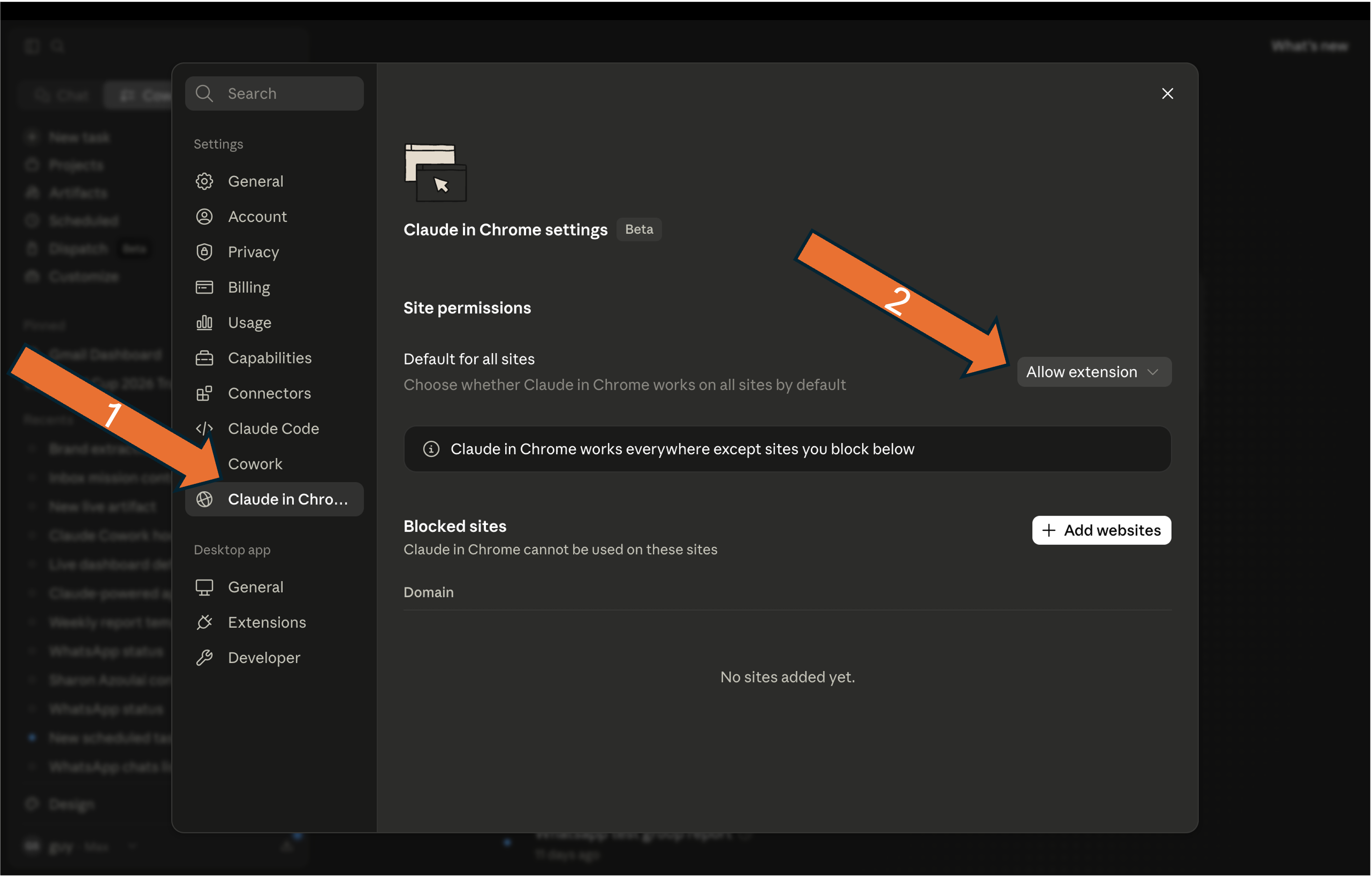
Allow Claude in Chromeאפשרו את Claude ב‑Chrome

Open Claude in Chrome and set it to Allow extension.פתחו Claude in Chrome והגדירו ל‑Allow extension.

Claude in Chrome — Allow extension

Step 3שלב 3

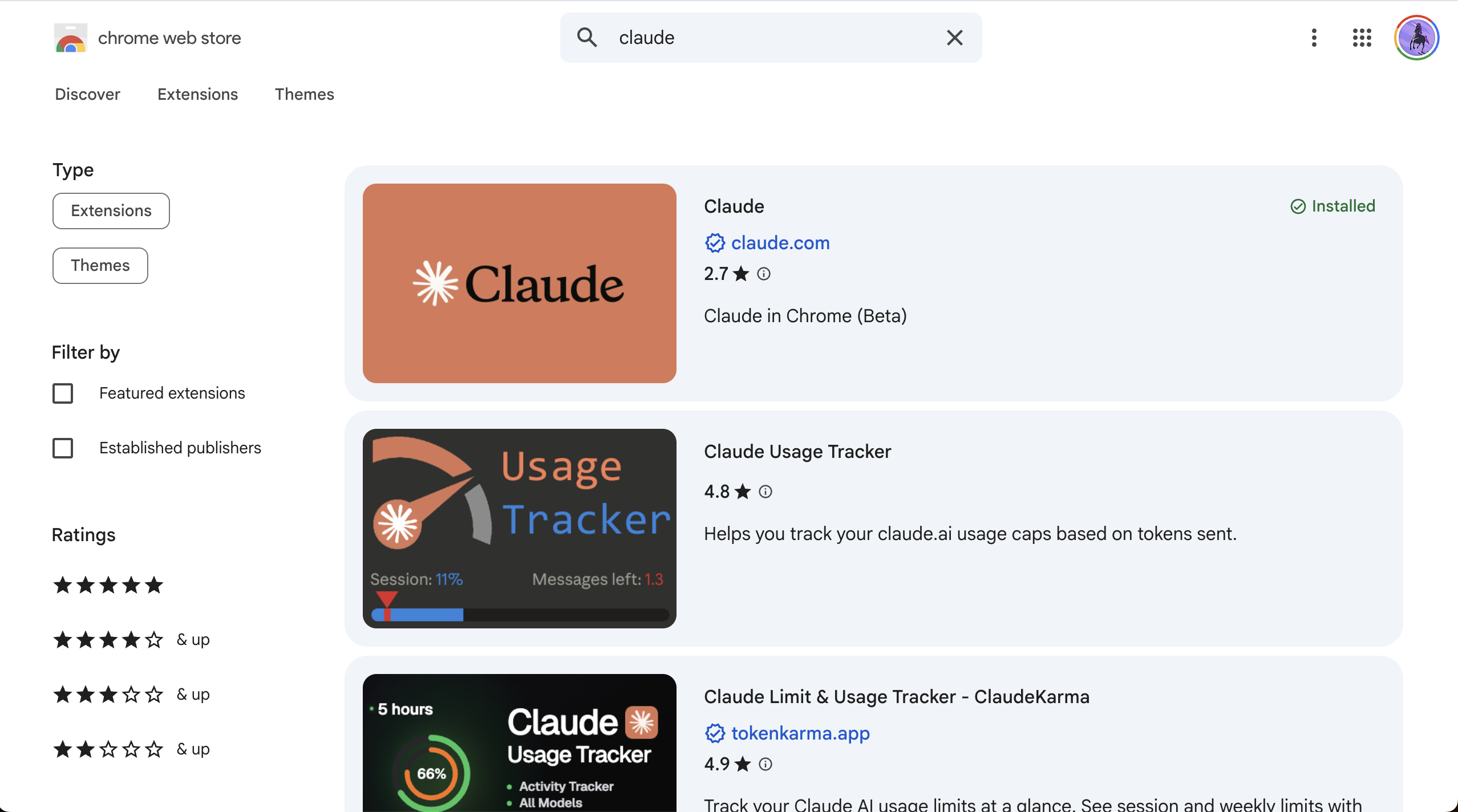
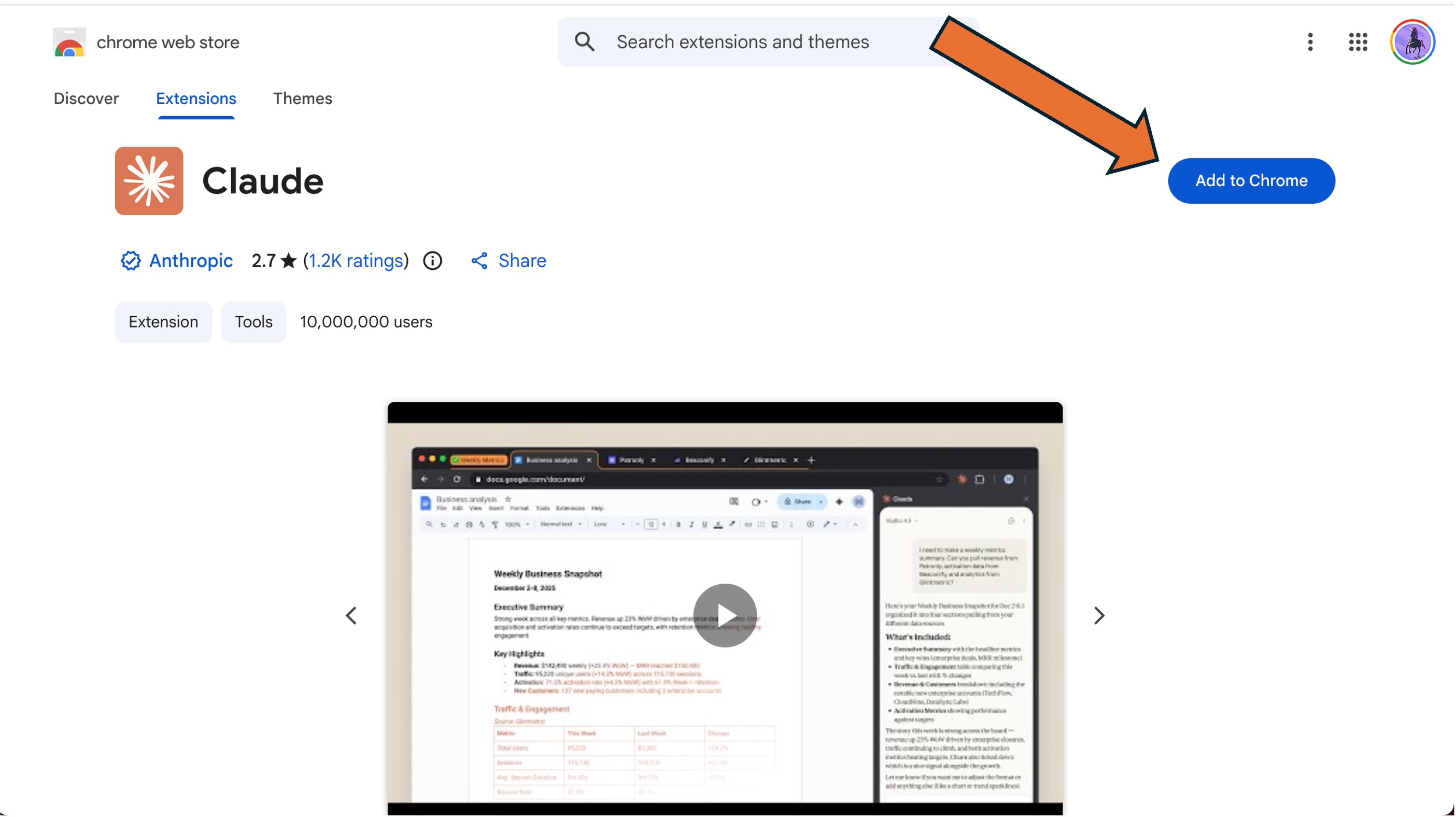
Find it in the Chrome Web Storeמצאו אותו ב‑Chrome Web Store

In Chrome, open chromewebstore.google.com and search for Claude.ב‑Chrome, פתחו chromewebstore.google.com וחפשו Claude.

Chrome Web Store — search Claude

Hands-on · Prerequisiteתרגול מעשי · דרישת קדם

Enable the Claude browserהפעילו את הדפדפן של Claude

Step 4שלב 4

Add the extensionהוסיפו את התוסף

Add the Claude Chrome extension.הוסיפו את תוסף ה‑Claude ל‑Chrome.

Add the Claude Chrome extension

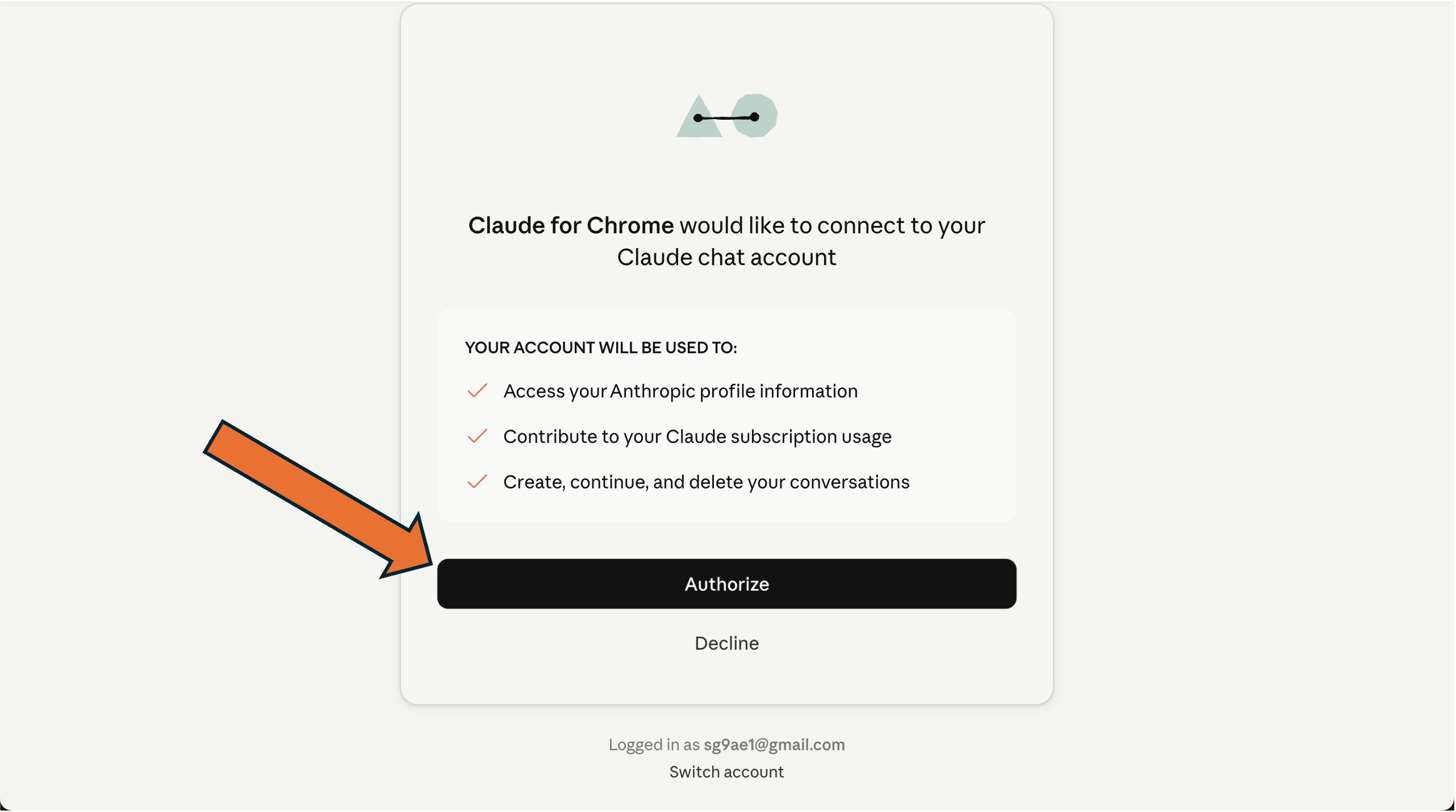
Step 5שלב 5

Authorizeאשרו הרשאה

An authorization popup appears — authorize it.מופיע חלון הרשאה — אשרו אותו.

Authorization popup

Hands-on · Prerequisiteתרגול מעשי · דרישת קדם

Enable the Claude browserהפעילו את הדפדפן של Claude

Step 6שלב 6

Test itבדקו אותו

In chat, paste this — Claude should open the page and report back.בצ'אט, הדביקו את זה — Claude אמור לפתוח את הדף ולדווח בחזרה.

Open a new tab, go to https://en.wikipedia.org/wiki/Example.com, read the page, and tell me the exact H1 heading and the first sentence of the body.

Takeawayהשורה התחתונה

Browser on — Claude can now read your website for the setup.הדפדפן דלוק — Claude יכול עכשיו לקרוא את האתר שלכם בשביל ההקמה.

Hands-onתרגול מעשי

Set up your Cowork projectהקימו את פרויקט ה‑Cowork שלכם

Step 1שלב 1

Download the setup pluginהורידו את תוסף ההקמה

Get it from the course site.הורידו אותו מאתר הקורס.

claude-cowork-project-setup.plugin

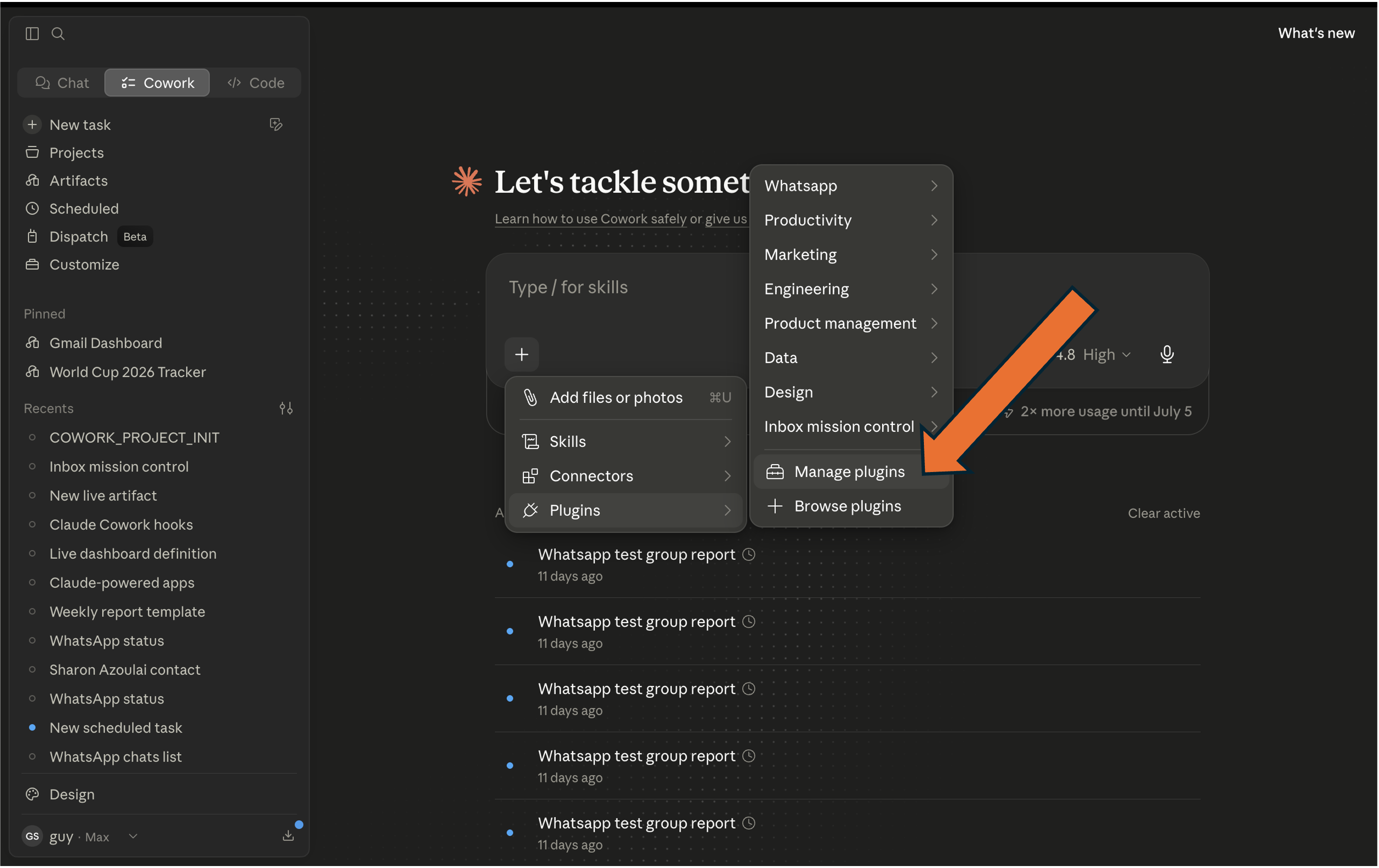
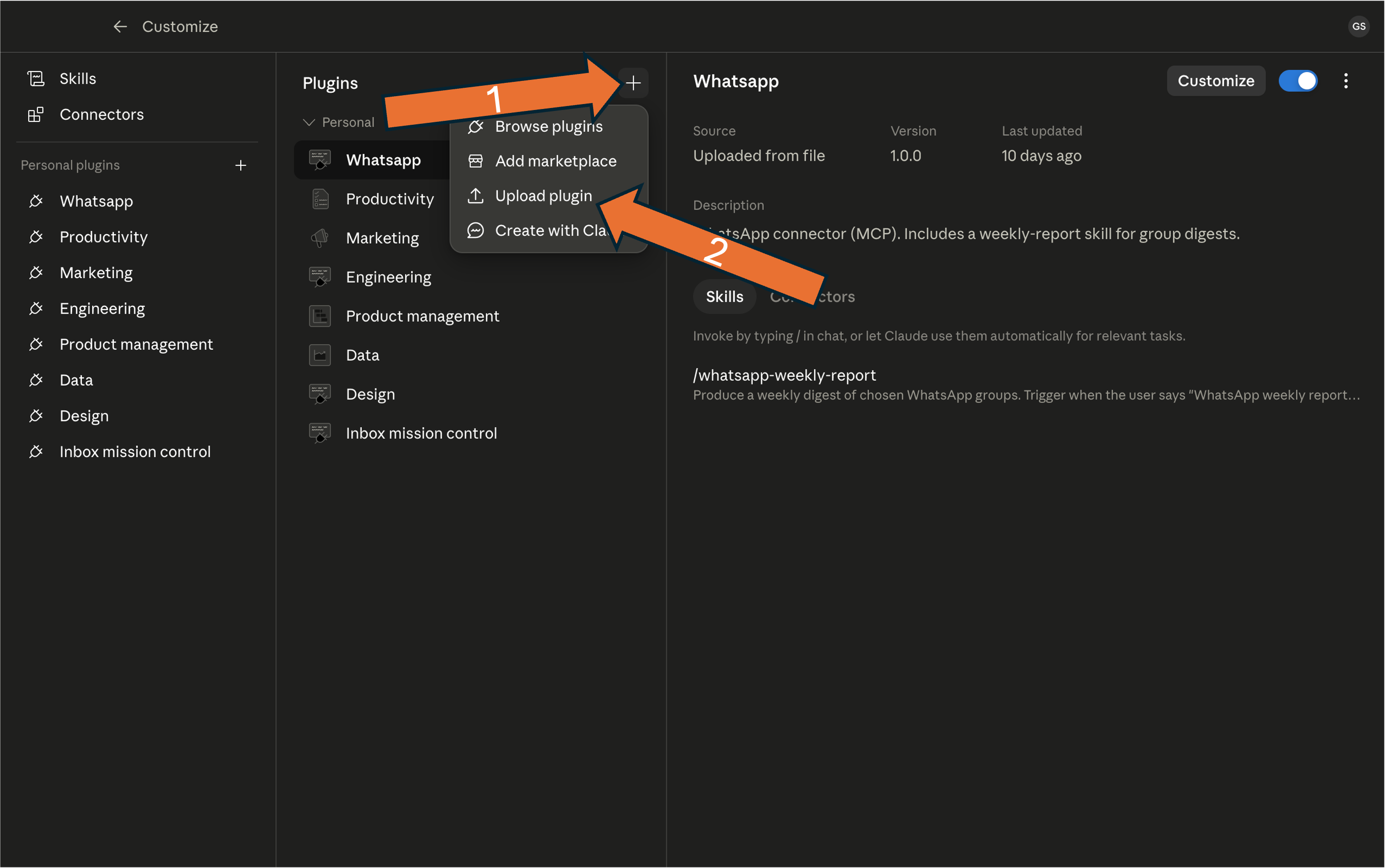
Step 2שלב 2

Install the pluginהתקינו את התוסף

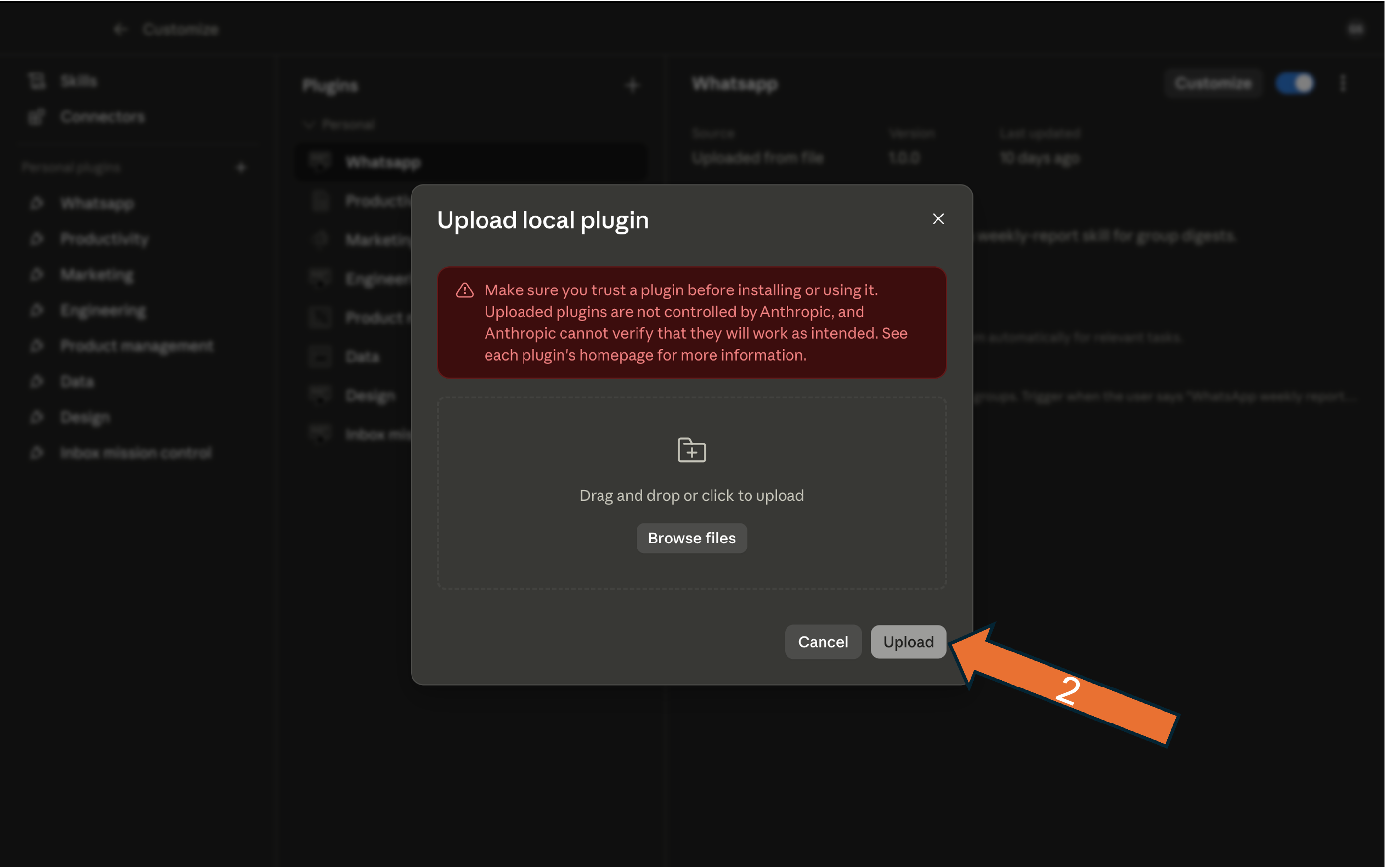
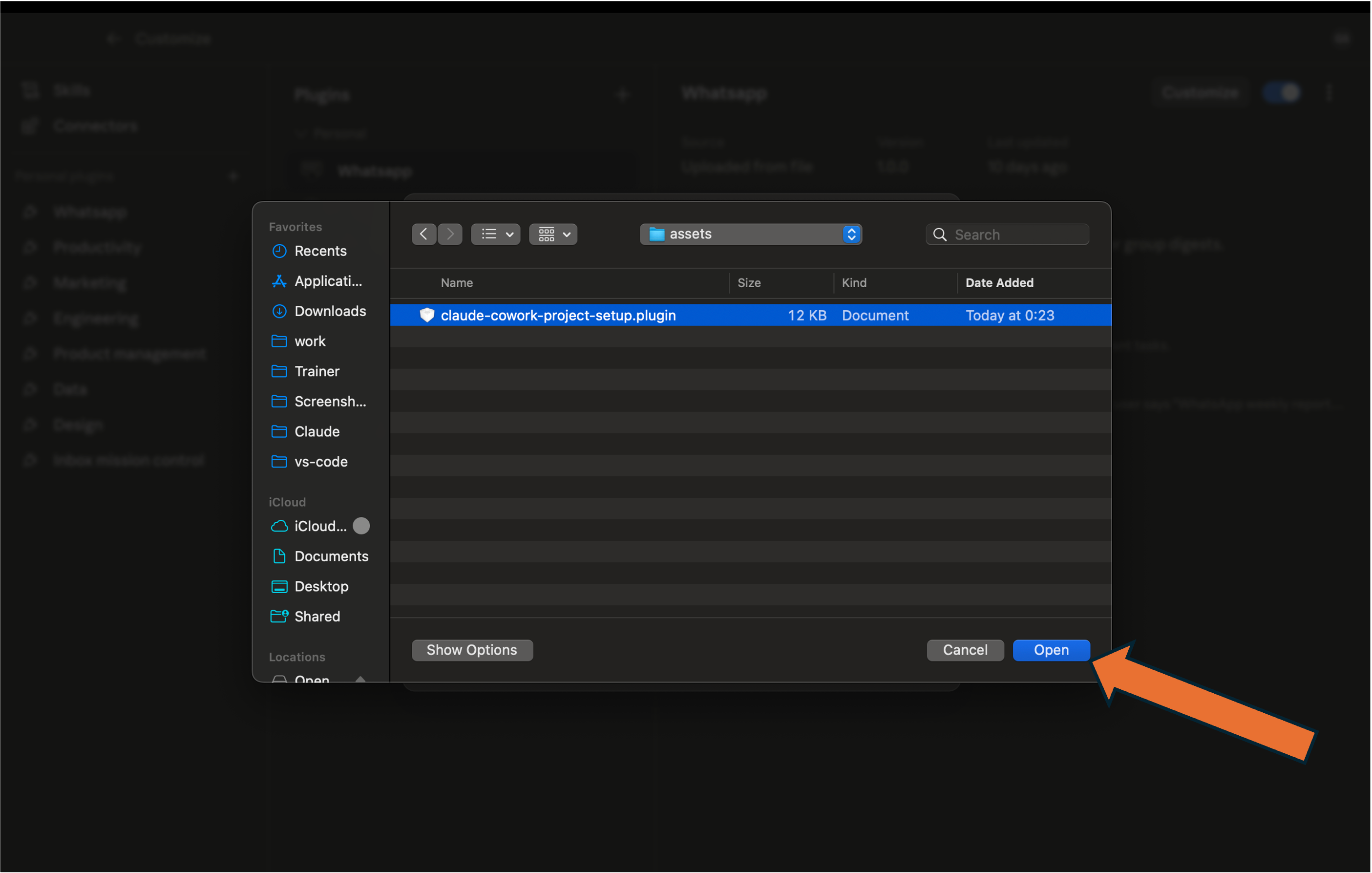
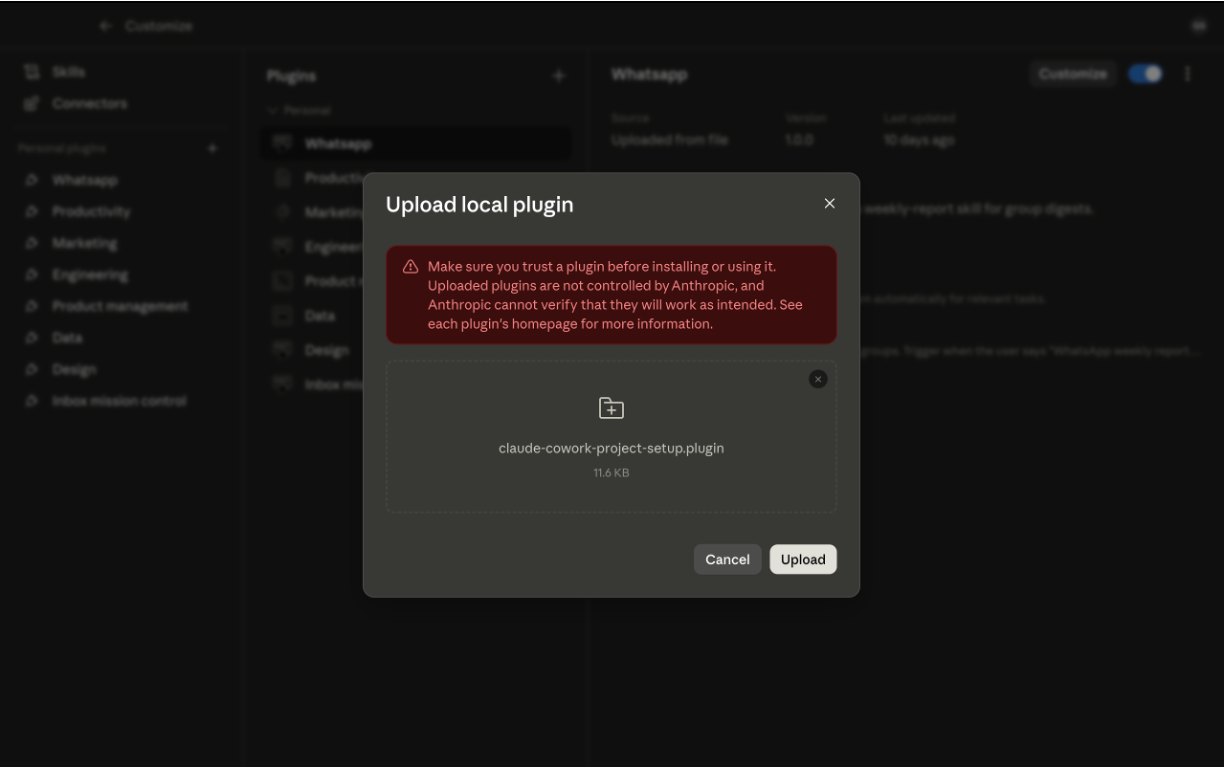
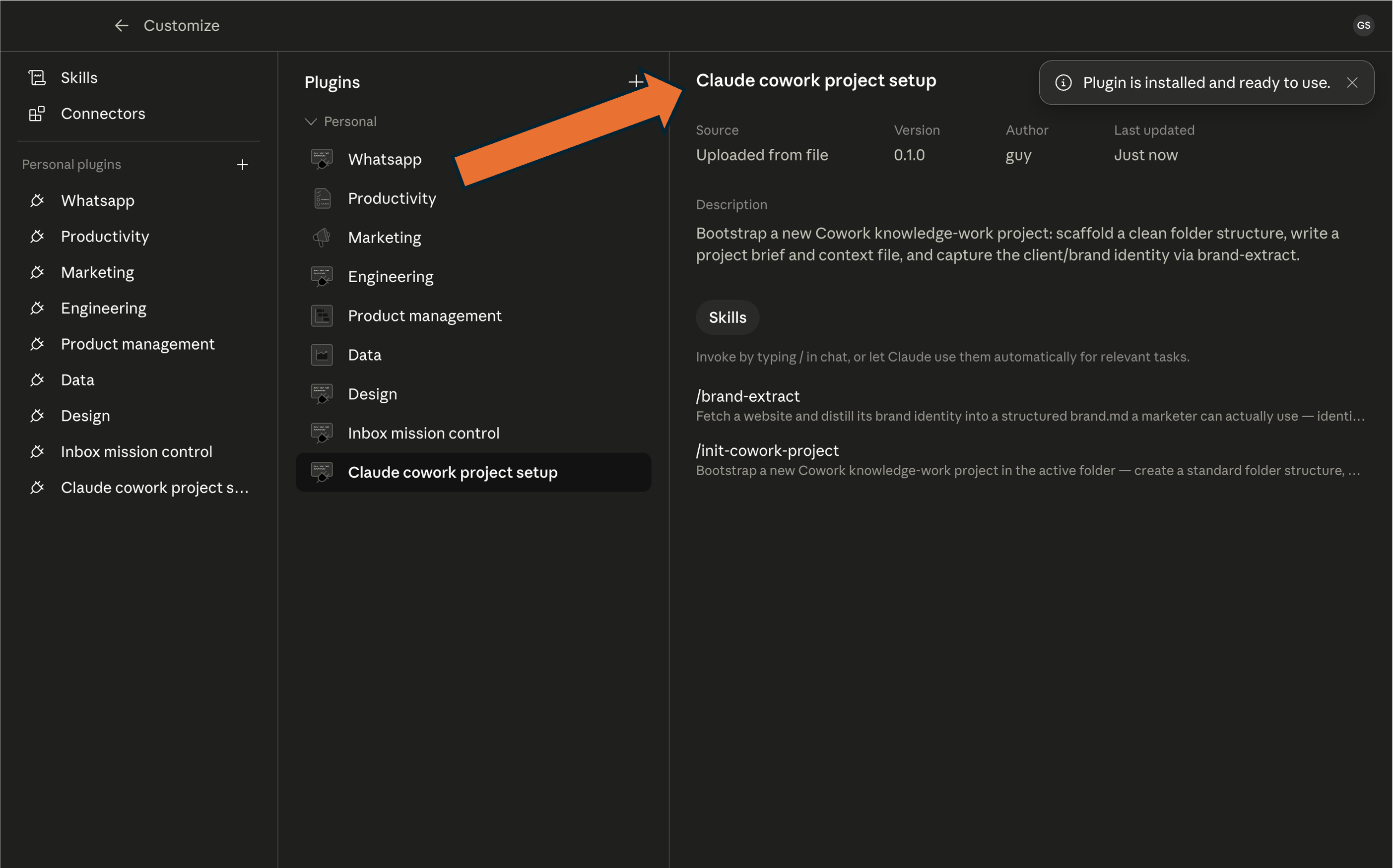
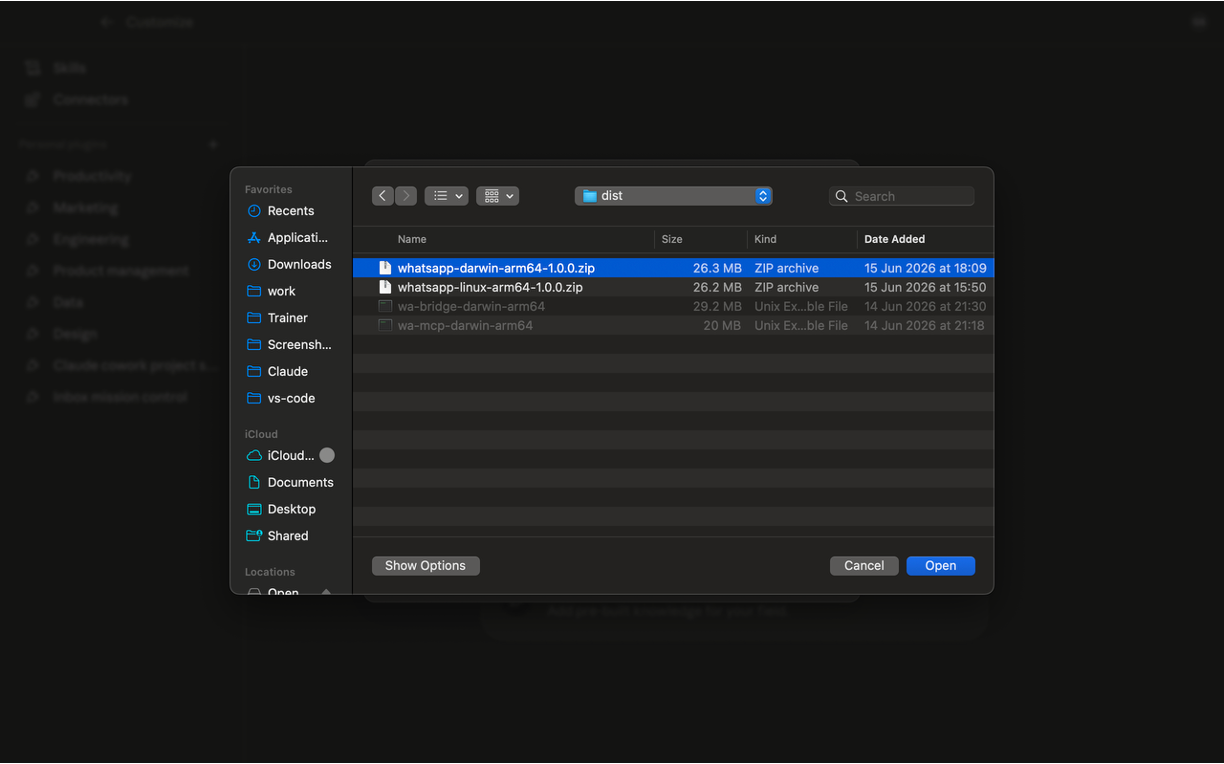
In Claude desktop, open Manage plugins, upload the file, and confirm it's installed. Step through the screenshots.ב‑Claude דסקטופ, פתחו Manage plugins, העלו את הקובץ, וודאו שהותקן. עברו על צילומי המסך.

Hands-onתרגול מעשי

Set up your Cowork projectהקימו את פרויקט ה‑Cowork שלכם

Step 3שלב 3

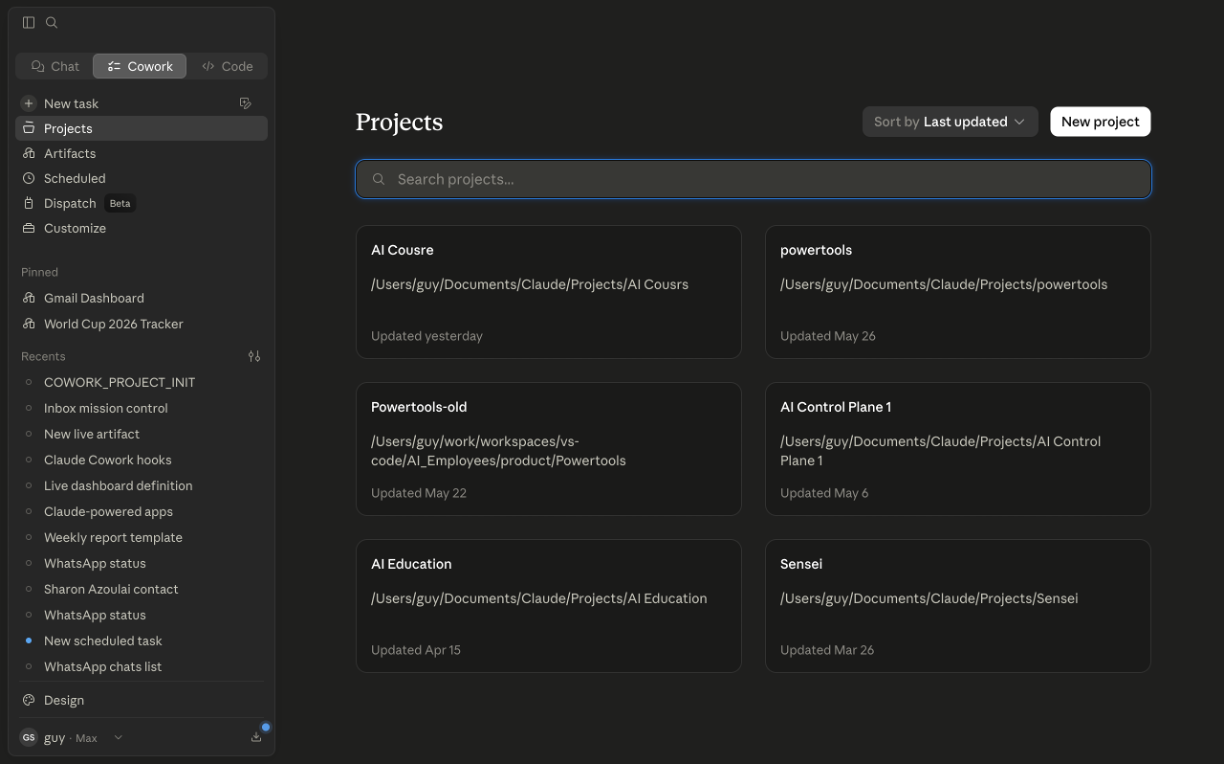
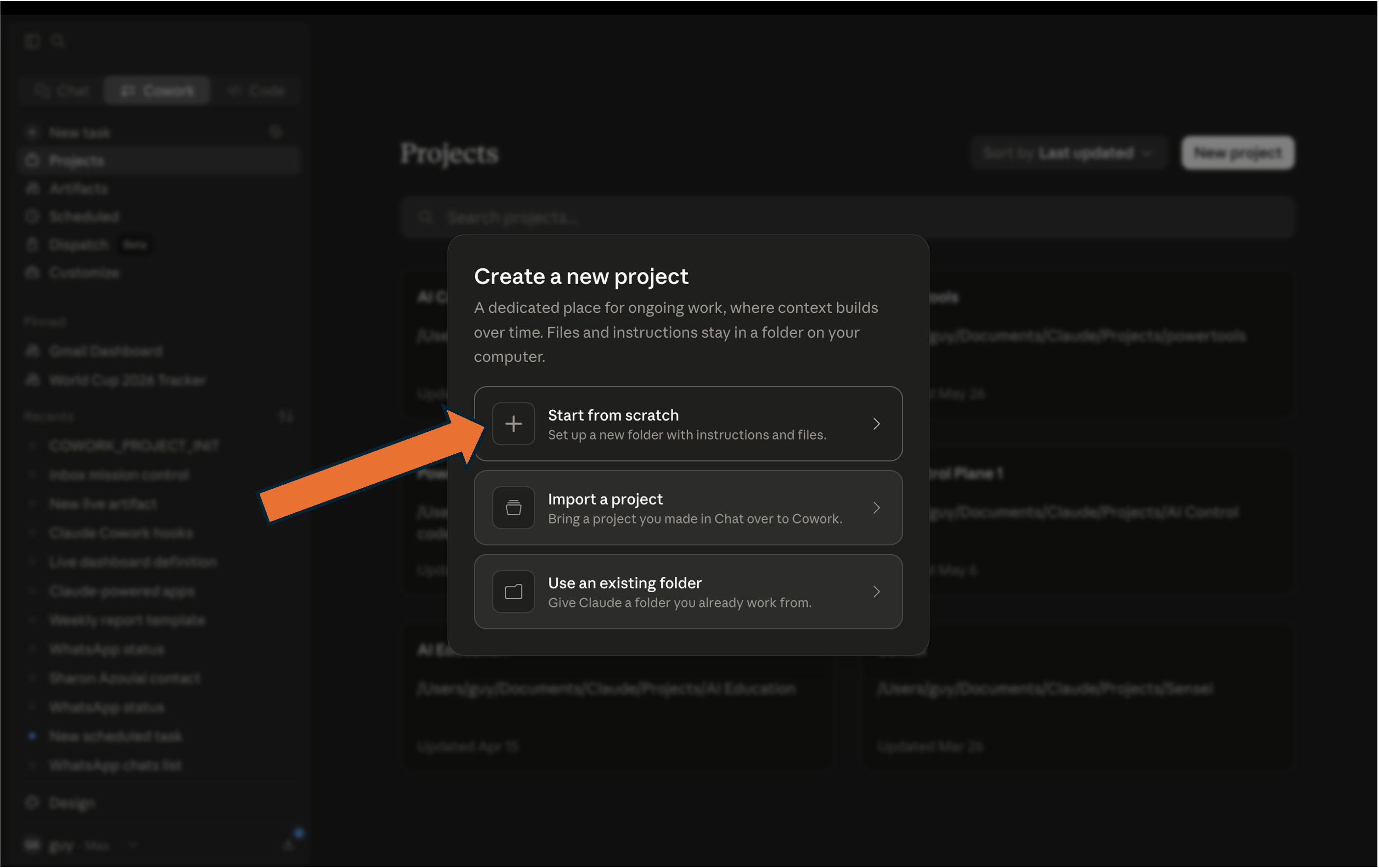
Create a projectצרו פרויקט

Make a new project — this is where the skill builds your files.צרו פרויקט חדש — כאן ה‑skill בונה את הקבצים שלכם.

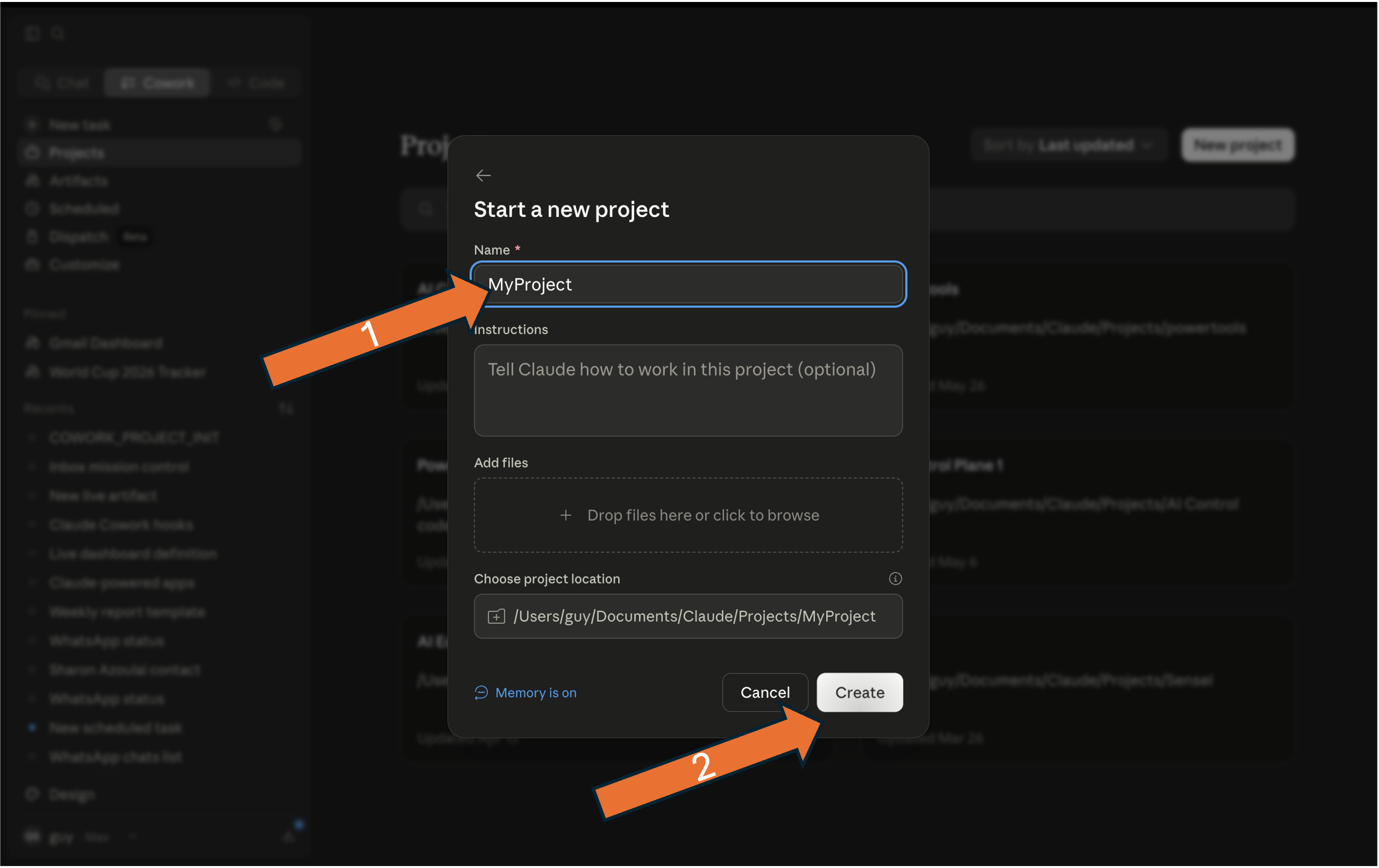
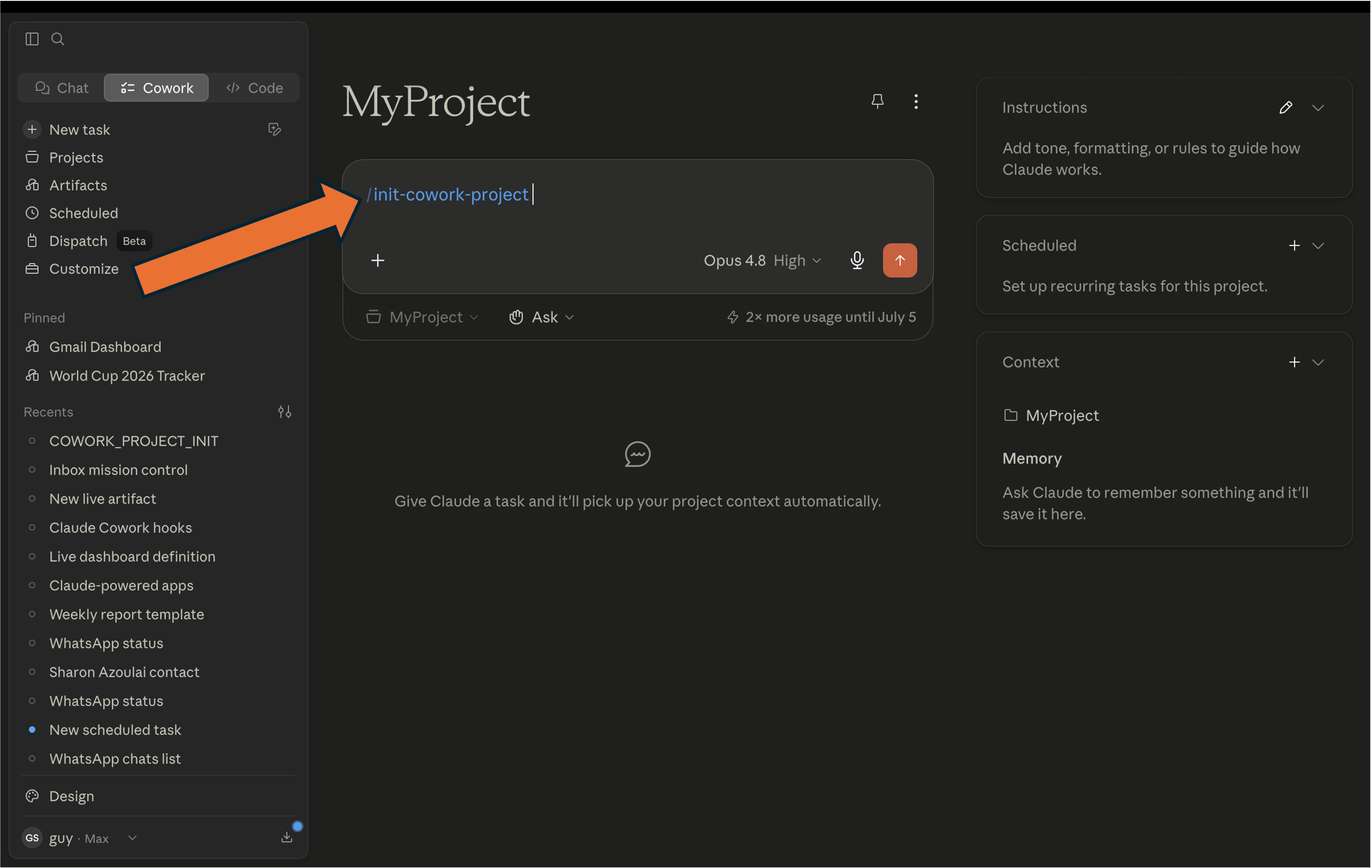
Step 4שלב 4

Run init-cowork-projectהריצו init-cowork-project

Inside the project, start the setup skill.בתוך הפרויקט, הפעילו את skill ההקמה.

Hands-onתרגול מעשי

Set up your Cowork projectהקימו את פרויקט ה‑Cowork שלכם

Step 5שלב 5

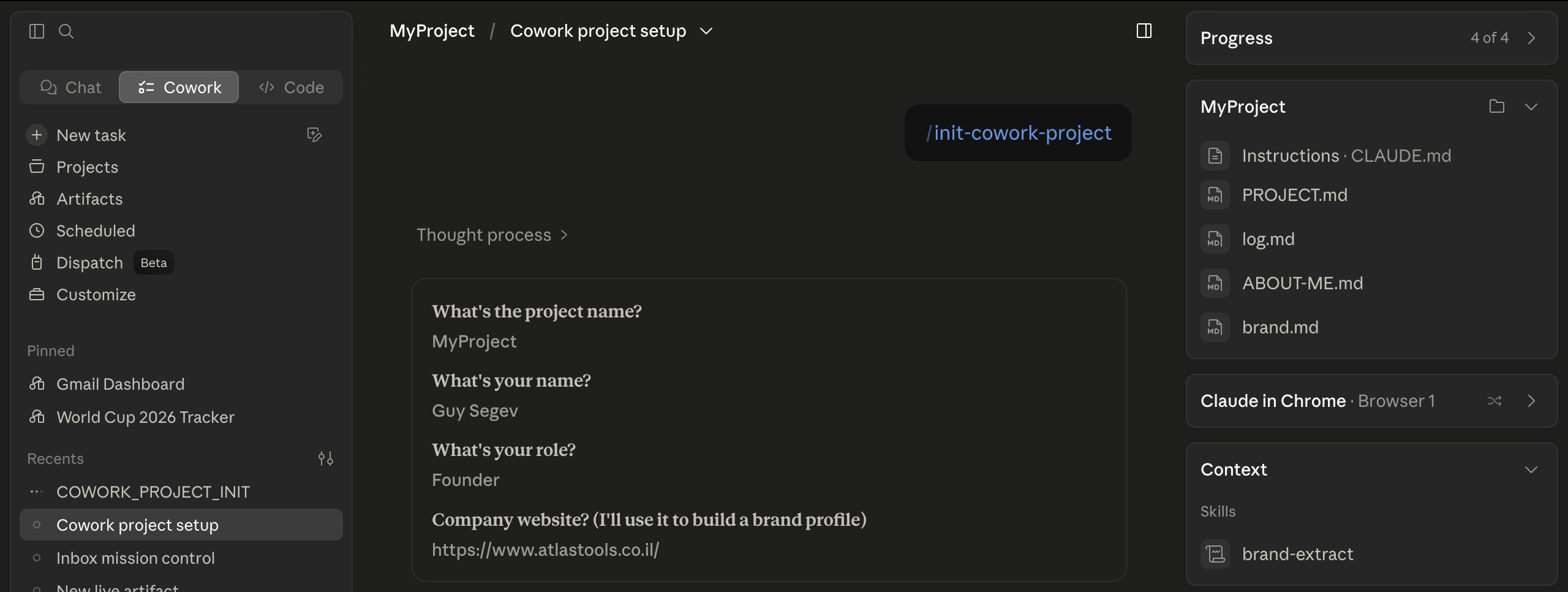
Answer the three questionsענו על שלוש השאלות

Your name, role, and company website. Claude visits your site and extracts your brand into your project files.השם, התפקיד, ואתר החברה שלכם. Claude מבקר באתר שלכם ומחלץ את המותג אל קובצי הפרויקט.

Answer the three questions

Step 6שלב 6

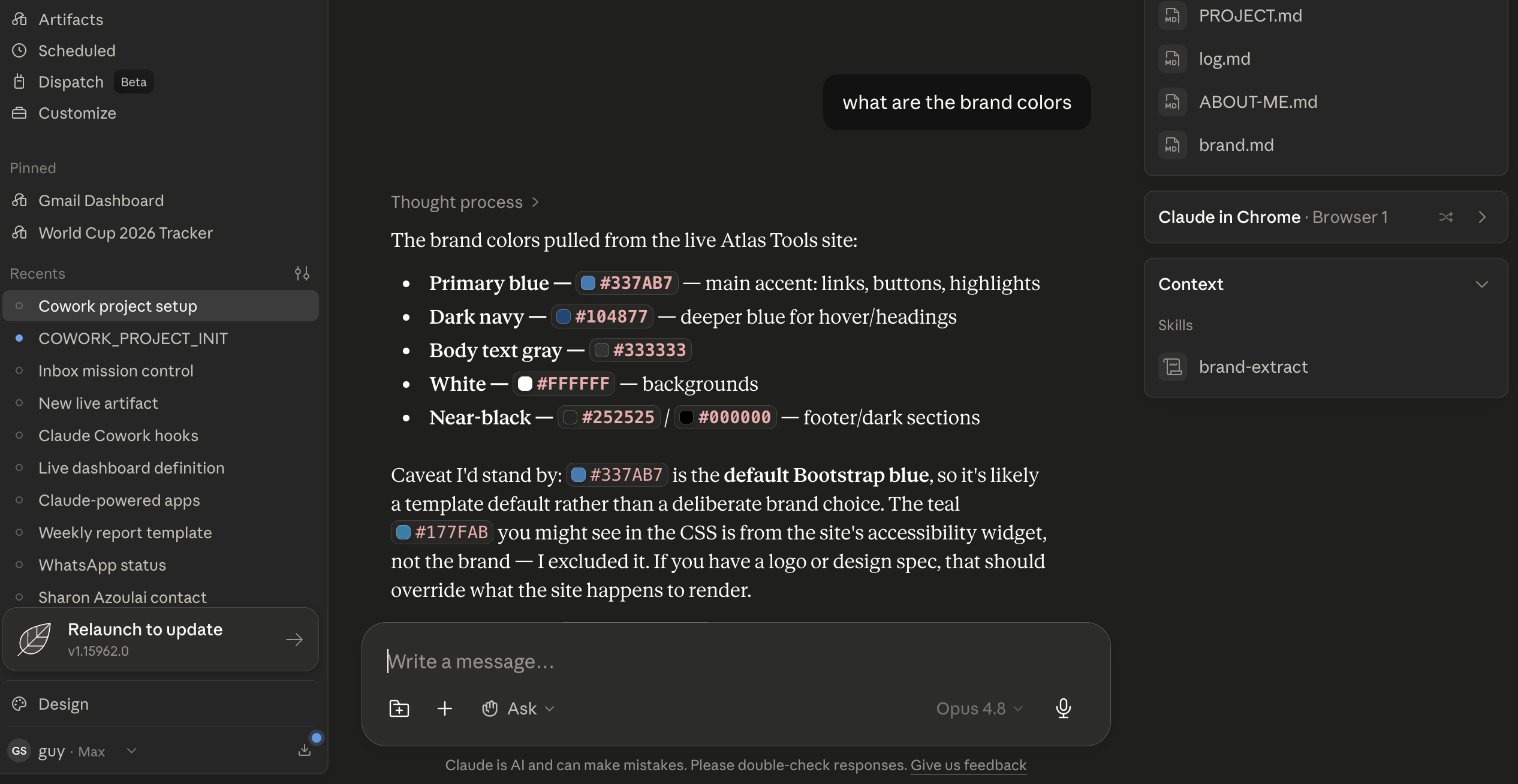
Verify — ask about your brandודאו — שאלו על המותג שלכם

Inside the project, ask "What are our brand colors?" It answers from the files it just made.בתוך הפרויקט, שאלו "מה צבעי המותג שלנו?" הוא עונה מהקבצים שהרגע יצר.

Ask about your brand — Claude answers from the files

Hands-onתרגול מעשי

Set up your Cowork projectהקימו את פרויקט ה‑Cowork שלכם

Step 7שלב 7

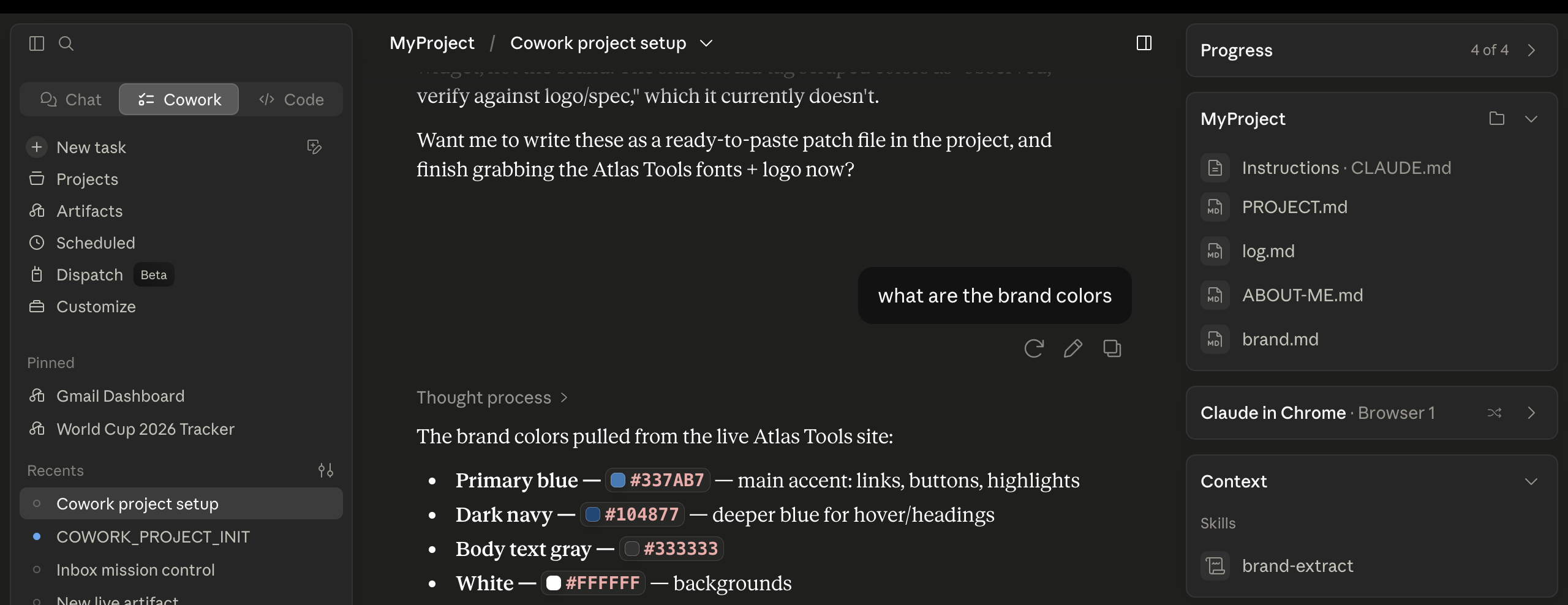
Review your project workspaceסקרו את סביבת העבודה של הפרויקט

Open your project and look through the files: claude.md, memory, about-me, brand.פתחו את הפרויקט ועברו על הקבצים: claude.md, memory, about-me, brand.

Browse your project workspace files
Takeawayהשורה התחתונה

Set up once — it's there for everything that follows.מקימים פעם אחת — וזה שם לכל מה שבא אחר כך.

Before we buildלפני שבונים

Mission Control for your inboxMission Control לתיבת הדואר שלכם

You're about to connect Claude to your Gmail and Google Drive and run the Mission Control skill — it builds a live artifact that shows what's happening in your inbox, updated on demand and already shaped by your brand.אתם עומדים לחבר את Claude ל‑Gmail ול‑Google Drive שלכם ולהריץ את skill ה‑Mission Control — הוא בונה artifact חי שמראה מה קורה בתיבה שלכם, מתעדכן לפי דרישה וכבר מעוצב לפי המותג שלכם.

Normal replyתשובה רגילה

Answers once, then forgetsעונה פעם אחת, ואז שוכח

A one-time Claude response. Ask again tomorrow and you start over.תגובה חד-פעמית של Claude. תשאלו שוב מחר ותתחילו מהתחלה.

vsמול
Live artifactartifact חי

Stays live, auto-refreshesנשאר חי, מתרענן אוטומטית

A persistent, interactive dashboard inside Cowork — every time you open it, it updates.דאשבורד קבוע ואינטראקטיבי בתוך Cowork — בכל פעם שאתם פותחים אותו, הוא מתעדכן.

Takeawayהשורה התחתונה

Run it once — and your inbox has a dashboard that stays current.הריצו פעם אחת — ולתיבה שלכם יש דאשבורד שנשאר עדכני.

Hands-onתרגול מעשי

Build your inbox Mission Controlבנו את ה‑Mission Control לתיבה שלכם

Step 1שלב 1

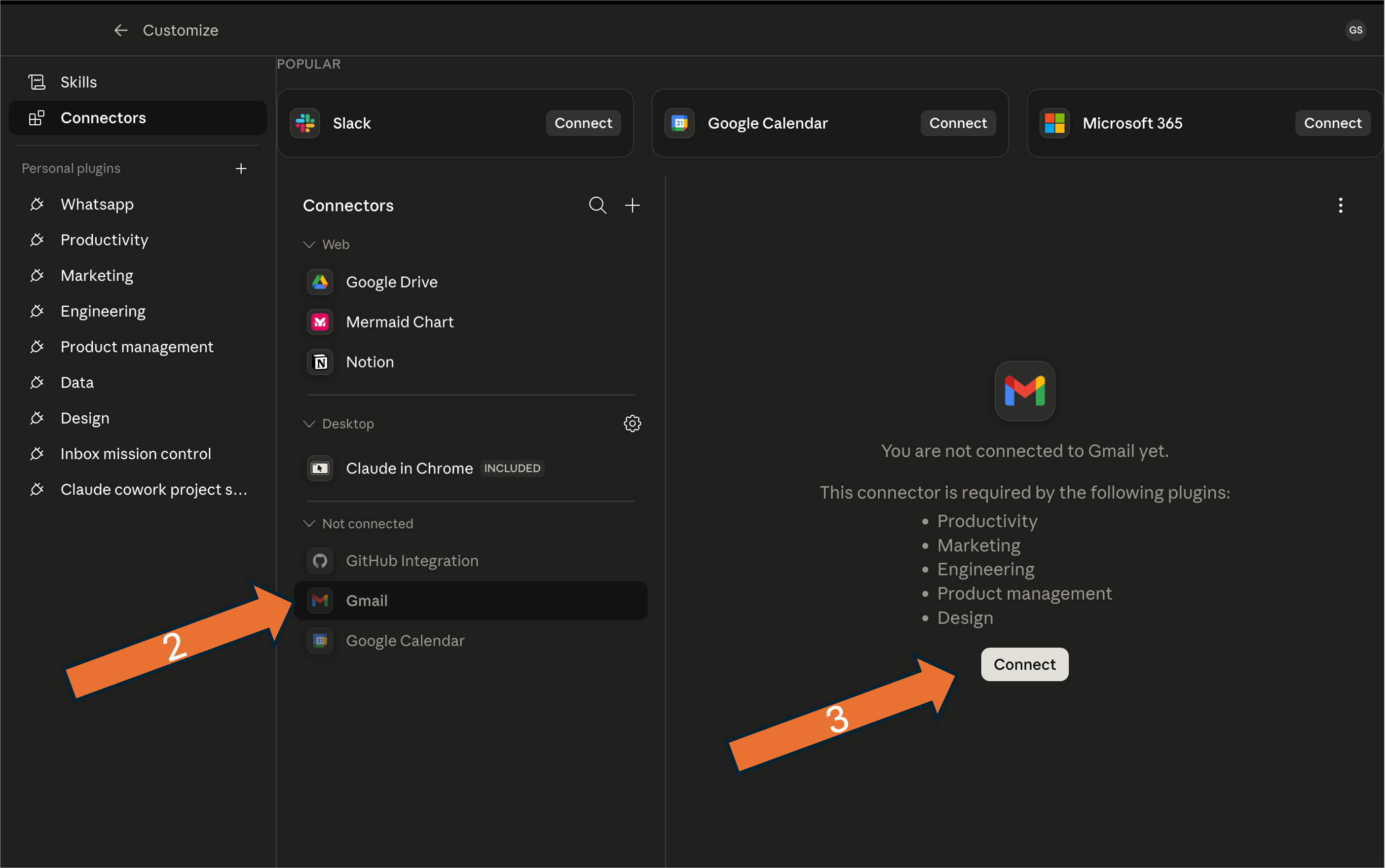
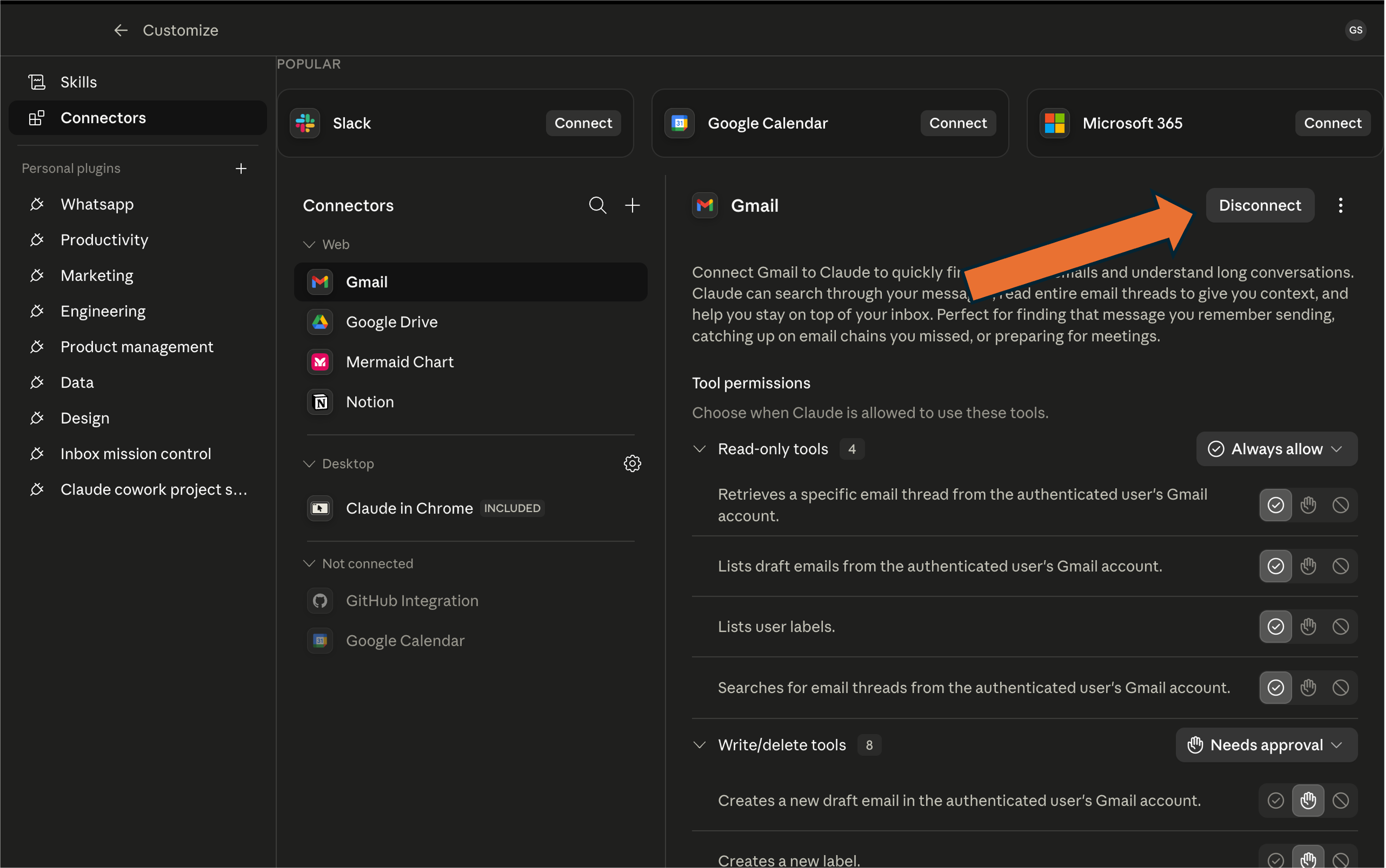
Connect Gmail — in Claudeחברו את Gmail — בתוך Claude

Open Customize → Connectors in Cowork, pick Gmail, and click Connect.פתחו Customize → Connectors ב‑Cowork, בחרו Gmail, ולחצו Connect.

Hands-onתרגול מעשי

Build your inbox Mission Controlבנו את ה‑Mission Control לתיבה שלכם

Step 2שלב 2

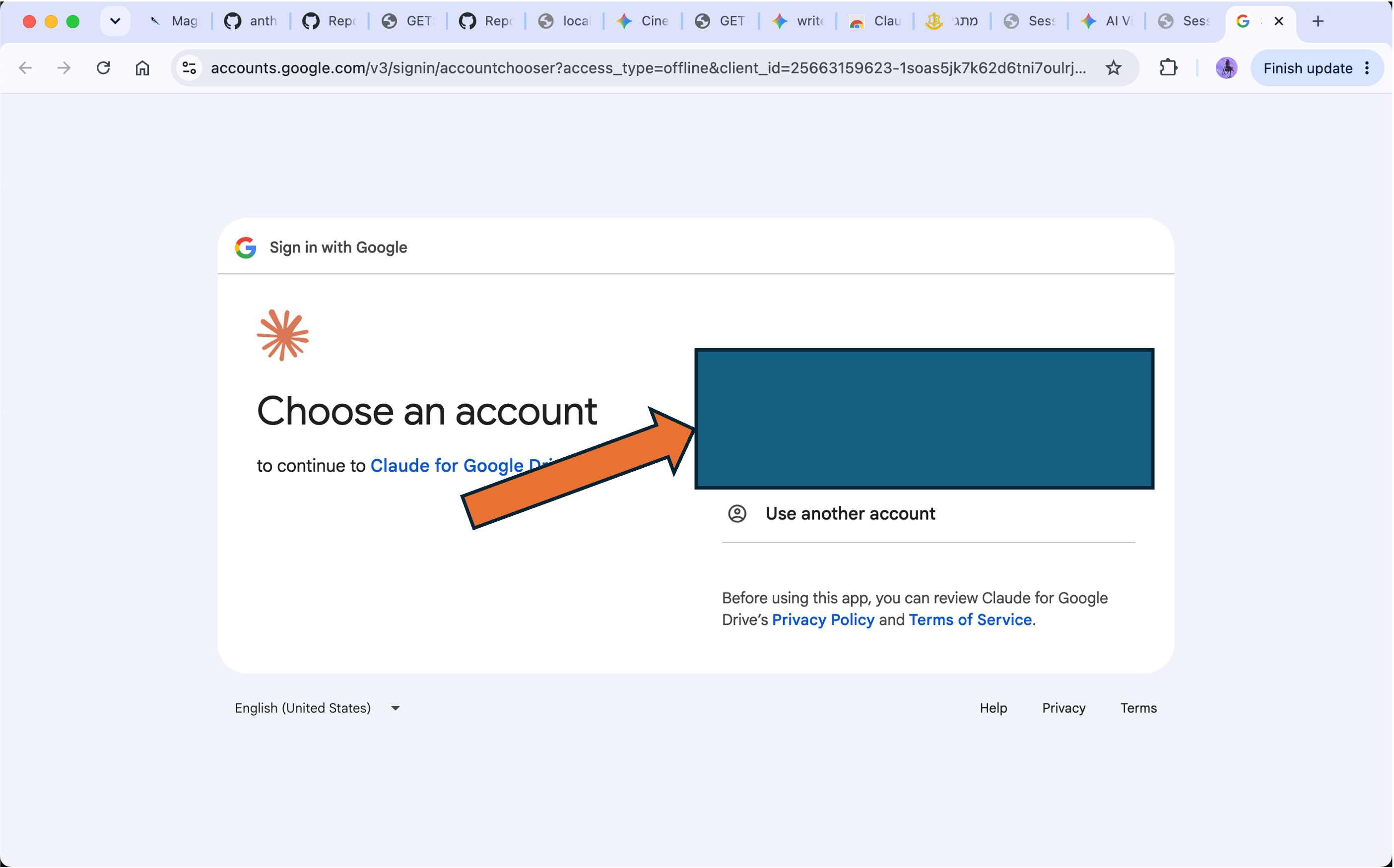
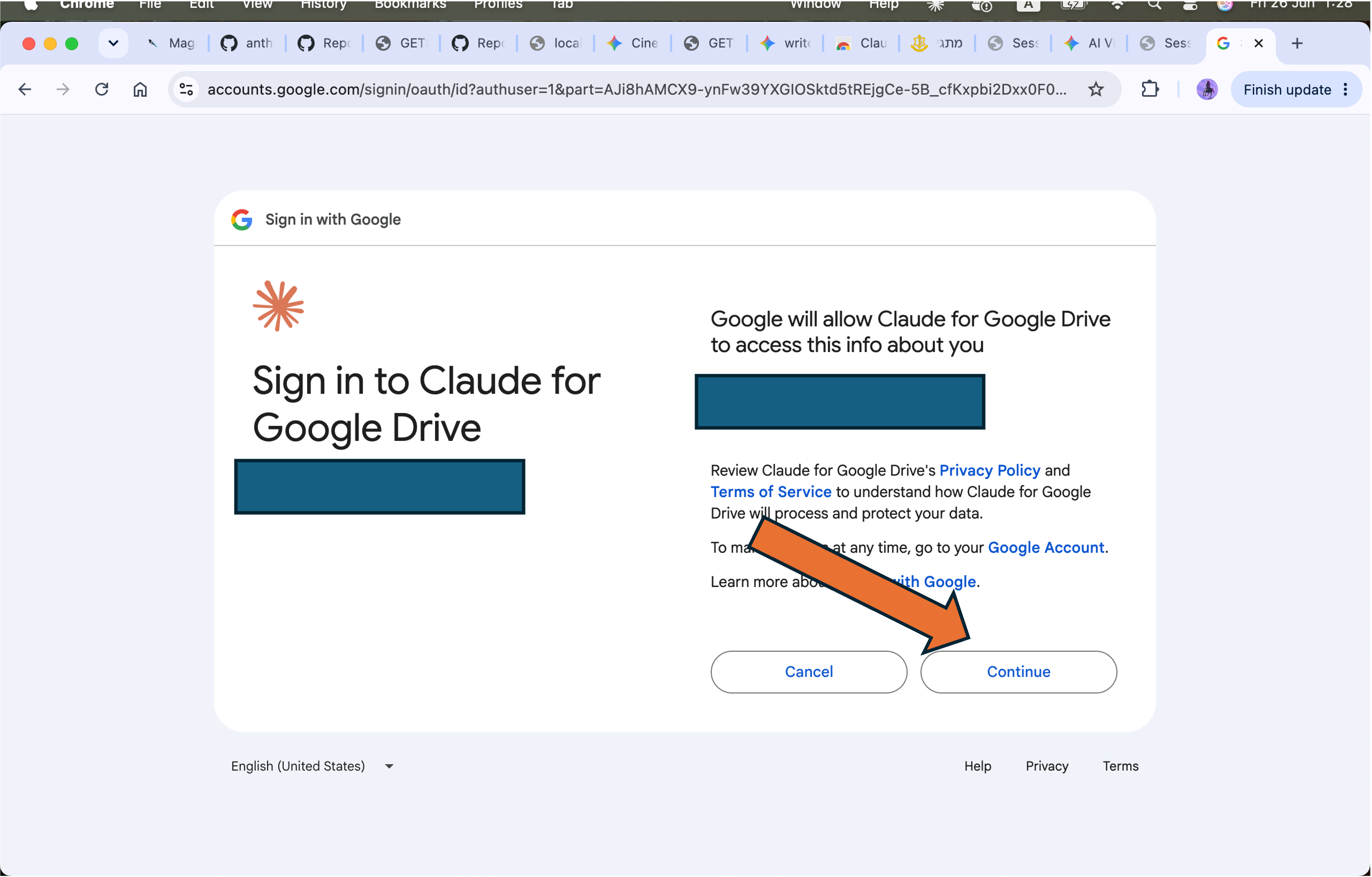
Connect Gmail — approve in Googleחברו את Gmail — אשרו ב‑Google

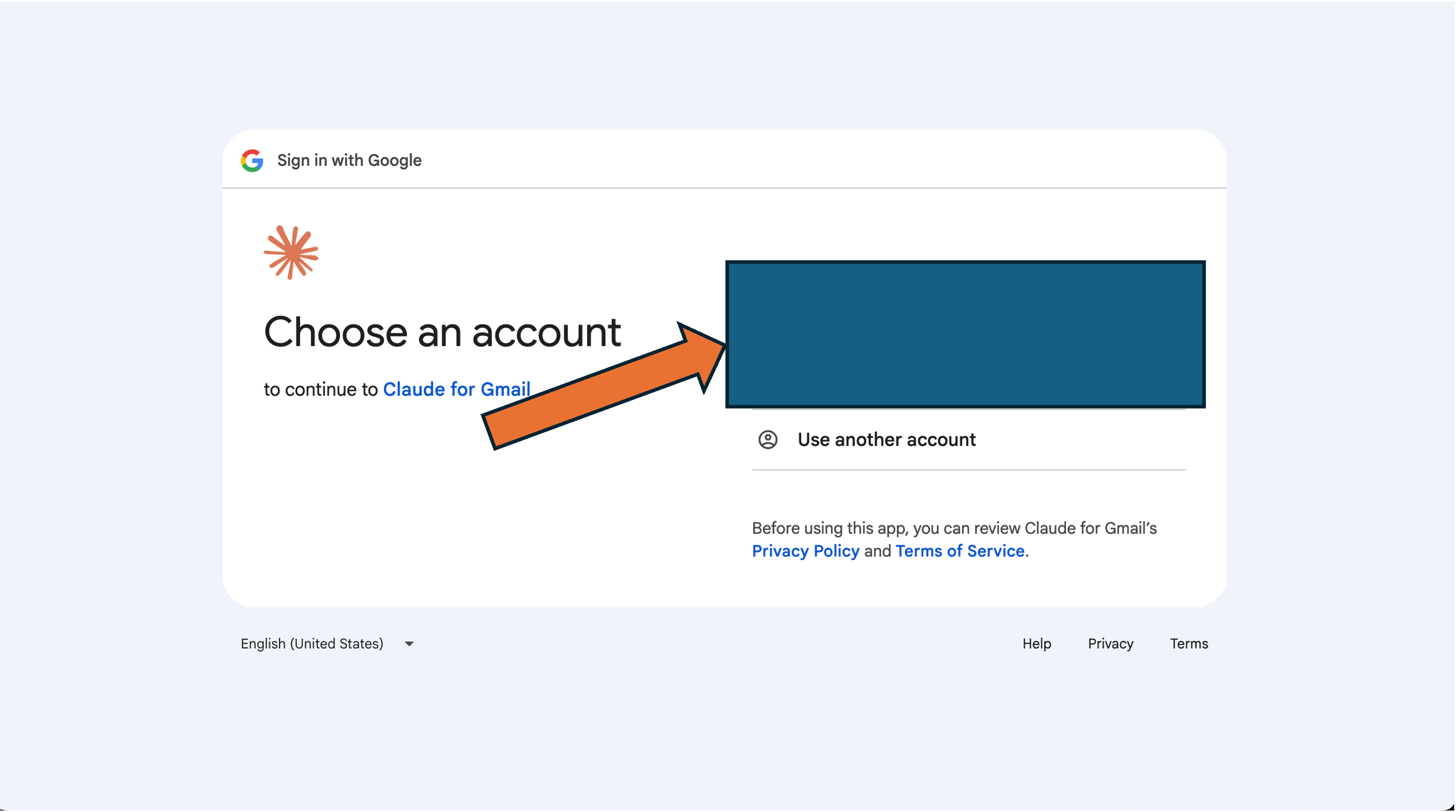
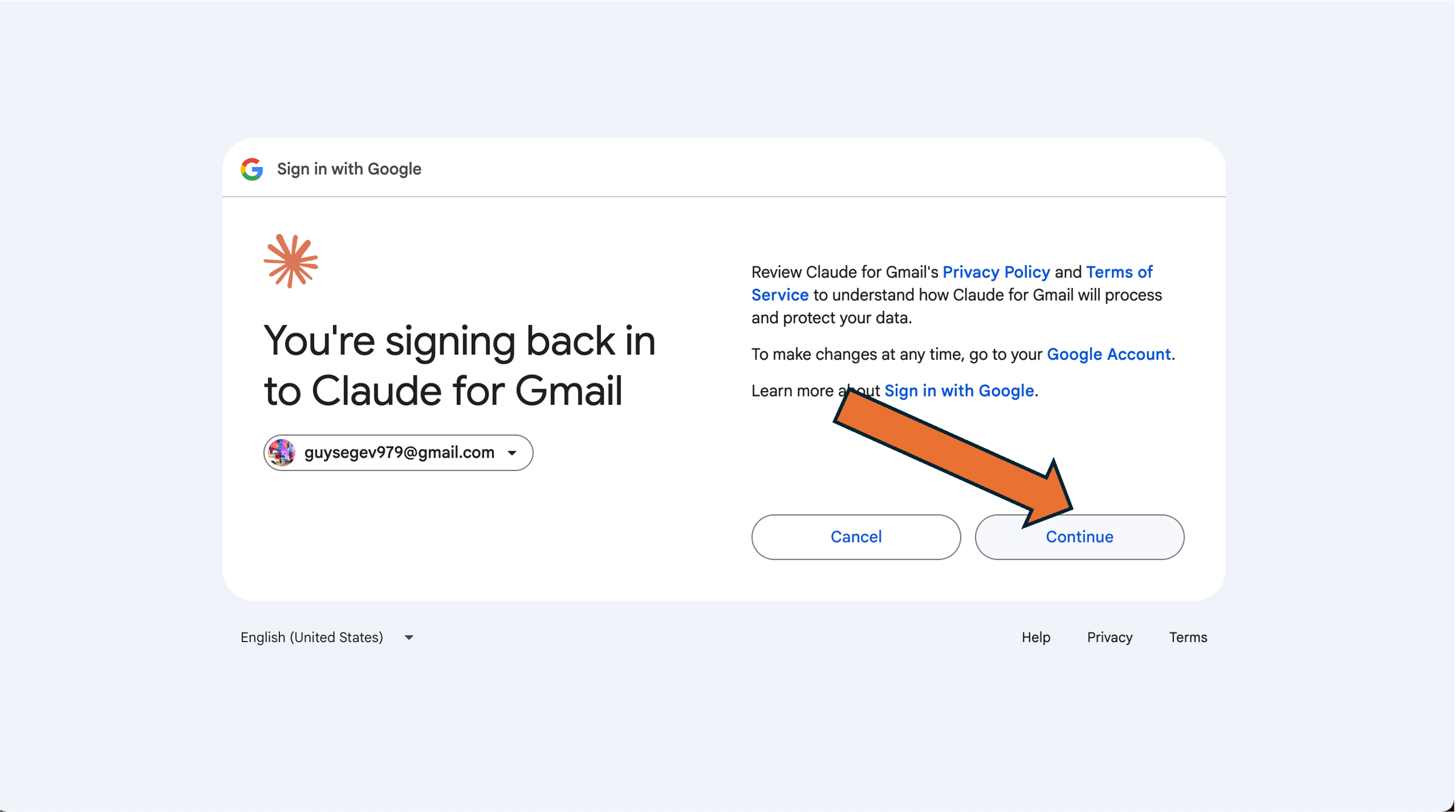
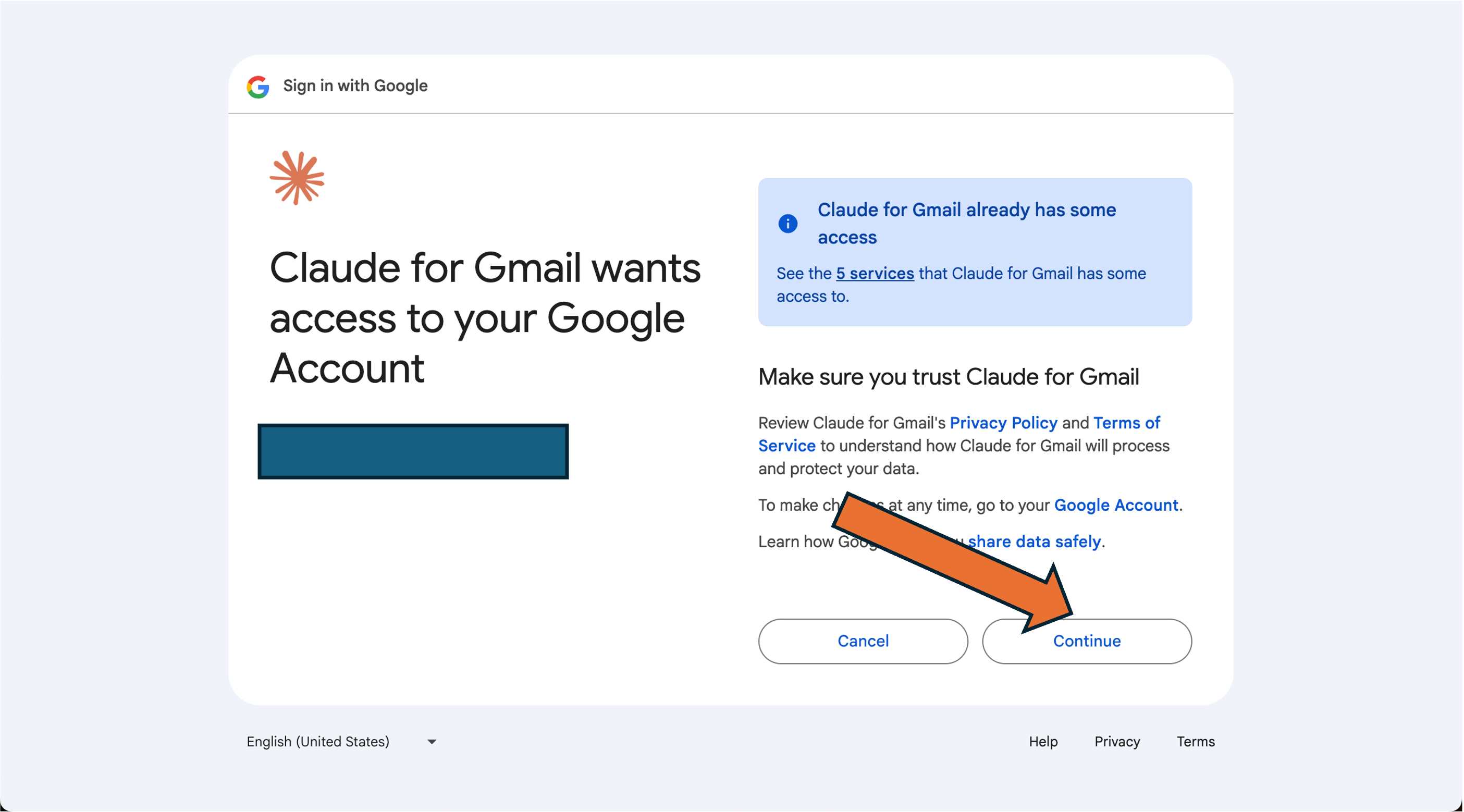
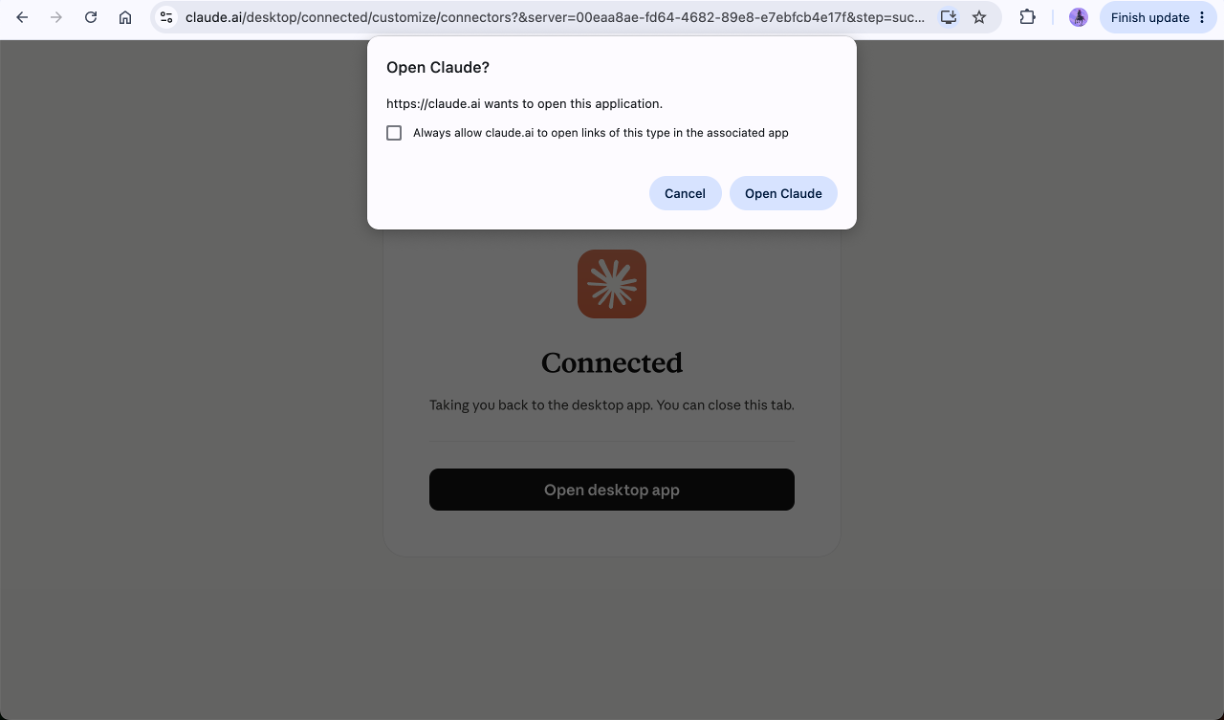
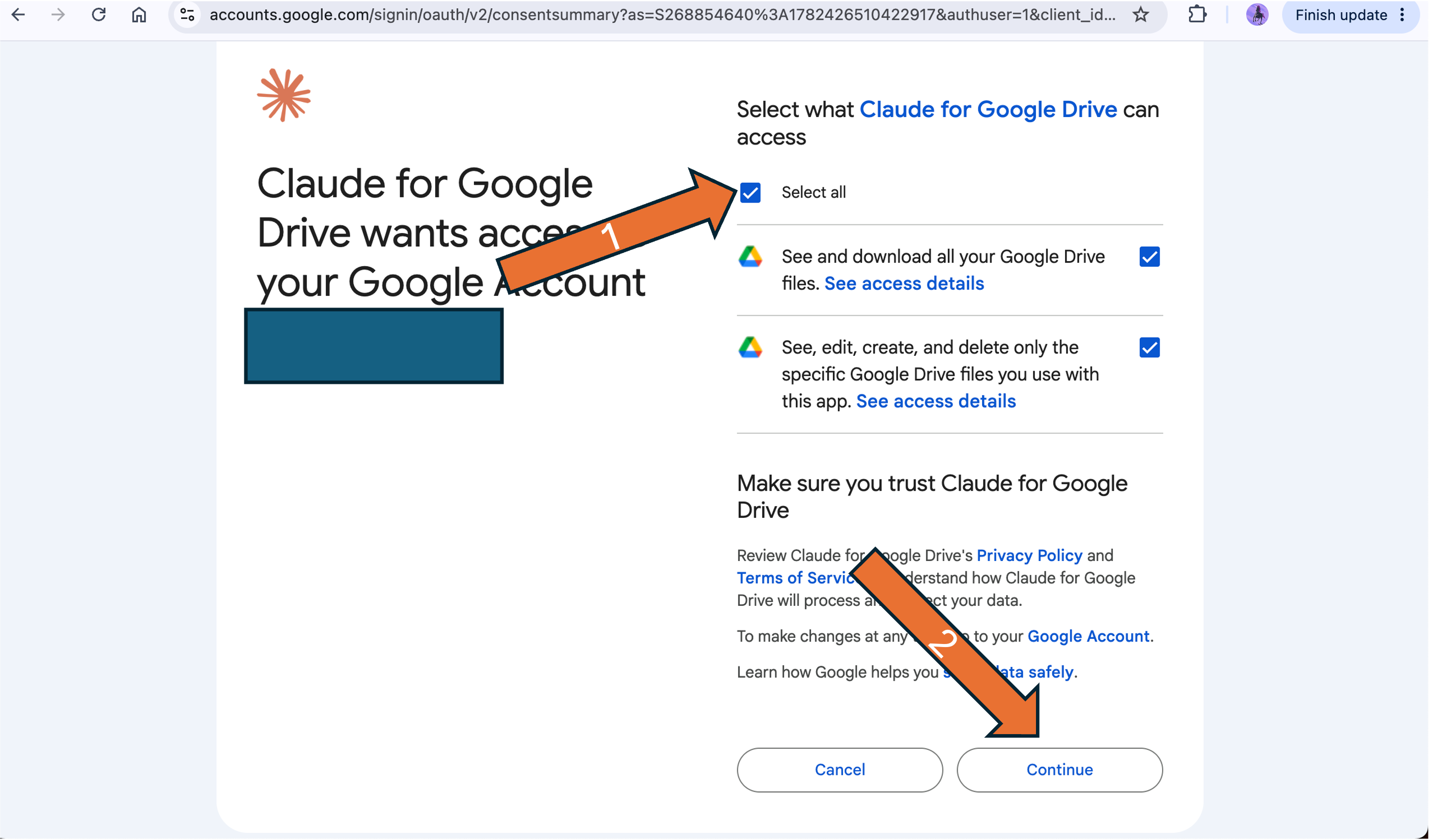
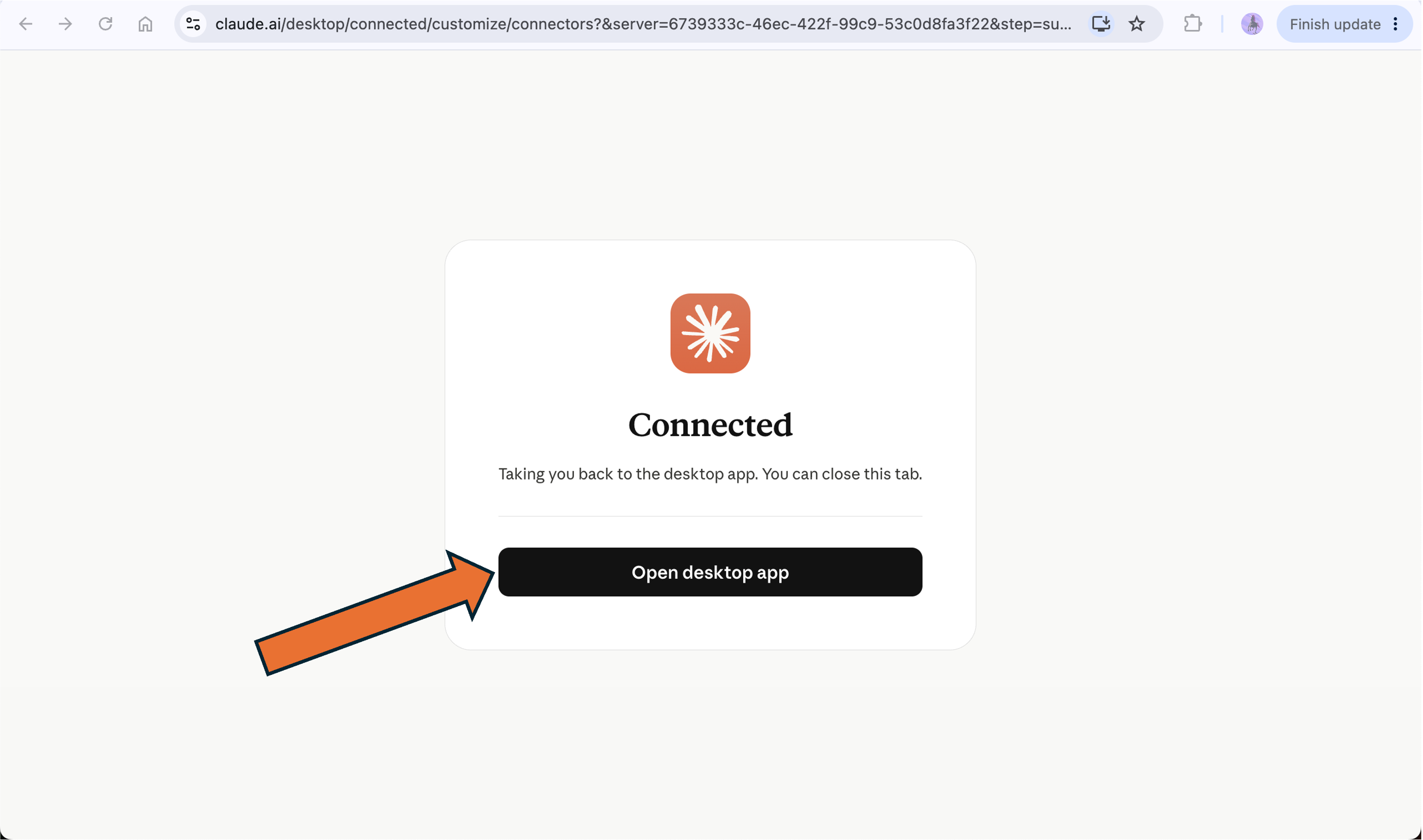
Google opens — choose your account, Continue, and allow access. Claude shows Connected.Google נפתח — בחרו את החשבון שלכם, Continue, ואשרו גישה. Claude מציג Connected.

Step 3שלב 3

Verify — ask about a mailודאו — שאלו על מייל

Before going further, ask one small question to confirm Claude reads your inbox.לפני שממשיכים, שאלו שאלה קטנה כדי לוודא ש‑Claude קורא את התיבה שלכם.

What was the last email I received, and who sent it?

Hands-onתרגול מעשי

Build your inbox Mission Controlבנו את ה‑Mission Control לתיבה שלכם

Step 4שלב 4

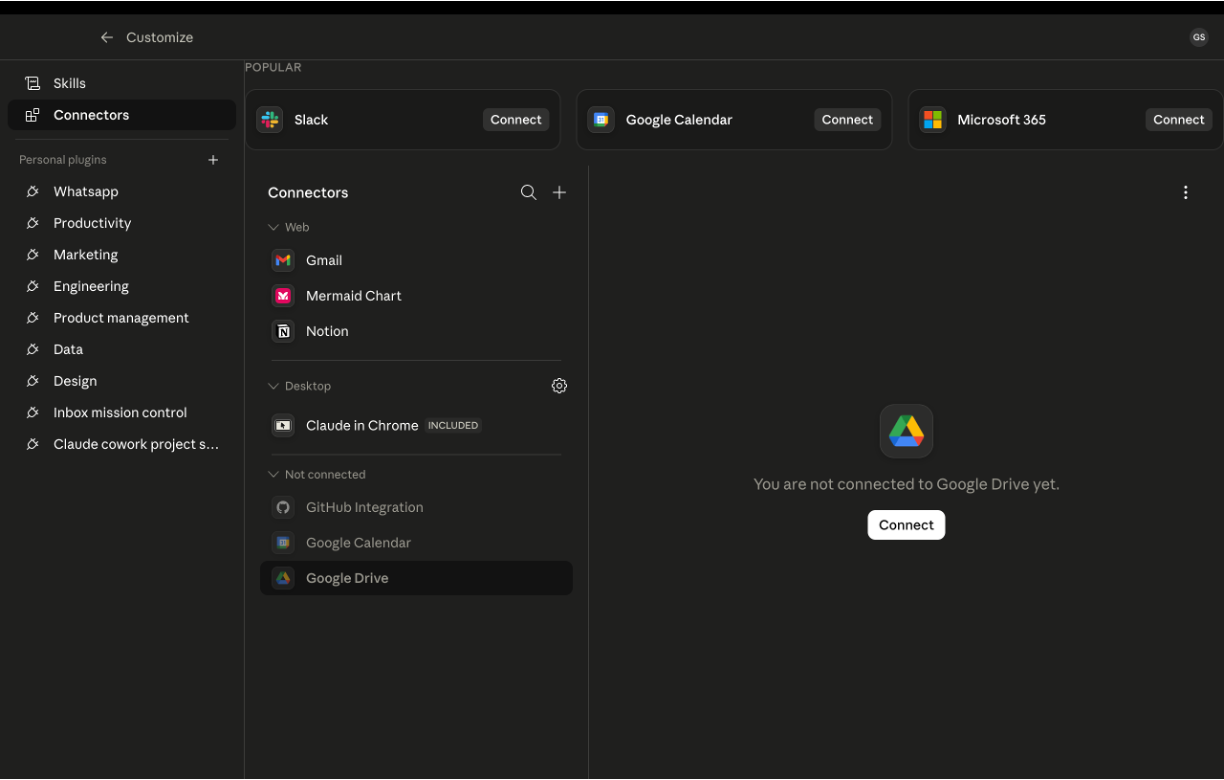
Connect Google Driveחברו את Google Drive

Same flow as Gmail — pick Google Drive, Connect, and approve in Google.אותו תהליך כמו Gmail — בחרו Google Drive, Connect, ואשרו ב‑Google.

Step 5שלב 5

Download the Mission Control pluginהורידו את תוסף ה‑Mission Control

Get it from the course site.הורידו אותו מאתר הקורס.

inbox-mission-control.plugin

Hands-onתרגול מעשי

Build your inbox Mission Controlבנו את ה‑Mission Control לתיבה שלכם

Step 6שלב 6

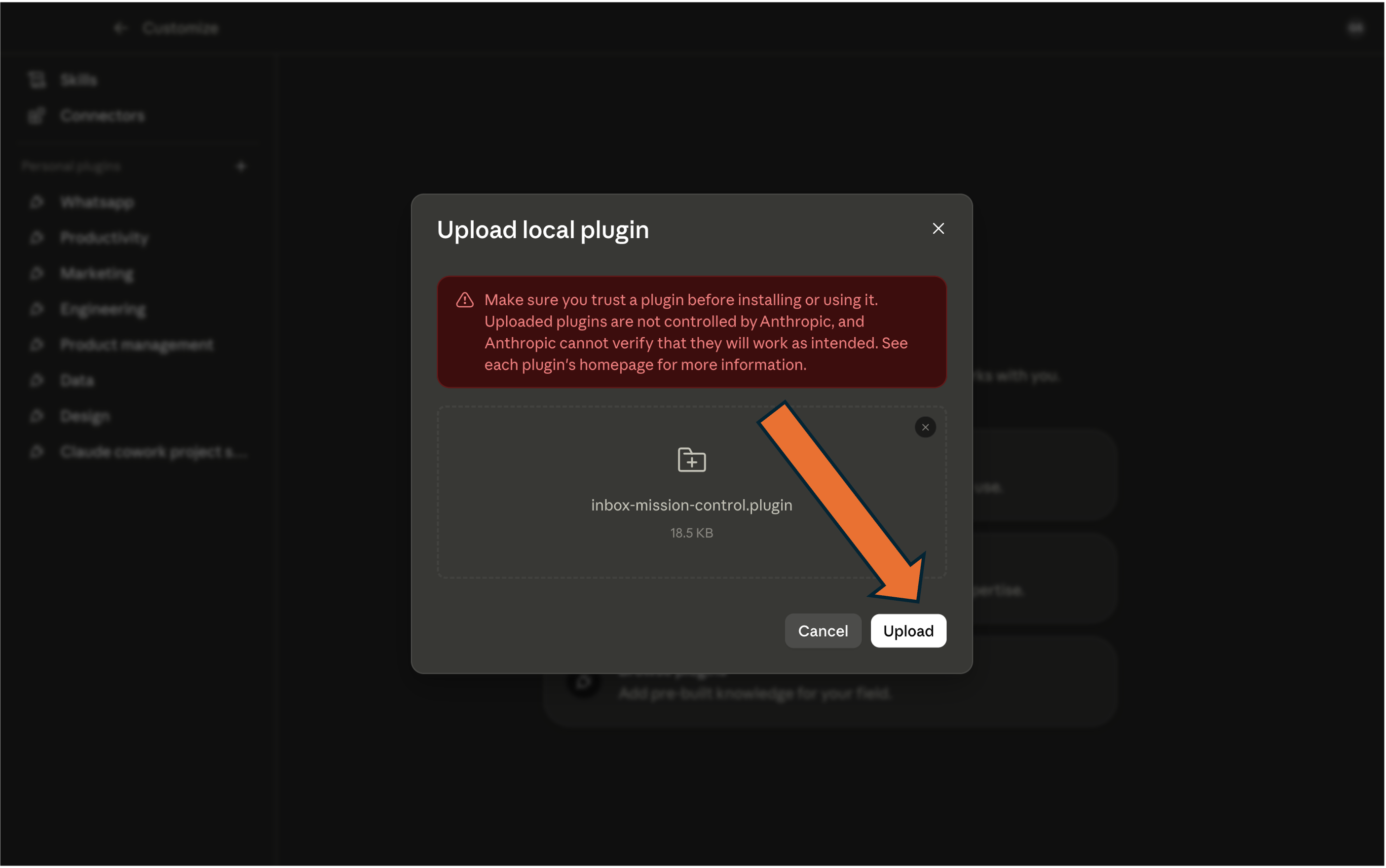
Install the pluginהתקינו את התוסף

Same path as before — open Manage plugins and upload inbox-mission-control.plugin.אותו מסלול כמו קודם — פתחו Manage plugins והעלו את inbox-mission-control.plugin.

Step 7שלב 7

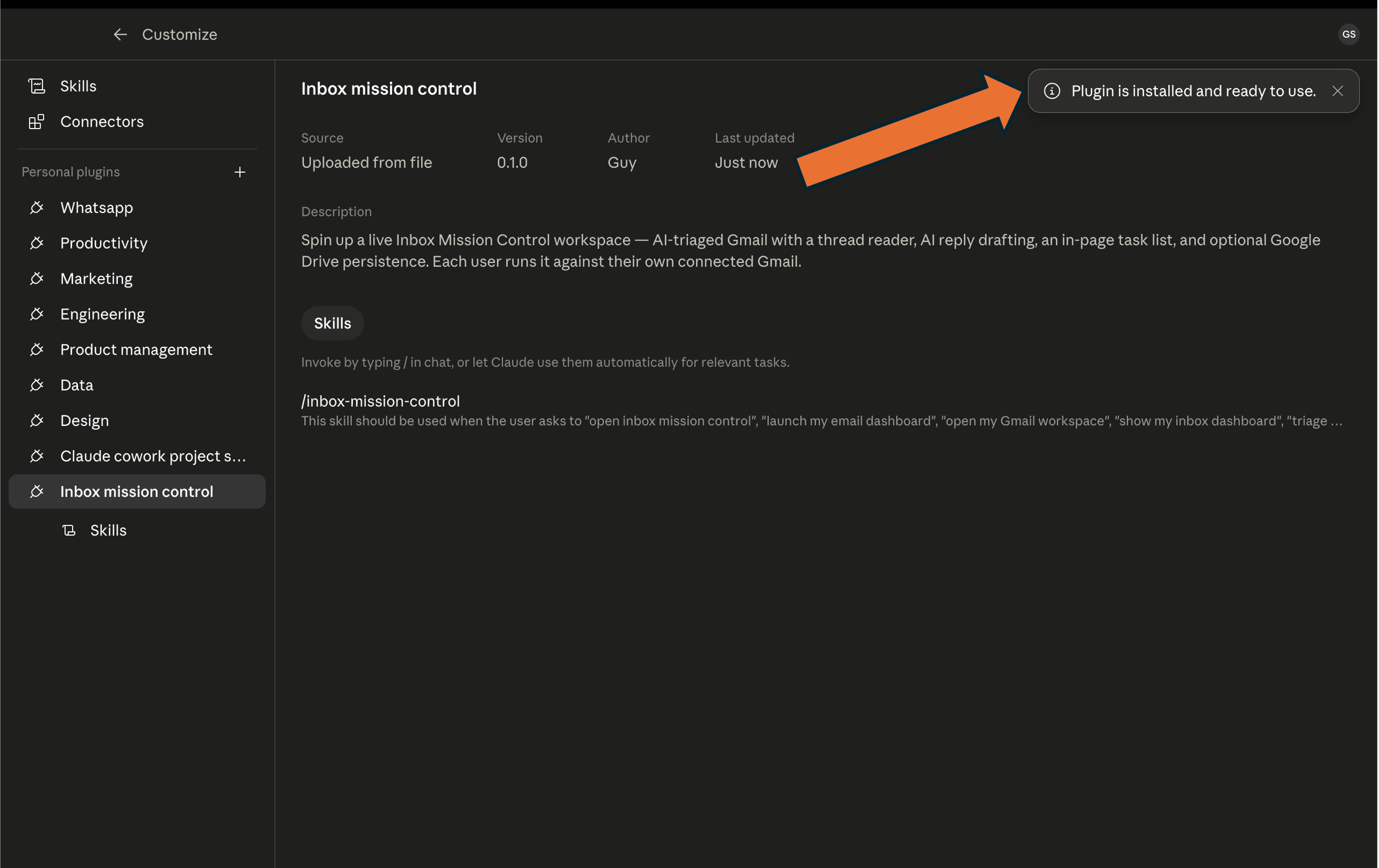
Verify — the plugin is installedודאו — התוסף הותקן

Claude confirms "Plugin is installed and ready to use."Claude מאשר "התוסף הותקן ומוכן לשימוש."

Plugin is installed and ready to use

Hands-onתרגול מעשי

Build your inbox Mission Controlבנו את ה‑Mission Control לתיבה שלכם

Step 8שלב 8

Open your Cowork projectפתחו את פרויקט ה‑Cowork שלכם

Go to the project you created earlier with the setup skill — that's where the dashboard will live.עברו לפרויקט שיצרתם קודם עם skill ההקמה — שם הדאשבורד יחיה.

Navigate to your Cowork project

Step 9שלב 9

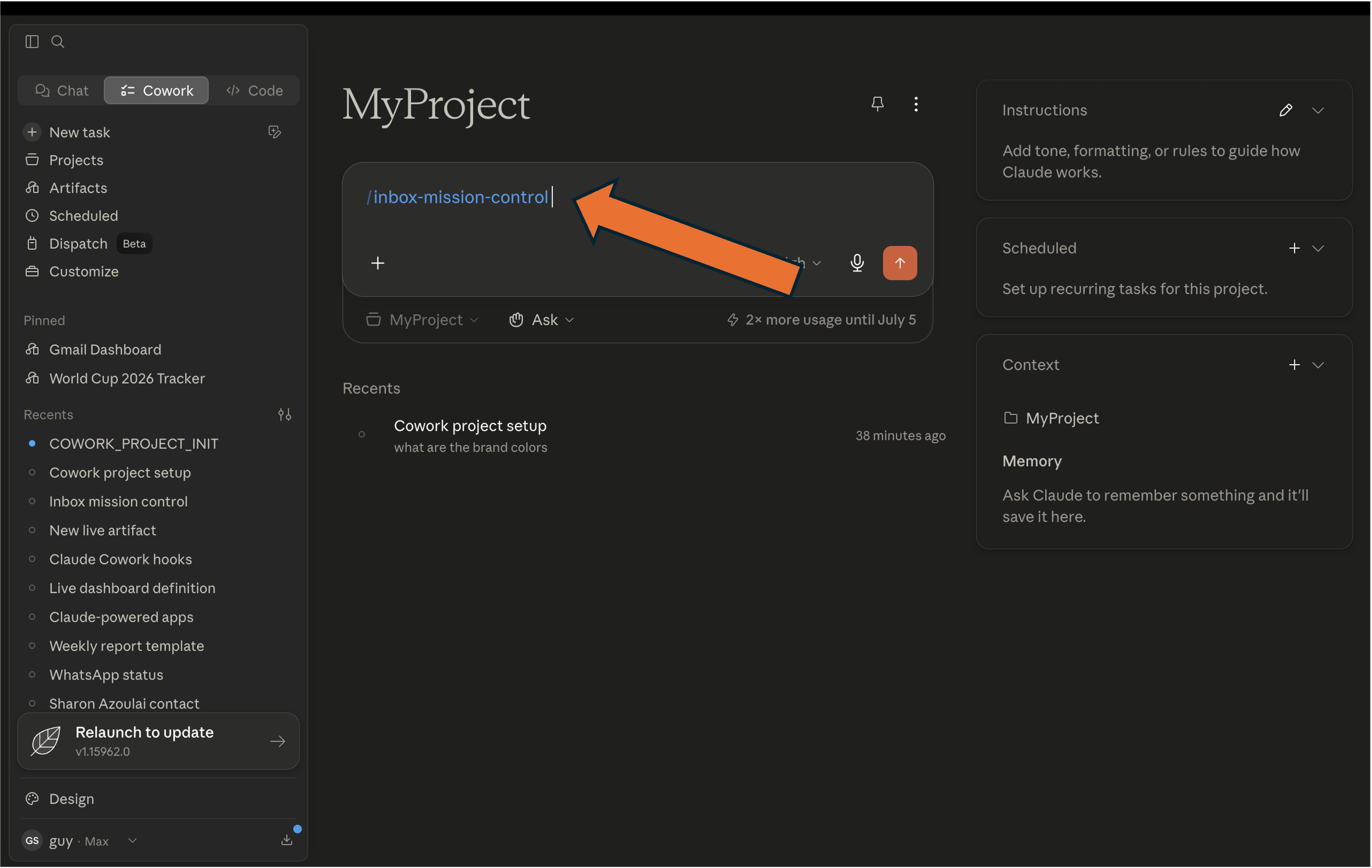
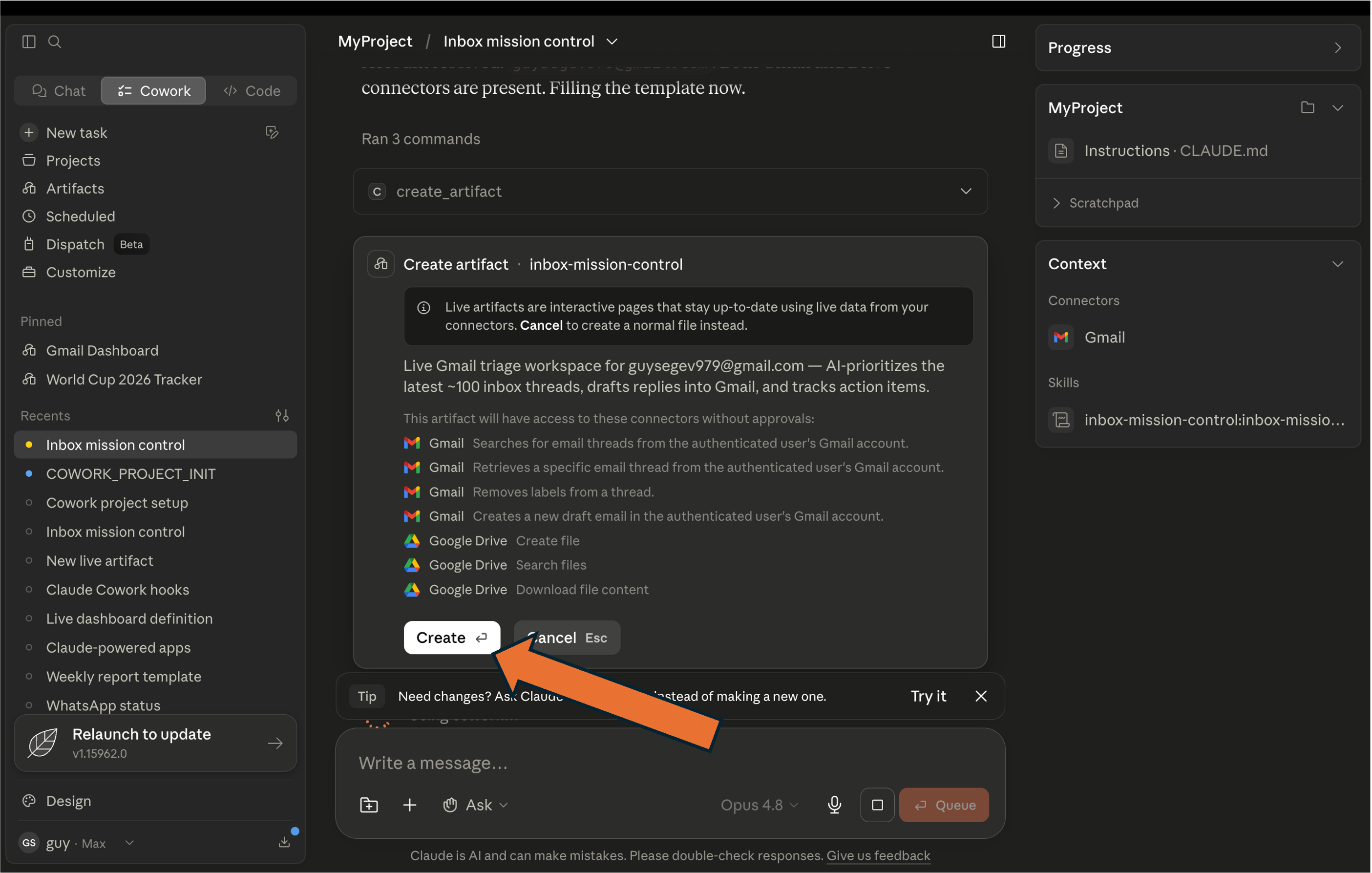
Run inbox-mission-controlהריצו inbox-mission-control

Inside the project, run the skill and Create the artifact — it builds your Mission Control live artifact.בתוך הפרויקט, הריצו את ה‑skill ולחצו Create ל‑artifact — הוא בונה את ה‑artifact החי של ה‑Mission Control.

Hands-onתרגול מעשי

Build your inbox Mission Controlבנו את ה‑Mission Control לתיבה שלכם

Step 10שלב 10

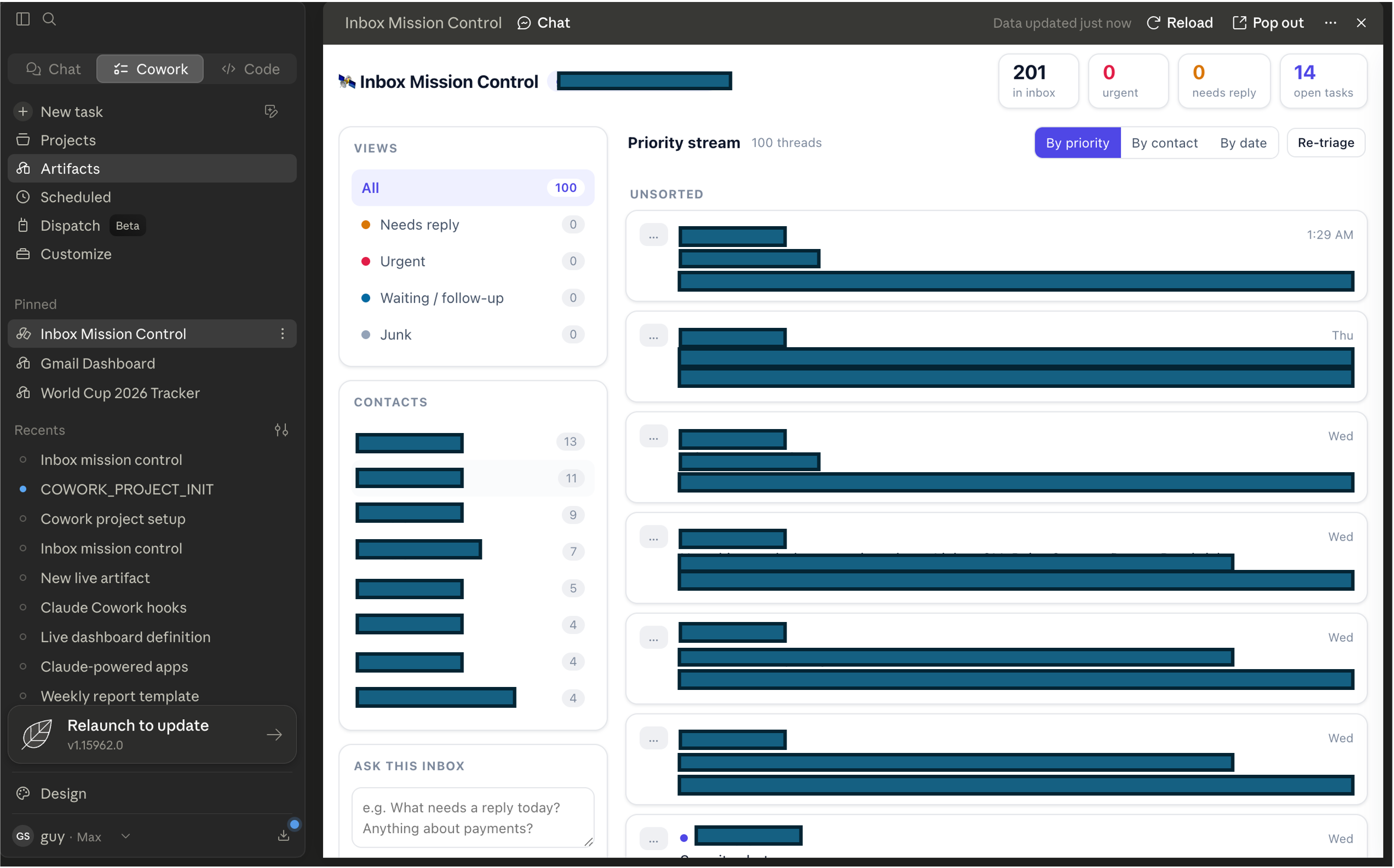
Review your dashboardסקרו את הדאשבורד שלכם

A live view of your inbox — in box, urgent, needs reply, open tasks — sorted by priority.תצוגה חיה של התיבה שלכם — נכנס, דחוף, דורש מענה, משימות פתוחות — ממוין לפי עדיפות.

Inbox Mission Control dashboard

Step 11שלב 11

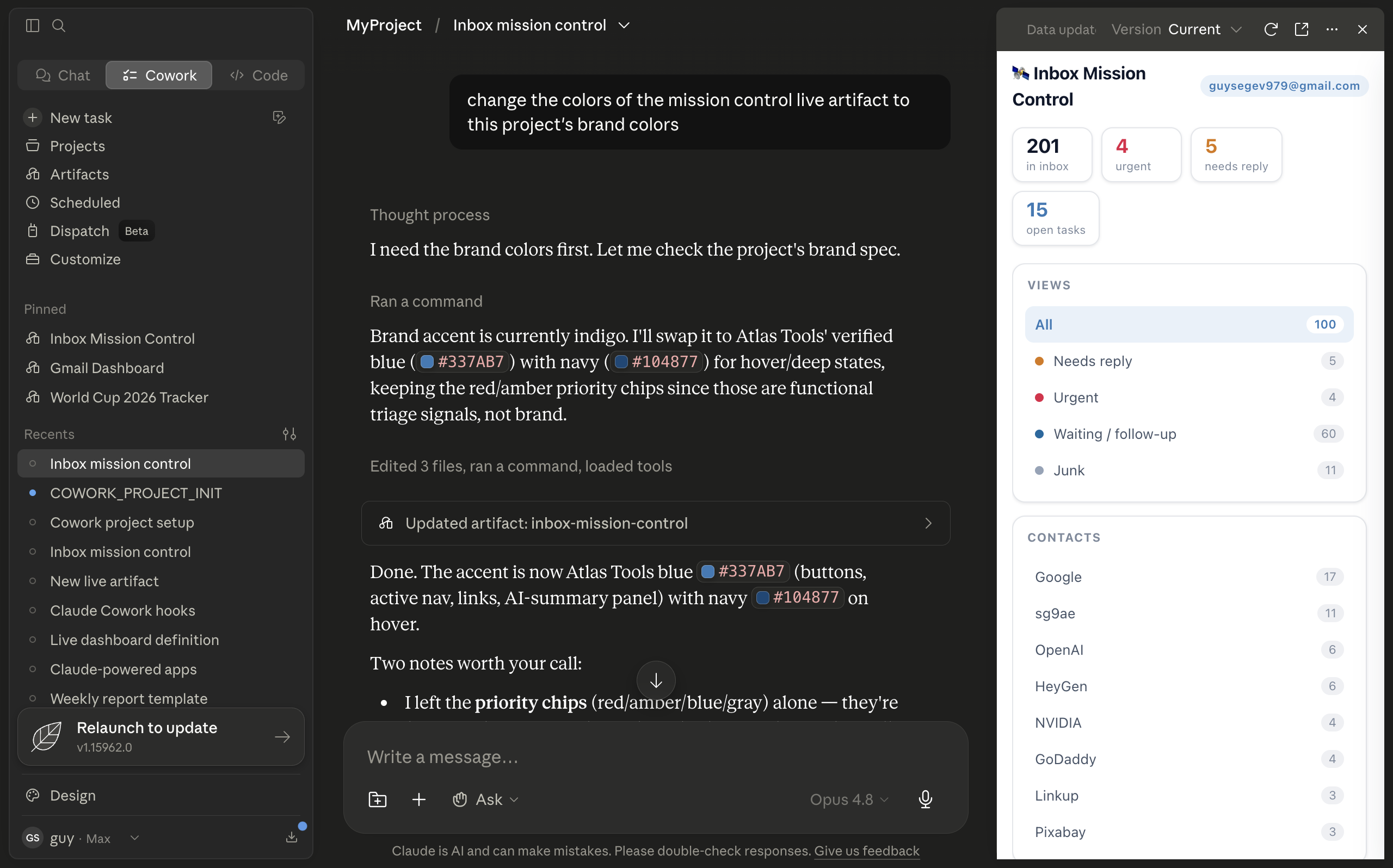
Make it yours — apply your brandהפכו אותו לשלכם — החילו את המותג

Ask Claude to restyle it from your project files: "use our brand colors and company name from the project files."בקשו מ‑Claude לעצב אותו מחדש מקובצי הפרויקט: "השתמש בצבעי המותג ובשם החברה שלנו מקובצי הפרויקט."

Restyle the dashboard with your brand colors
Takeawayהשורה התחתונה

Your inbox now has a live dashboard in your own brand.לתיבה שלכם יש עכשיו דאשבורד חי במותג שלכם.

Before we buildלפני שבונים

Your WhatsApp weekly reportהדוח השבועי שלכם ב‑WhatsApp

You're about to connect Claude to your WhatsApp so it can read your chats and give you a summary of what's waiting — pulled from a week of messages.אתם עומדים לחבר את Claude ל‑WhatsApp שלכם כדי שיוכל לקרוא את הצ'אטים ולתת לכם סיכום של מה שממתין — מתוך שבוע של הודעות.

Who needs a replyמי צריך מענה

The people still waiting on you.האנשים שעדיין מחכים לכם.

What's still openמה עדיין פתוח

Threads that aren't resolved yet.שיחות שעוד לא נסגרו.

What you missedמה פספסתם

Messages that slipped past you.הודעות שחמקו מכם.

Takeawayהשורה התחתונה

One skill — and a week of chats becomes a short list of what needs you.skill אחד — ושבוע של צ'אטים הופך לרשימה קצרה של מה שדורש אתכם.

Hands-onתרגול מעשי

Build your WhatsApp weekly reportבנו את הדוח השבועי שלכם ב‑WhatsApp

Step 1שלב 1

Download the WhatsApp pluginהורידו את תוסף ה‑WhatsApp

Get it from the course site.הורידו אותו מאתר הקורס.

Step 2שלב 2

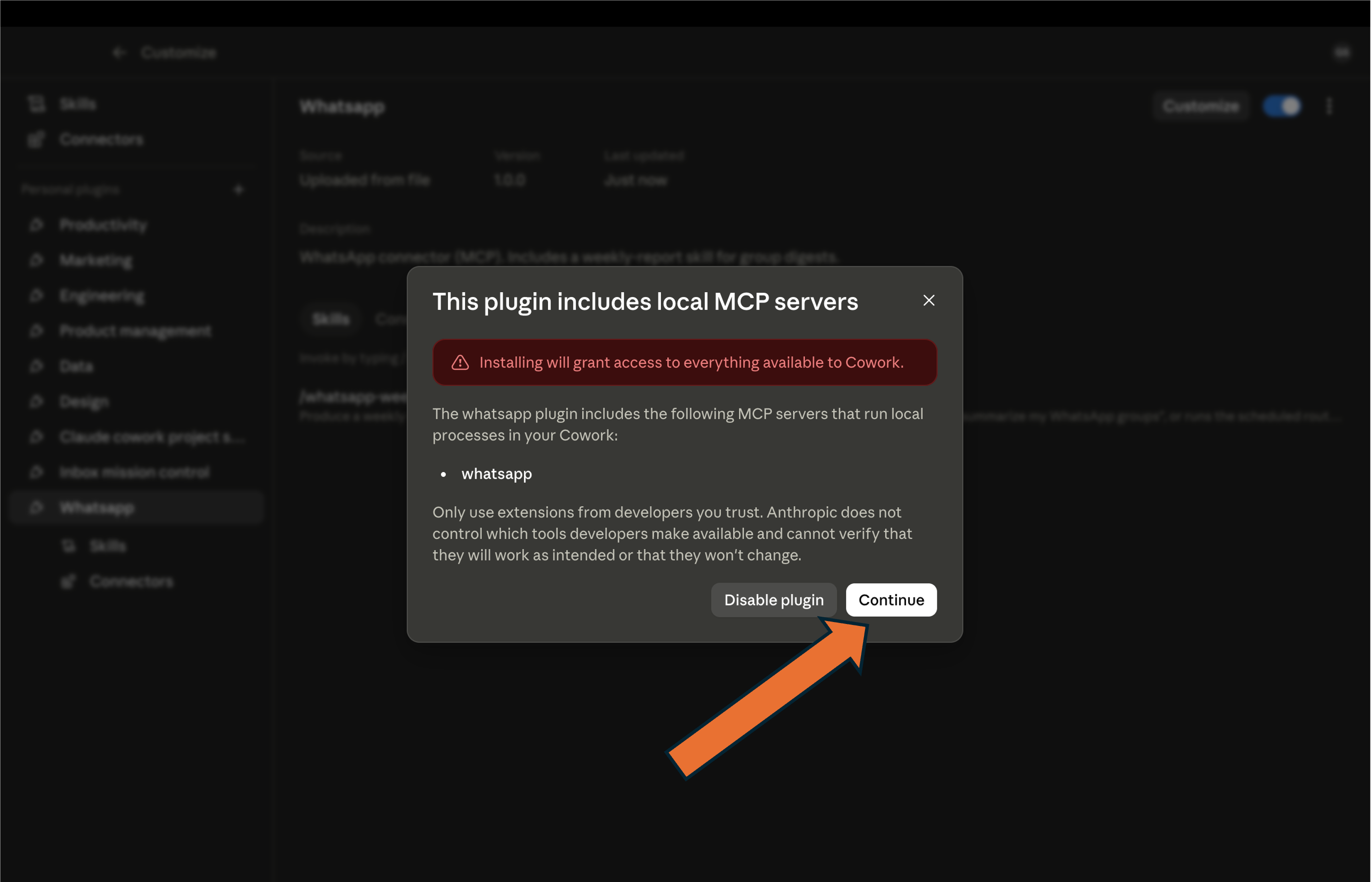
Install the pluginהתקינו את התוסף

Open Manage plugins, upload the file, and Continue when it asks to run its local server.פתחו Manage plugins, העלו את הקובץ, ולחצו Continue כשהוא מבקש להריץ את השרת המקומי שלו.

Hands-onתרגול מעשי

Build your WhatsApp weekly reportבנו את הדוח השבועי שלכם ב‑WhatsApp

Step 3שלב 3

Open your Cowork projectפתחו את פרויקט ה‑Cowork שלכם

Go to the project you created earlier with the setup skill — that's where the report will live.עברו לפרויקט שיצרתם קודם עם skill ההקמה — שם הדוח יחיה.

Navigate to your Cowork project

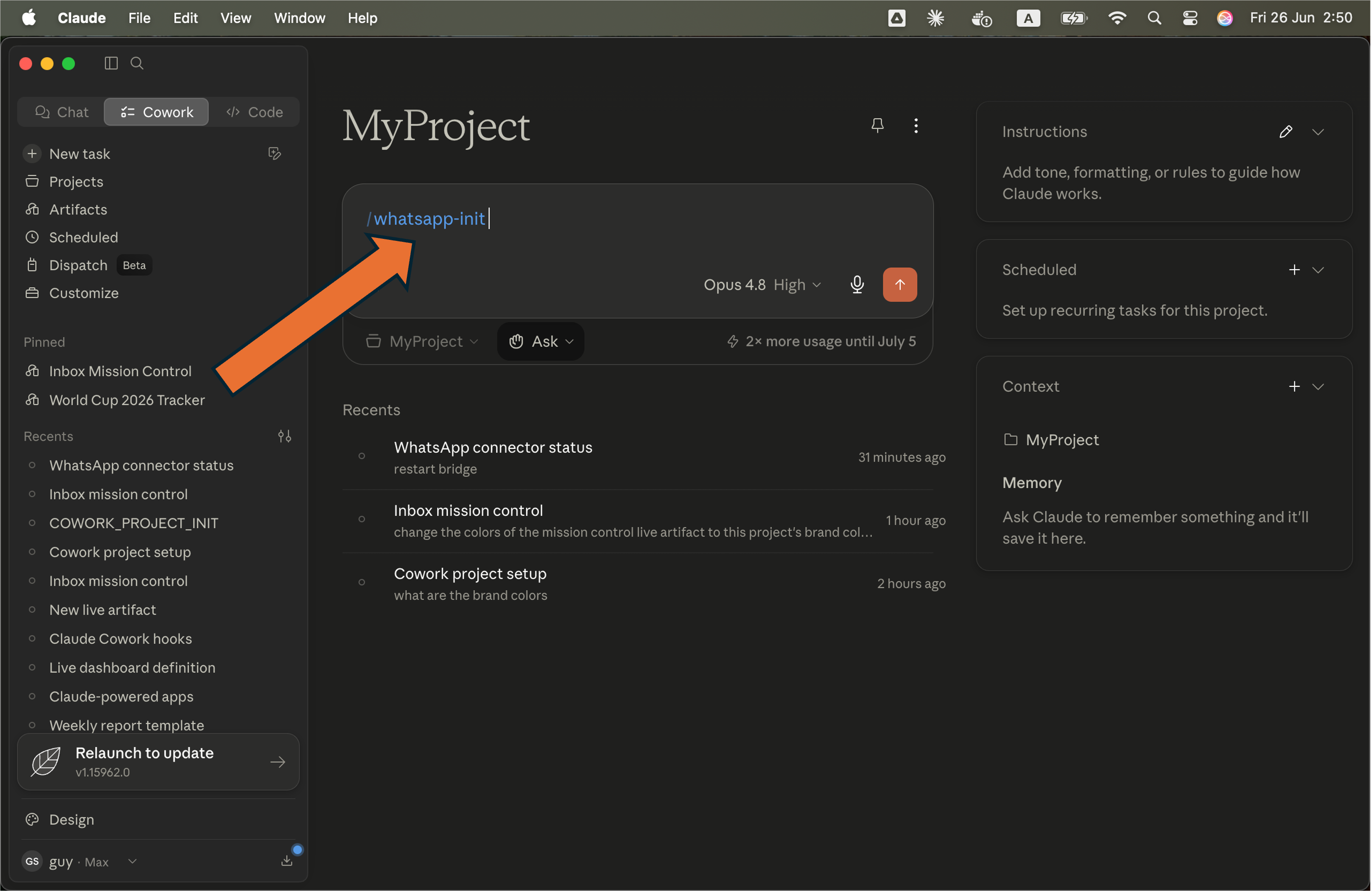
Step 4שלב 4

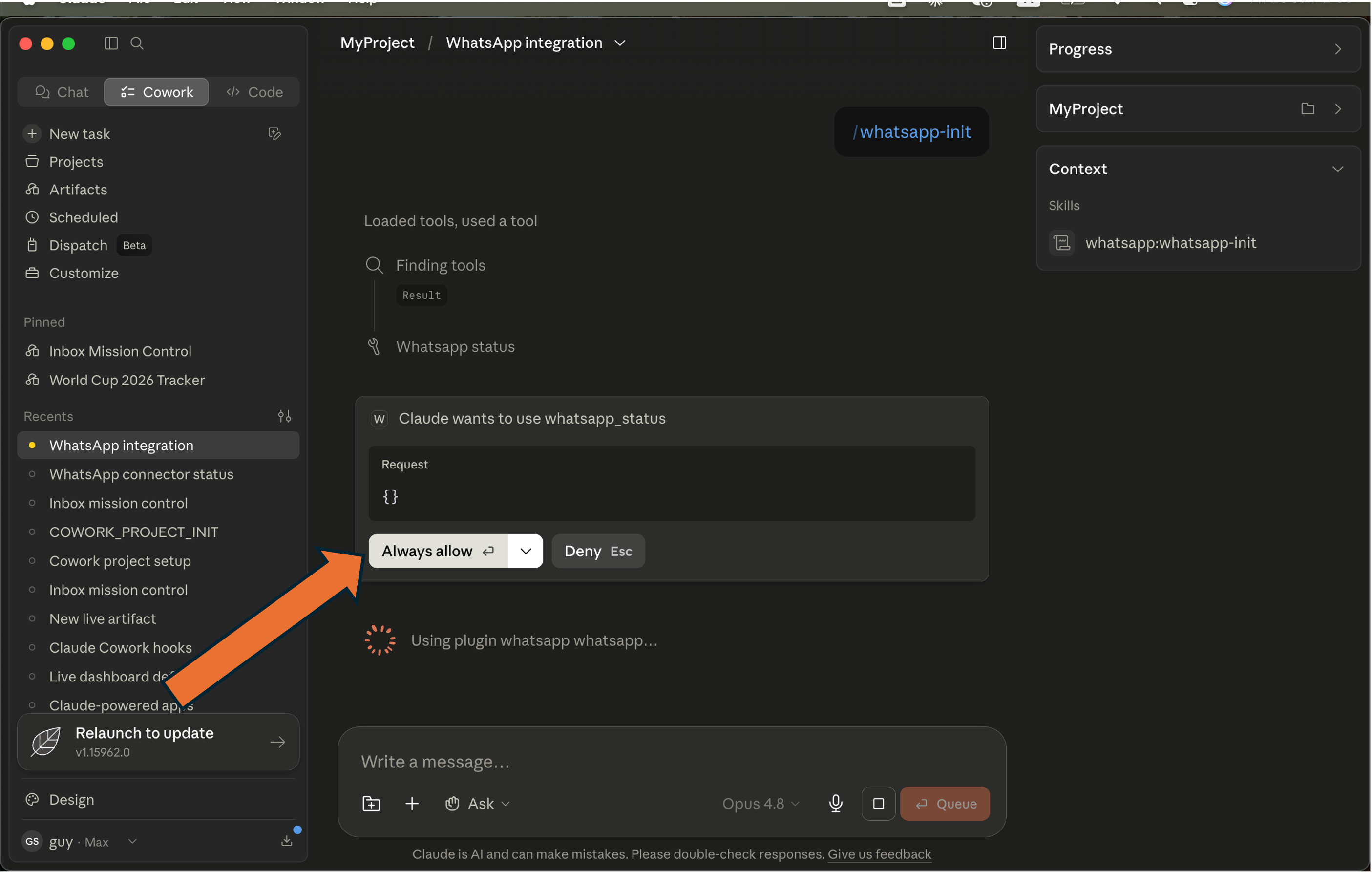
Run whatsapp-initהריצו whatsapp-init

In the project, run the init skill and Always allow the WhatsApp tool. It starts the connection and opens a pairing page.בפרויקט, הריצו את skill האתחול ולחצו Always allow לכלי ה‑WhatsApp. הוא מתחיל את החיבור ופותח דף התאמה.

Hands-onתרגול מעשי

Build your WhatsApp weekly reportבנו את הדוח השבועי שלכם ב‑WhatsApp

Step 5שלב 5

Scan the QR codeסרקו את קוד ה‑QR

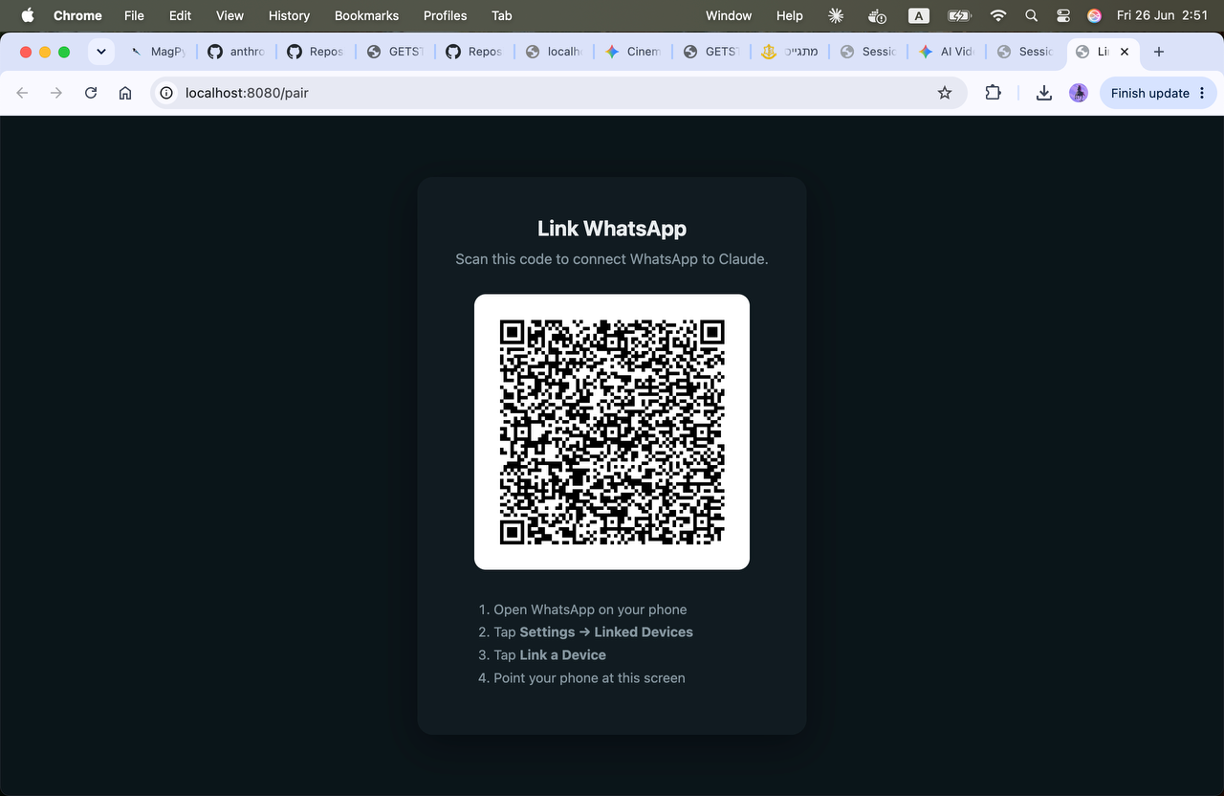
A pairing page opens in your browser with a QR code — the same scan you do for WhatsApp on a laptop.דף התאמה נפתח בדפדפן עם קוד QR — אותה סריקה שאתם עושים ל‑WhatsApp במחשב נייד.

Pairing QR code in the browser

Step 6שלב 6

Link it on your phoneקשרו אותו בטלפון שלכם

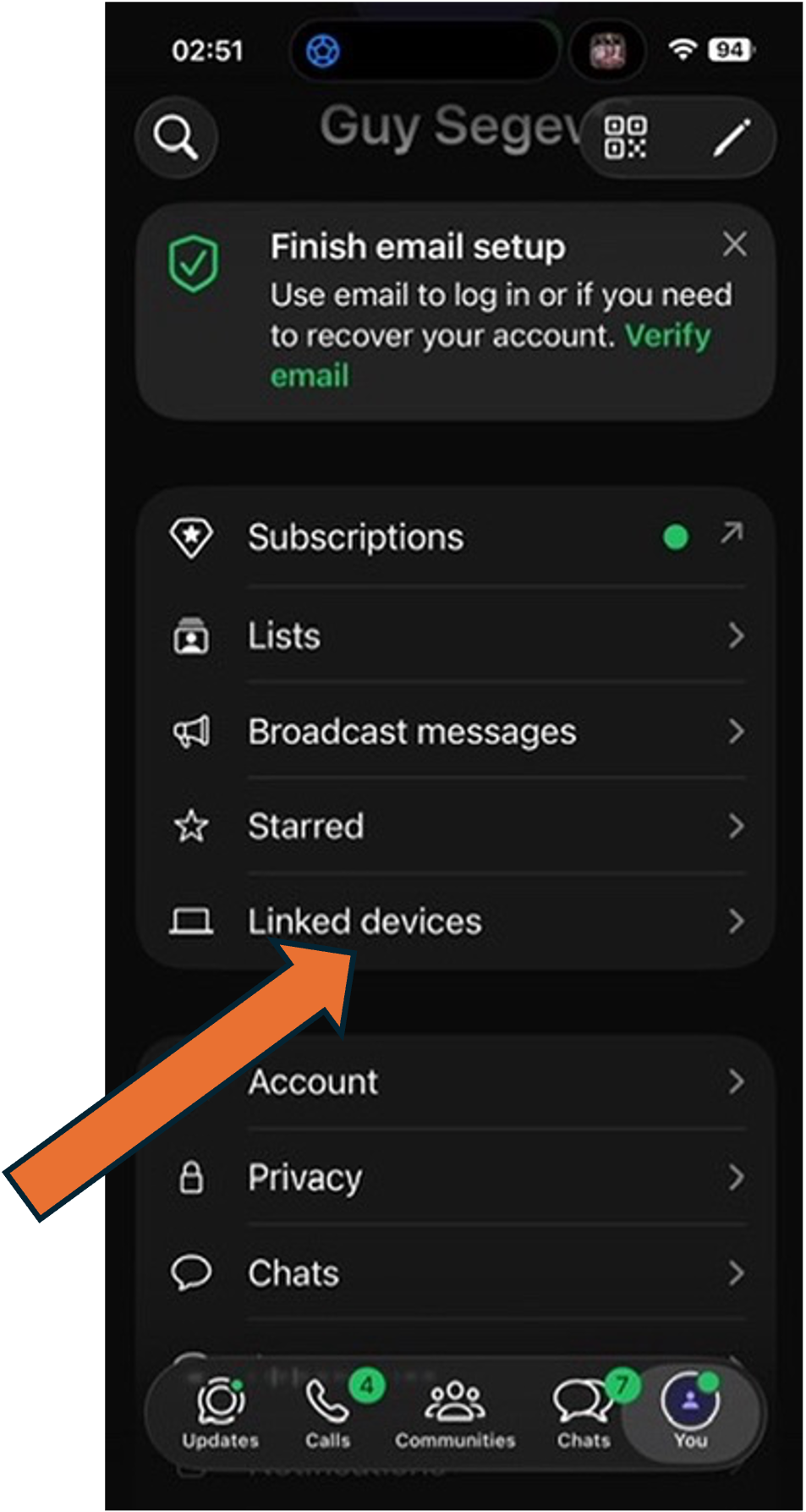
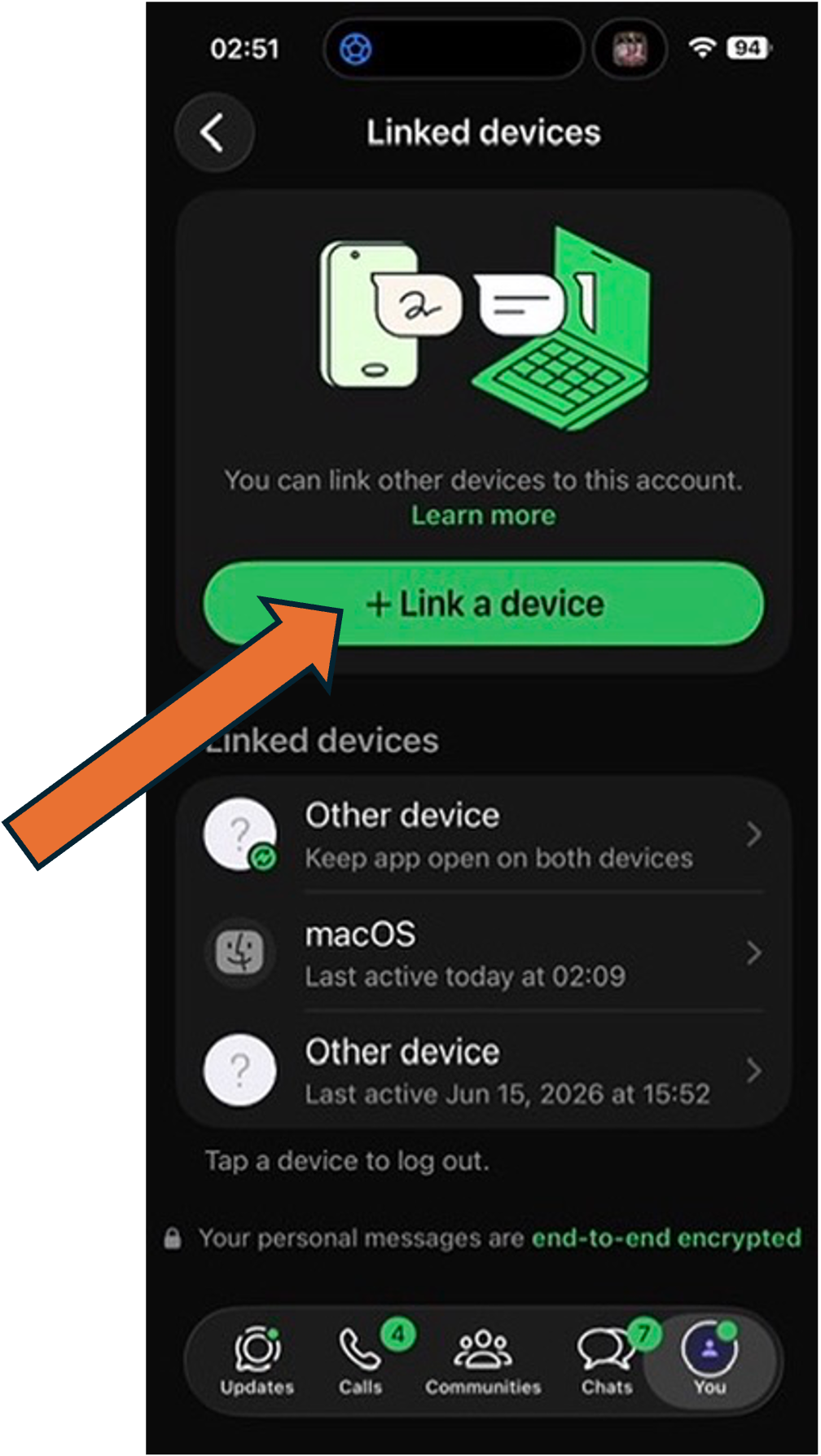
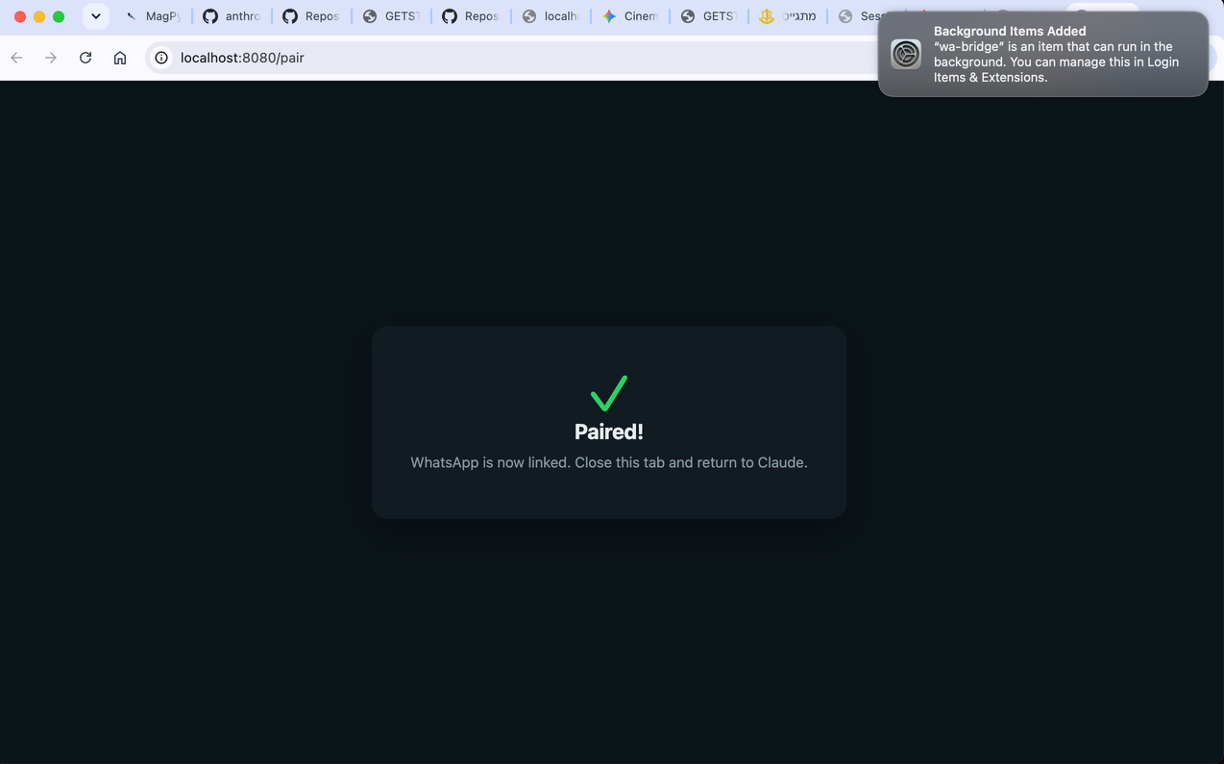
In WhatsApp: Settings → Linked Devices → Link a Device, then point your phone at the QR. You'll see Paired! — pair once; it stays connected.ב‑WhatsApp: Settings → Linked Devices → Link a Device, ואז כוונו את הטלפון לקוד ה‑QR. תראו Paired! — מתאימים פעם אחת; זה נשאר מחובר.

Hands-onתרגול מעשי

Build your WhatsApp weekly reportבנו את הדוח השבועי שלכם ב‑WhatsApp

Step 7שלב 7

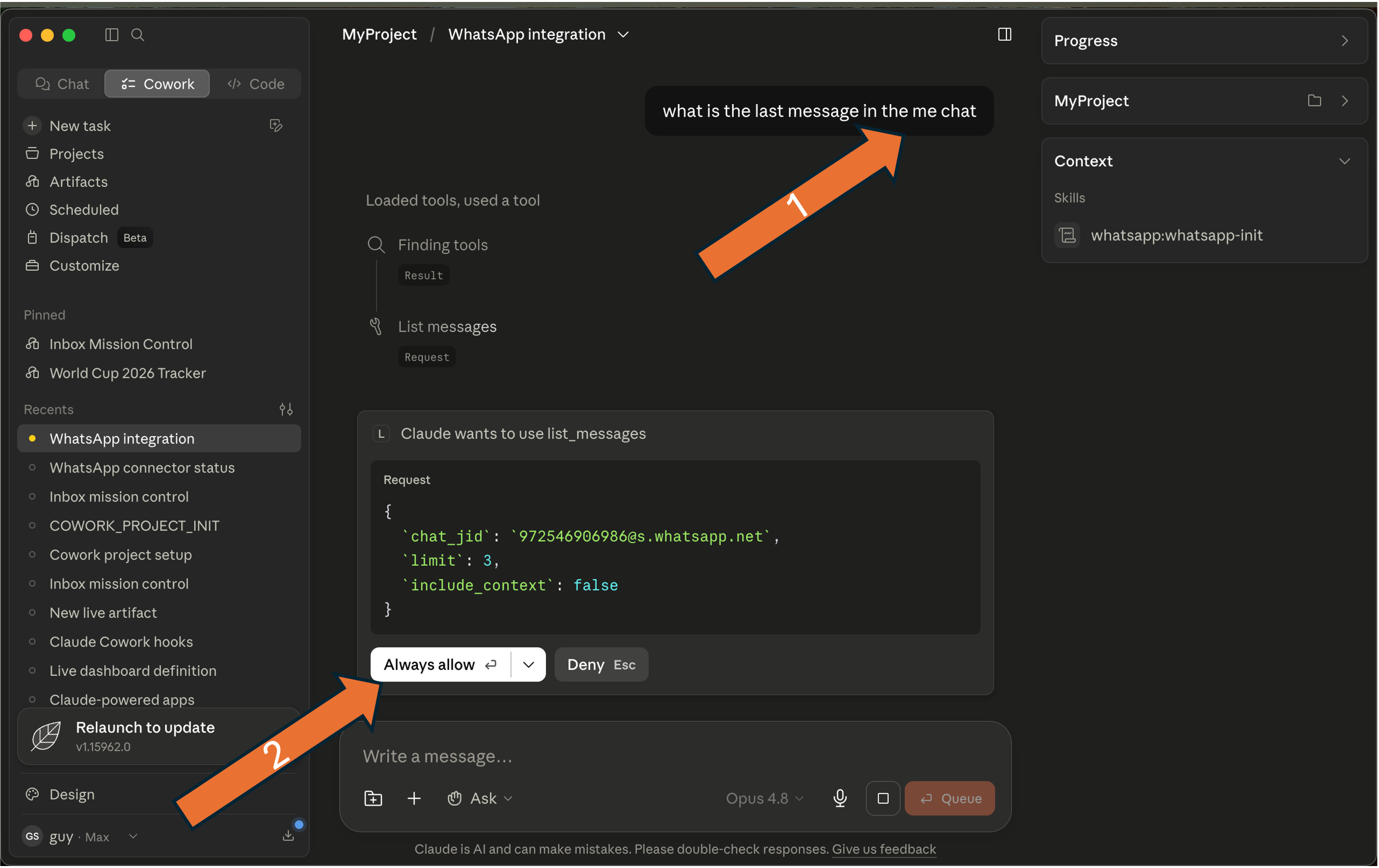
Verify — read one chatודאו — קראו צ'אט אחד

Confirm Claude can read your chats before asking for the full report — ask about a single chat, then Always allow.ודאו ש‑Claude יכול לקרוא את הצ'אטים שלכם לפני שמבקשים את הדוח המלא — שאלו על צ'אט בודד, ואז Always allow.

What is the last message in the [chat name] chat?

Claude reads one chat to verify

Step 8שלב 8

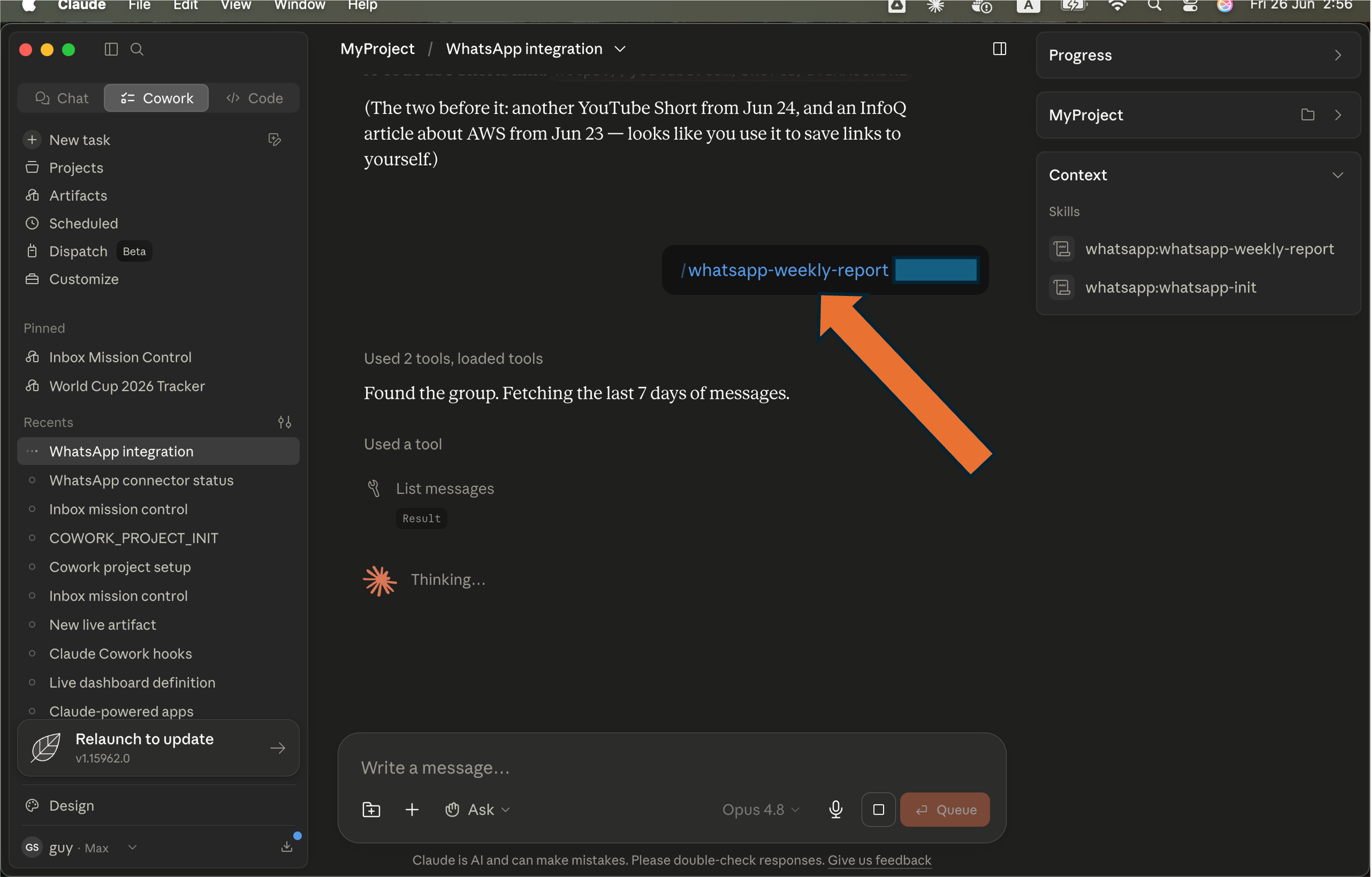
Run whatsapp-weekly-reportהריצו whatsapp-weekly-report

Pick a group or chat and run the skill. Claude reads the last 7 days and tells you what matters.בחרו קבוצה או צ'אט והריצו את ה‑skill. Claude קורא את 7 הימים האחרונים ואומר לכם מה חשוב.

Run the weekly-report skill

Hands-onתרגול מעשי

Build your WhatsApp weekly reportבנו את הדוח השבועי שלכם ב‑WhatsApp

Step 9שלב 9

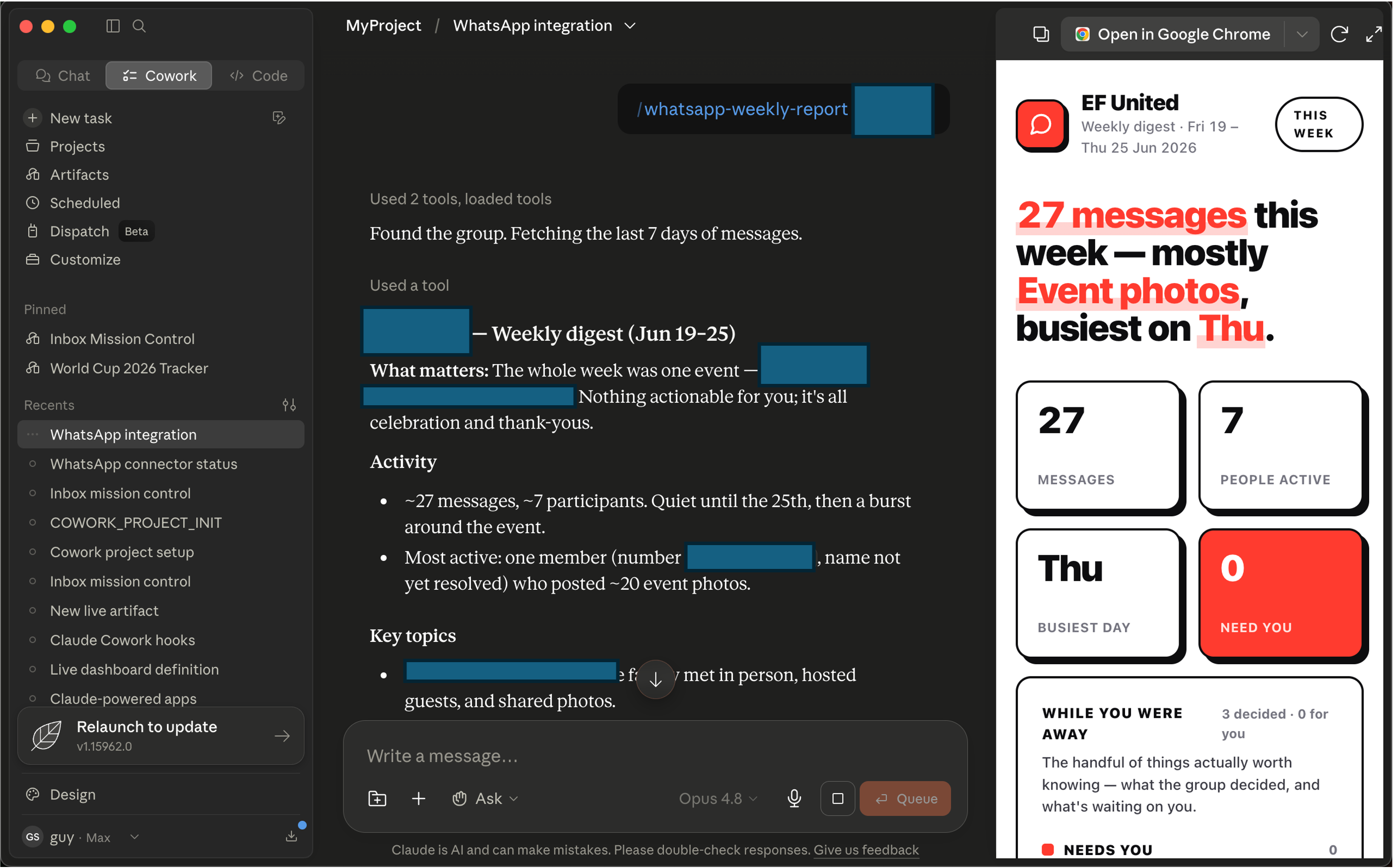
Browse the reportעיינו בדוח

Open the digest — who's waiting, what's still open, what you can close.פתחו את התקציר — מי ממתין, מה עדיין פתוח, מה אפשר לסגור.

The generated weekly digest
Takeawayהשורה התחתונה

Your week of WhatsApp, triaged into what needs a reply.שבוע ה‑WhatsApp שלכם, ממוין למה שדורש מענה.

Before next timeלפני הפעם הבאה

Home assignmentמשימת בית

  • Finish your setup: brand voice and update format saved as a custom instruction.השלימו את ההקמה: קול המותג ופורמט העדכון שמורים כהוראה מותאמת אישית.
  • Produce your best weekly-update opening, in your saved voice.הפיקו את פתיחת העדכון השבועי הטובה ביותר שלכם, בקול השמור שלכם.
  • Turn on one skill or connector at home, so it's live for Session 2.הדליקו skill או connector אחד בבית, כדי שיהיה פעיל למפגש 2.
  • Bring it to Session 2 — we open with the first entries.הביאו אותו למפגש 2 — נפתח עם ההגשות הראשונות.
Takeawayהשורה התחתונה

Turn on one skill or connector before Session 2 so you're ready to use it.הדליקו skill או connector אחד לפני מפגש 2 כדי שתהיו מוכנים להשתמש בו.

The running contestהתחרות המתמשכת

Best weekly marketing updateעדכון השיווק השבועי הטוב ביותר

  • Each session adds a piece. Today's: your brand voice + your weekly-update opening.כל מפגש מוסיף חלק. של היום: קול המותג שלכם + פתיחת העדכון השבועי שלכם.
  • We open each session with a quick showcase and a spotlight winner.אנחנו פותחים כל מפגש בתצוגה קצרה וזוכה מצטיין.
  • At the end, the pieces combine — a grand winner judged on the finished update.בסוף, החלקים מתחברים — זוכה גדול שנשפט על העדכון המוגמר.
  • Judged on: clarity · on-brand voice · would you actually send it?נשפט לפי: בהירות · קול נאמן למותג · האם באמת הייתם שולחים את זה?
Takeawayהשורה התחתונה

Write updates you'd actually send — that's what wins.כתבו עדכונים שבאמת הייתם שולחים — זה מה שמנצח.

Open floorהרצפה פתוחה

Questions?שאלות?

Next sessionהמפגש הבא

Content, Research & Your First Agentתוכן, מחקר, והסוכן הראשון שלכם

Today you set Claude up. Next, you put your own material in front of it — and turn today's skills into an agent that runs itself.היום הקמתם את Claude. בפעם הבאה, אתם שמים את החומר שלכם מולו — והופכים את כישורי היום לסוכן שרץ בעצמו.

  • Draft your update from your own documents — each claim cited to its source.נסחו את העדכון שלכם מהמסמכים שלכם — כל טענה מצוטטת למקור שלה.
  • Research one item with live sources you can check.חקרו פריט אחד עם מקורות חיים שאתם יכולים לבדוק.
  • Make its first visual yourself.צרו את הויזואל הראשון בעצמכם.
  • Turn today's report into your first automated agent — it runs on a schedule, not on demand.הפכו את הדוח של היום לסוכן האוטומטי הראשון שלכם — הוא רץ לפי לוח זמנים, לא לפי דרישה.
Takeawayהשורה התחתונה

Next week your tools start running themselves.בשבוע הבא הכלים שלכם מתחילים לרוץ בעצמם.